Products and Demand
Back in Stock organises customer interest around exact Commerce variants. This lets you answer practical questions such as which items have the most customers waiting, whether demand belongs to a particular size or colour, and which product is associated with a customer’s email address.
Reading the Overview
The Overview shows how many customers are currently waiting for each product variant, alongside the latest subscription and notification changes across the store. Products with the most waiting customers appear first.
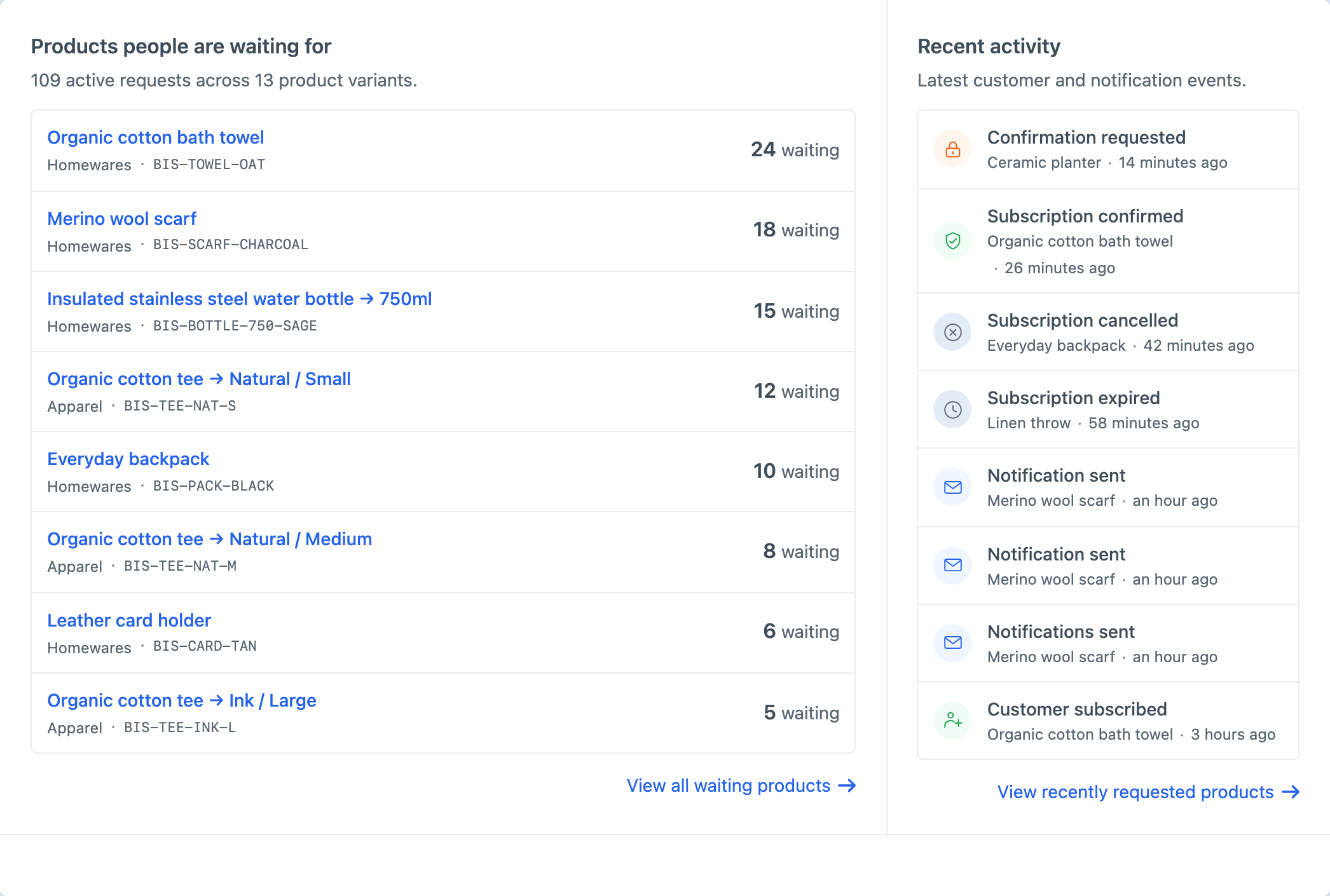
The notification banner appears only when a delivery needs attention. A failed notification means the mailer did not accept the message. An unconfirmed notification means the plugin could not prove whether the mailer accepted it, so it is retained for review rather than retried automatically and potentially sent twice.
Use the Overview to spot demand or delivery problems, then move into Products when you need the complete list or the history for one variant.
Finding a Product or Customer
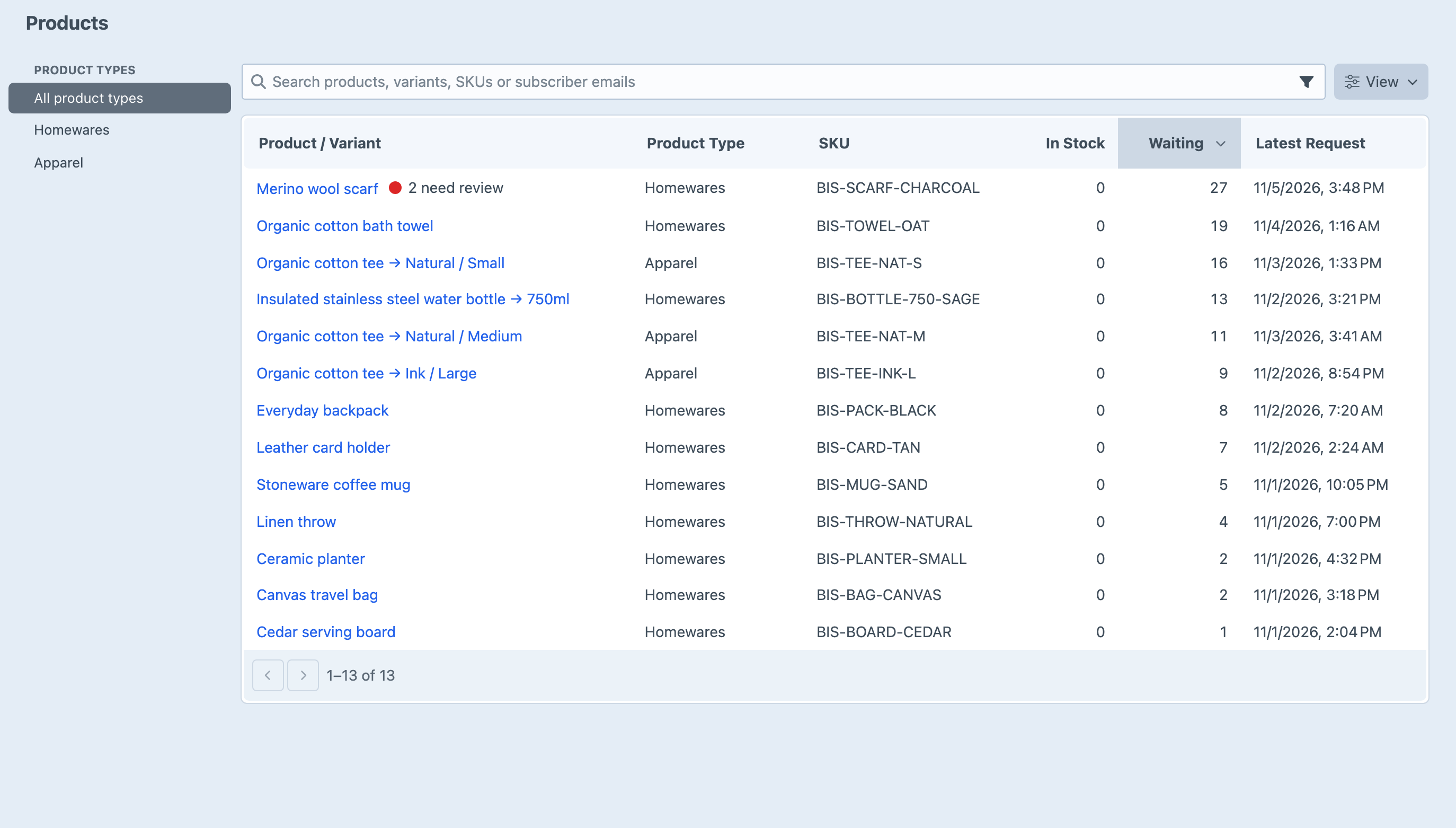
The Products screen contains variants with current or past Back in Stock information. It is not a second copy of the full Commerce catalogue: a variant appears because it has subscriptions or notification history.
You can filter the list by Commerce product type, sort any column, or search by product title, variant title, SKU, or subscriber email. Searching by email is useful when a customer asks whether they are still waiting for an item. Searching a product title shows each relevant variant separately, making differences such as Natural / Small and Natural / Medium visible.
In Stock shows the variant’s current quantity, read from Commerce inventory or the configured stockFieldHandle. Variants with notifications needing review from the last 30 days show how many beside their title, and open straight to the affected notifications.
Use Filters to narrow the list to current or past demand, or notifications needing review. View lets you change the sort direction and choose which columns to show and in what order. Search and filters apply to the full list, including records on other pages. View preferences are remembered for your account in this browser on Products and Subscriptions; subscription preferences apply across all products. Sorting specified in a link takes priority. Choose Use defaults to clear your saved view preferences.
Inspecting an Exact Variant
Open a product and variant row to see its Back in Stock history. The details sidebar identifies the Commerce product, variant title when applicable, product type, SKU, and current stock. The main content is divided into two views:
- Subscriptions shows the customers who have asked to be notified and the current state of each request.
- Activity shows subscription changes and restock-notification work in chronological order.
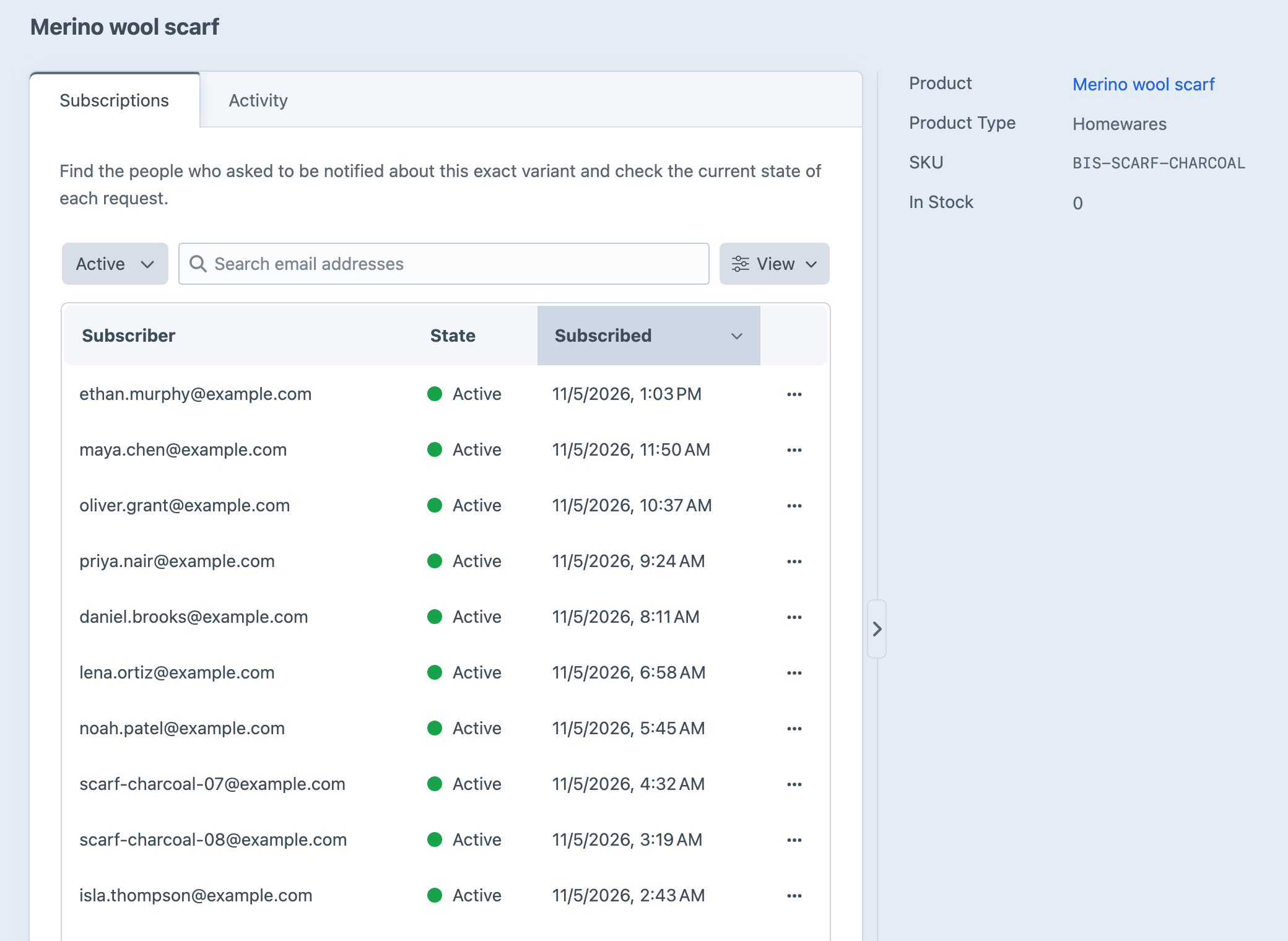
In Subscriptions, use the State dropdown beside search to choose a request state, or choose All states to see all retained states. Admins and users with the relevant permission can cancel a subscription or erase a subscriber’s data from the row’s actions menu; both ask for confirmation first. Activity shows subscription changes and notification sending in chronological order, with the subscriber or sending summary for each event and pagination below the table. When a link opens Activity filtered, such as Review notifications on the Overview, a note above the table says what is shown, with a link back to all activity.
The Commerce product link in the details sidebar opens the underlying product when you need to inspect or change its catalogue and inventory information.
Historical rows remain useful after the current waiting count reaches zero. They explain what happened during an earlier restock and support customer enquiries without presenting past interest as current demand. Completed history is removed according to the Completed History Retention setting.