Usage
Smith adds these functions to the settings 'cog' icon, in the top-right of each matrix block.
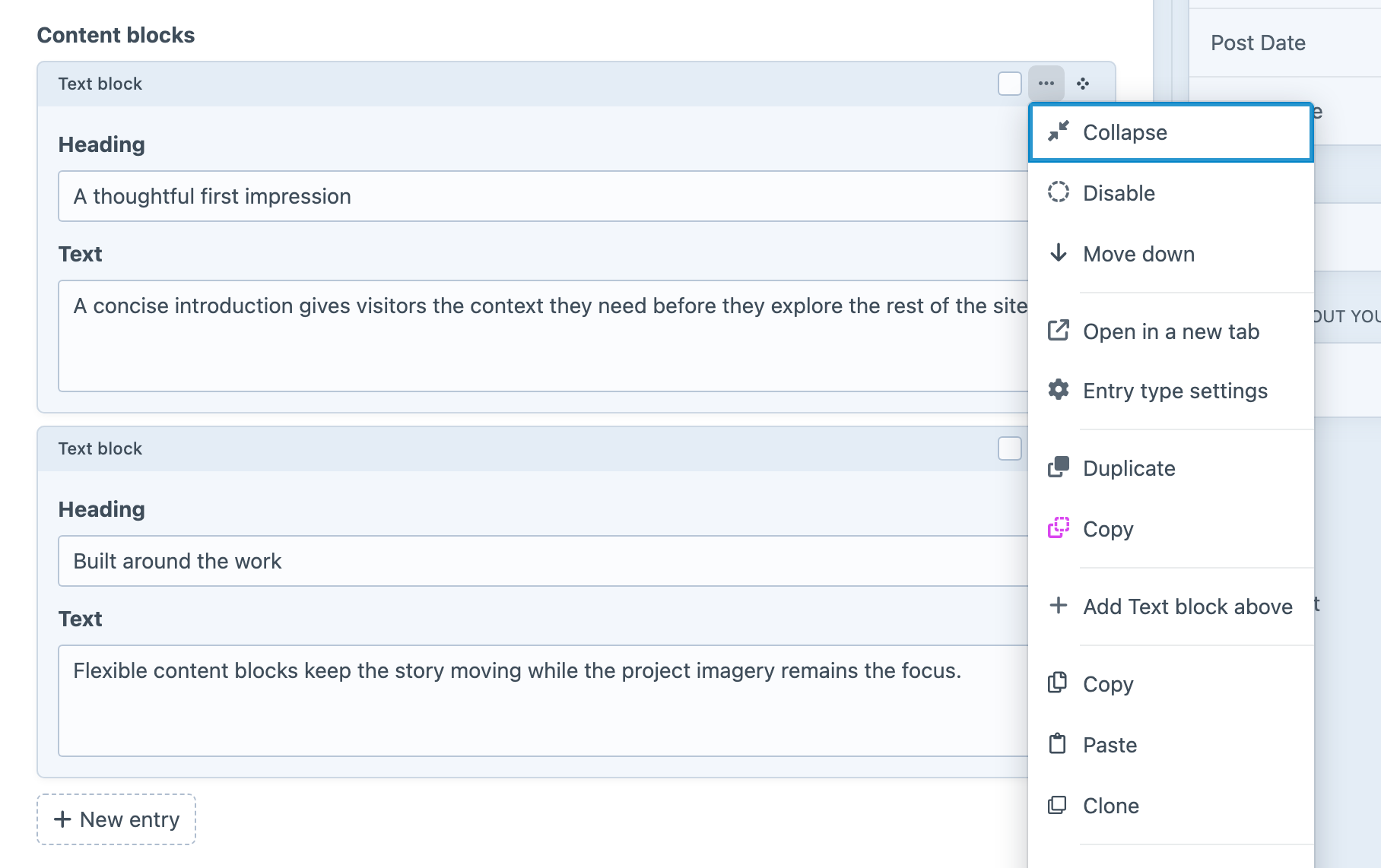
Clone
To clone a block, select Clone in the settings menu for a block. This will add a new block at the end of your existing blocks, with the content duplicated. You can only clone a single block at a time.
Copy
To copy a block, select Copy in the settings menu for a block. You can also select multiple blocks to be copied using the checkboxes in the top-left of any block (next to the title). This will save blocks to local storage, for pasting later.
Paste
To paste a single block, or multiple blocks, select Paste in the settings menu for a block. This will paste all copied blocks at the end of your existing blocks.
You can only paste from blocks that were copied from the same Matrix field. However, this will work across entries and sections. You cannot copy blocks from one matrix field to another (the blocks will most likely be different).
Reuse Content Between Entries
For example, open an entry with a Matrix field containing a heading and text block. Copy the block, open another entry using that same field, and paste it. Check the copied text, its position and any asset or entry relations, then save the destination entry.
Cloning is useful when the copy belongs on the same entry. Copy and paste is useful when it belongs elsewhere. A pasted block is separate content: edit its text on the destination entry and confirm the source still has its original text. Use the same Matrix field on both entries; a different field with a similar label is not a compatible destination.