

Every online store has its share of carts left with items in them and an email address attached, and nobody coming back for them. A friendly reminder with a link straight back to the cart is often all it takes, and that's what Abandoned Cart has always done for Craft Commerce.
We welcomed Abandoned Cart to Verbb in 2024, when its original developer, Myles Beardsmore, handed it over as part of our free Craft 5 migration service. For version 5, we've rebuilt it from the ground up into a complete recovery tool, with sequences of emails you write in the control panel, a record of what happened to every cart, and reporting on what recovery actually earns.
Switching It On
A fresh install comes with one sequence, All Other Carts, with three emails already written in the bundled design, so there are no templates to build before your first send. The first goes an hour after a cart goes quiet, then another a day later and a third two days after that. It starts switched off so you can read the emails first, and until then the Overview shows a four-step checklist next to how much has been left sitting in carts lately (a gentle, slightly pointed reminder).
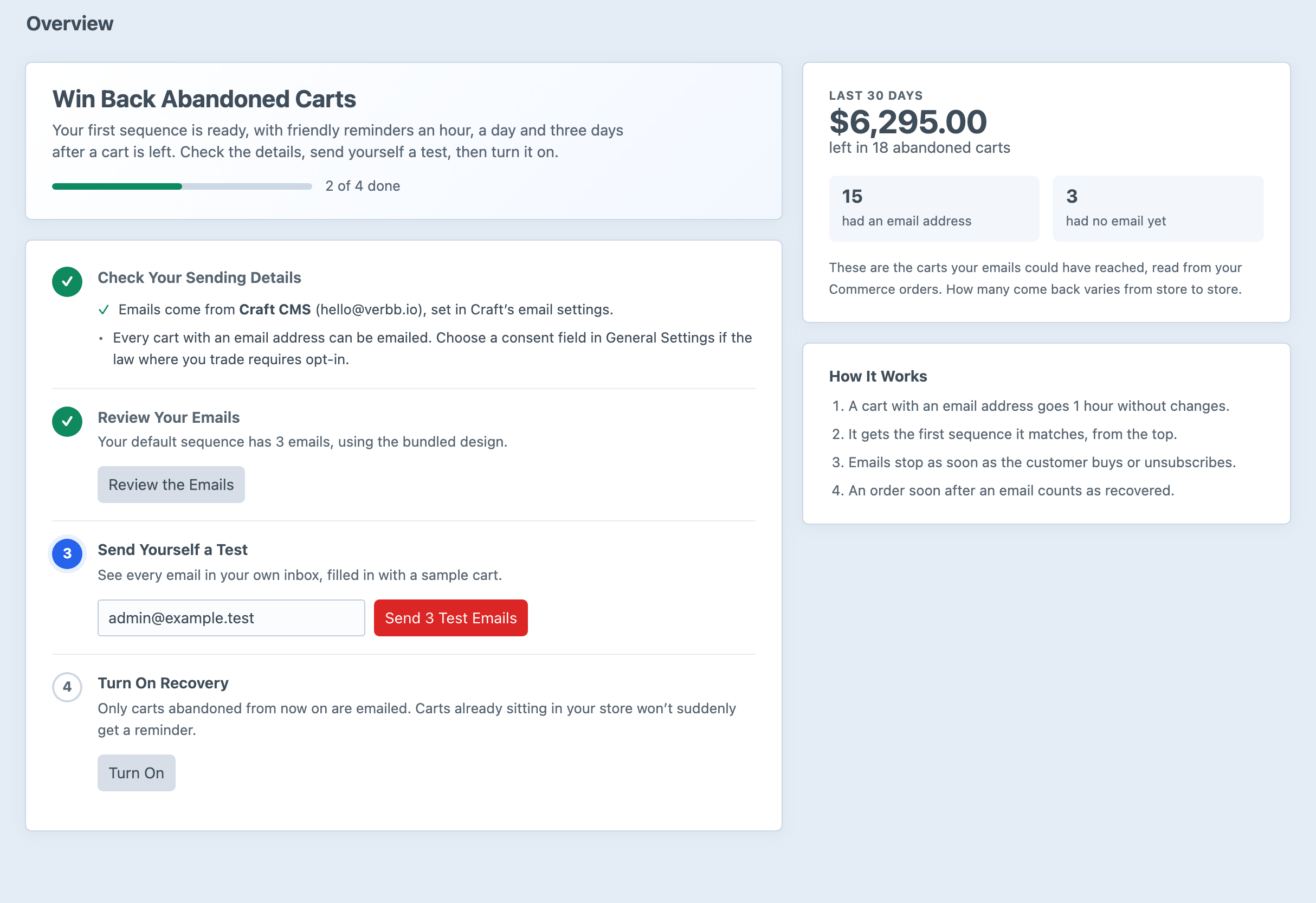
Switching a sequence on only emails carts abandoned from then on, so customers who wandered off three weeks ago won't suddenly hear from you. Create Your First Sequence walks through the whole thing, right up to watching it email a cart of your own.
Sequences for Different Kinds of Carts
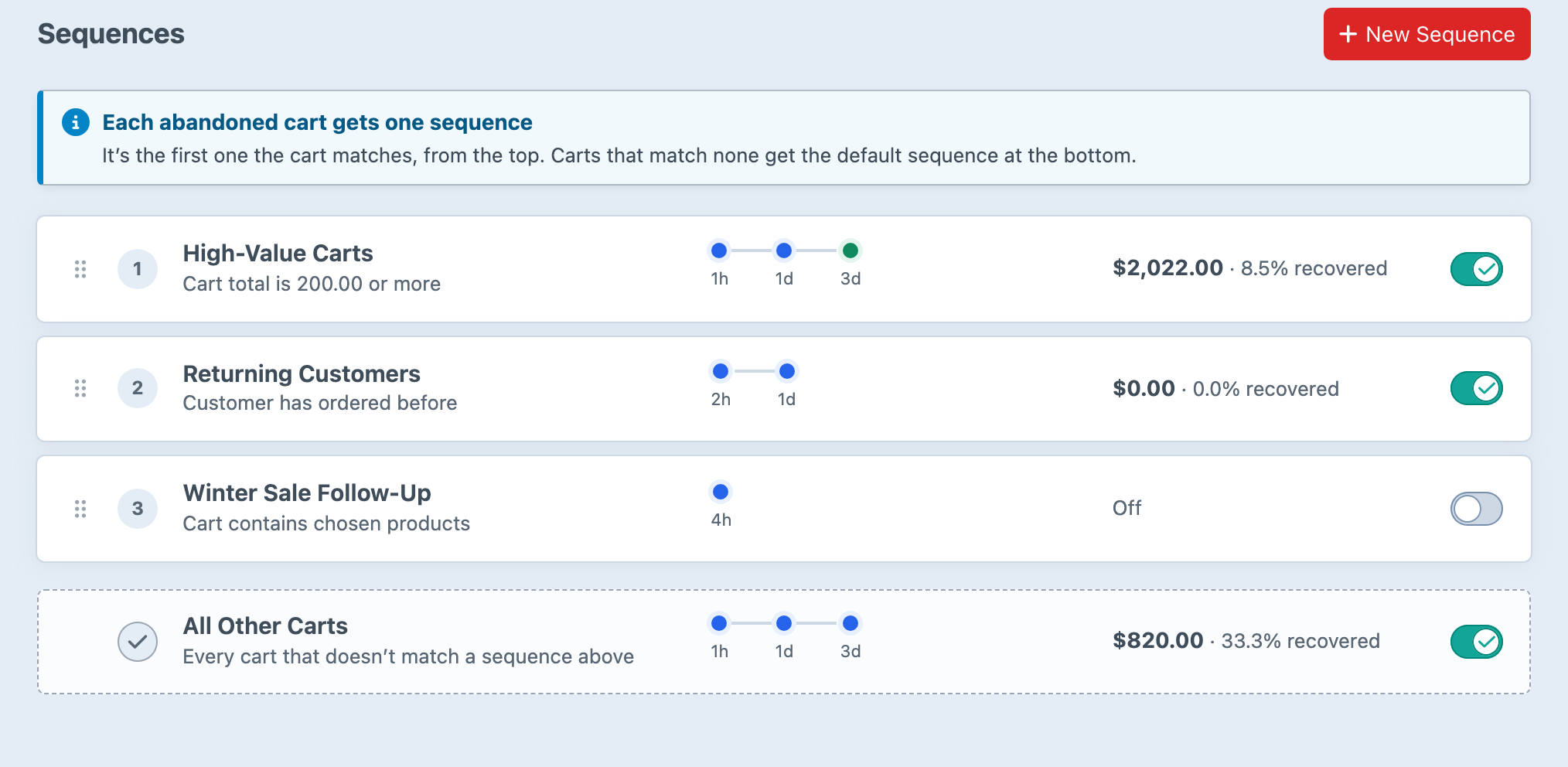
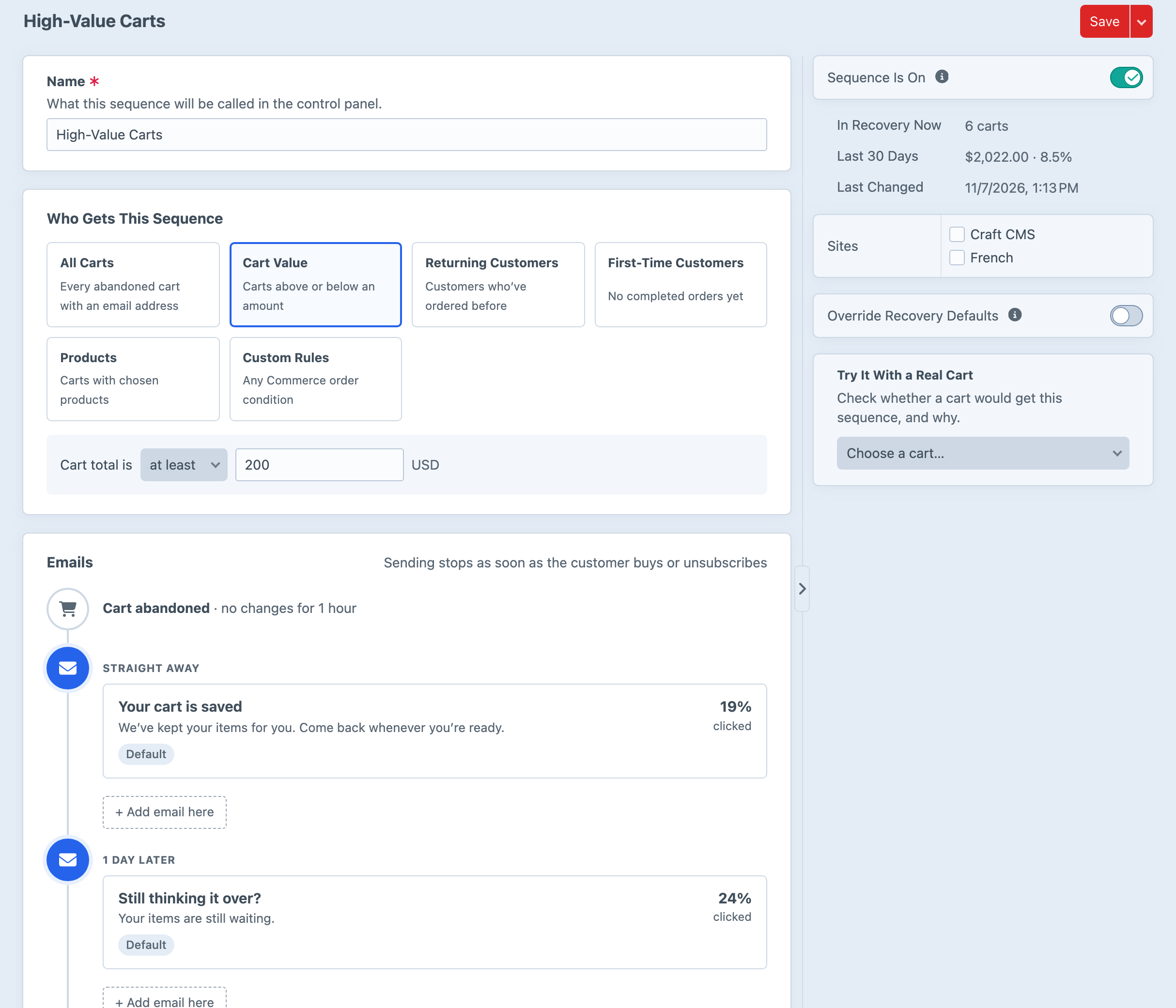
One series of reminders suits plenty of stores. Others want a more personal series for big carts, a gentler reminder for loyal customers, or a discount only for first-time buyers. So instead of a fixed first and second reminder, Abandoned Cart 5 has sequences of up to five emails each, with whatever timing suits your store, and you can have as many sequences as you like.
Each sequence has an audience, chosen from cart value, returning customers, first-time customers, particular products, or Commerce's own order condition builder for anything else, such as a shipping method or a custom field on the order. Multi-site stores can limit a sequence to particular sites, which is handy when each language needs its own wording.
When a cart is abandoned, Abandoned Cart checks it against your sequences from the top down, and the first match wins. A returning customer who leaves $250 behind gets High-Value Carts if it sits above Returning Customers. Anything left over falls through to All Other Carts at the bottom, and you can drag the list to change the order.
Not sure a sequence will catch the carts you meant it to? Try It With a Real Cart checks one of your store's carts against it, tells you why it matches or doesn't, and warns you if a sequence higher up would grab it first.
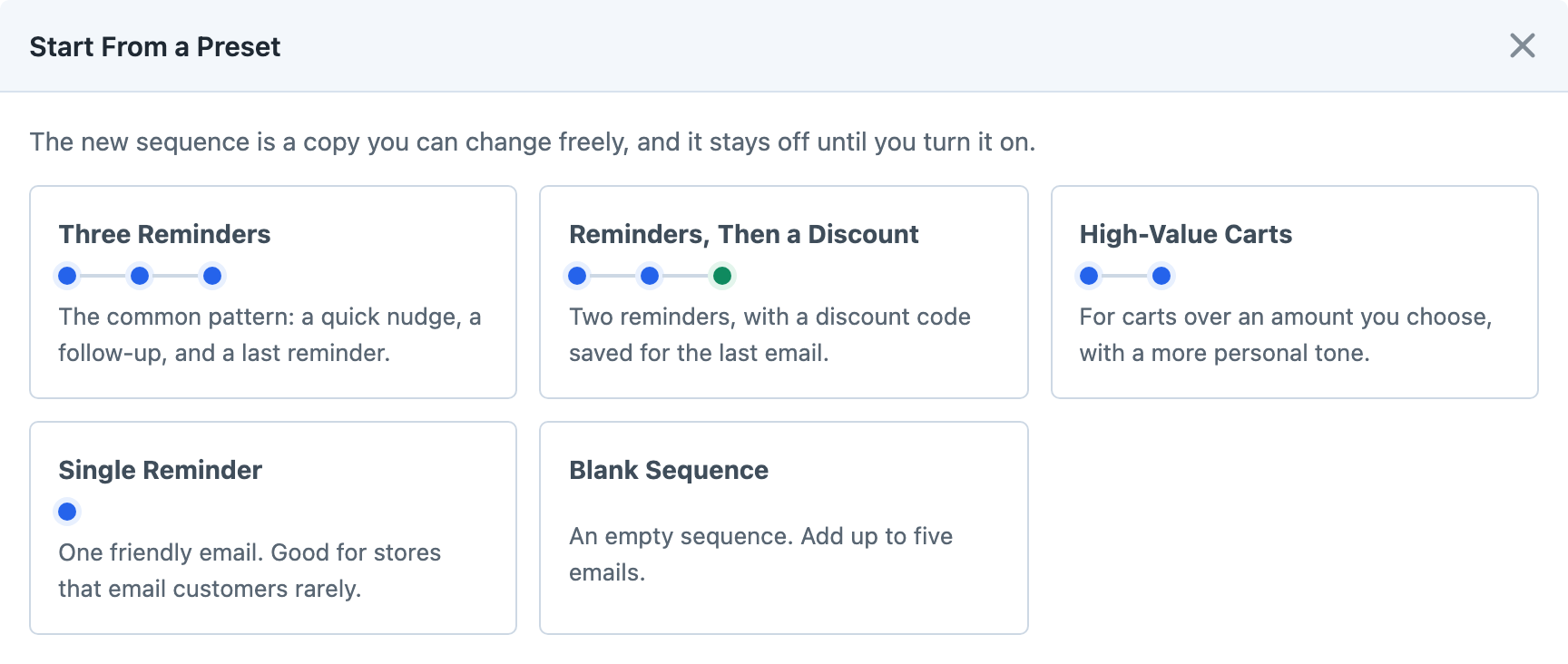
New sequences can start from a preset, such as Three Reminders, Reminders, Then a Discount or Single Reminder, or from a blank slate. Presets live under Settings → Sequence Presets in project config, so admins can change them to suit your team, and they're deployed with the rest of your project config. Developers can add, change or remove them with the registerPresets event, too.
We've kept sequences to a straight line, with no branching flow builder. Shopify's abandoned checkout emails and Klaviyo's flows were our reference points while we designed them, and both cover far more ground than cart recovery. Abandoned Cart is native to Craft Commerce, so it sticks to recovering carts and doing that well, with your products, customers and Commerce's order conditions right there in the control panel. The Sequences guide covers audiences, timing and presets in detail.
Writing the Emails
Each email sits on the sequence's timeline, along with how many people click it.
Open one to write its subject, preview text, heading, message and button label beside a live preview that updates as you type. Tokens like {firstName} and {cartTotal} fill in each customer's details, and you can swap the sample cart for a real one from your store to see exactly what a customer would get, then Send Test to see it in your own inbox.
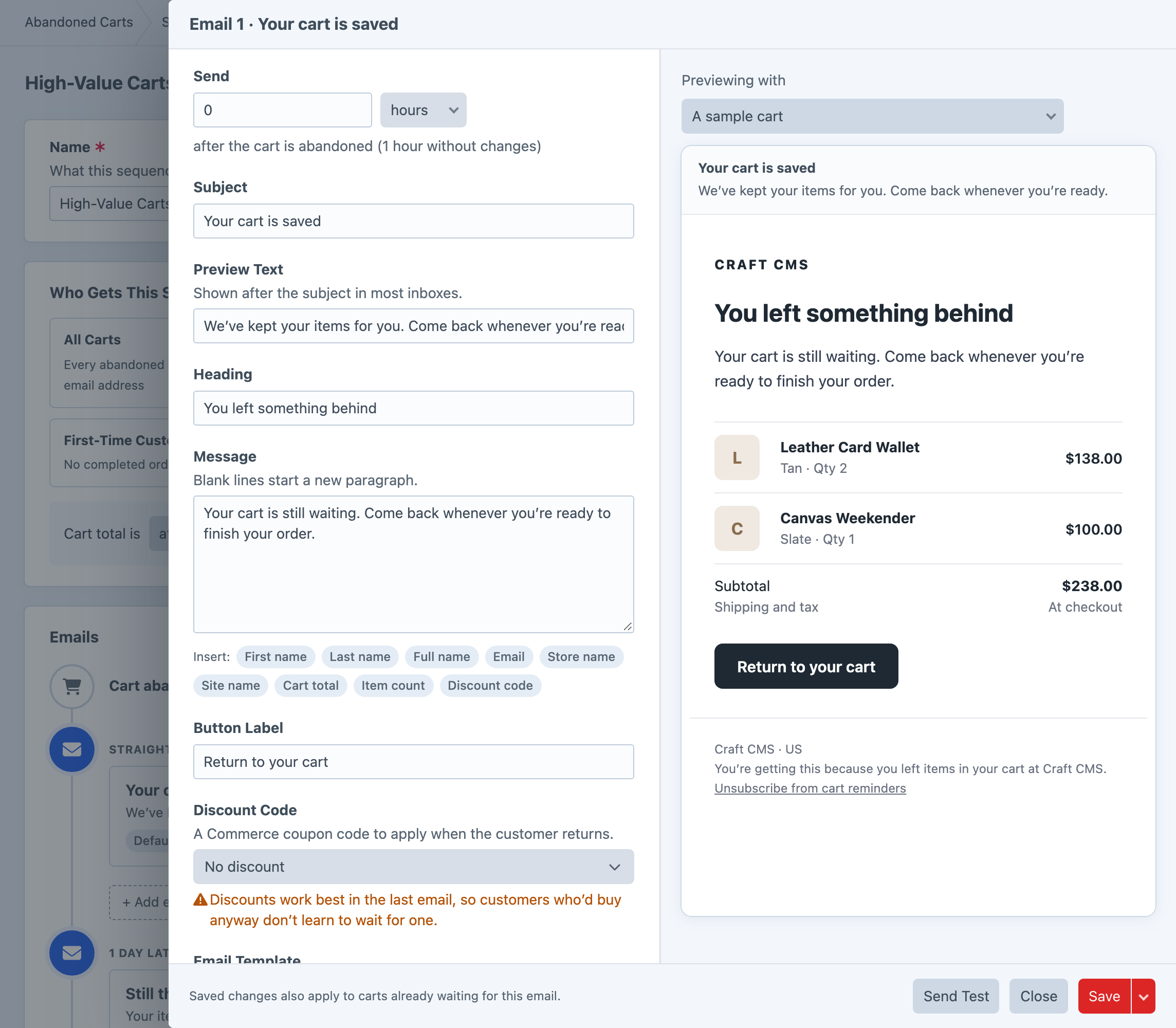
Any email can apply one of your Commerce coupon codes when the customer clicks through. Our advice is to save it for the last email, so customers who were coming back anyway don't learn to wait for a discount. The bundled design is responsive and needs no template files, and when your brand needs more, you can point an email template at your own Twig. The Emails and Email Templates guide and Custom Email Templates cover both.
Every Cart, Including the Ones Nobody Emailed
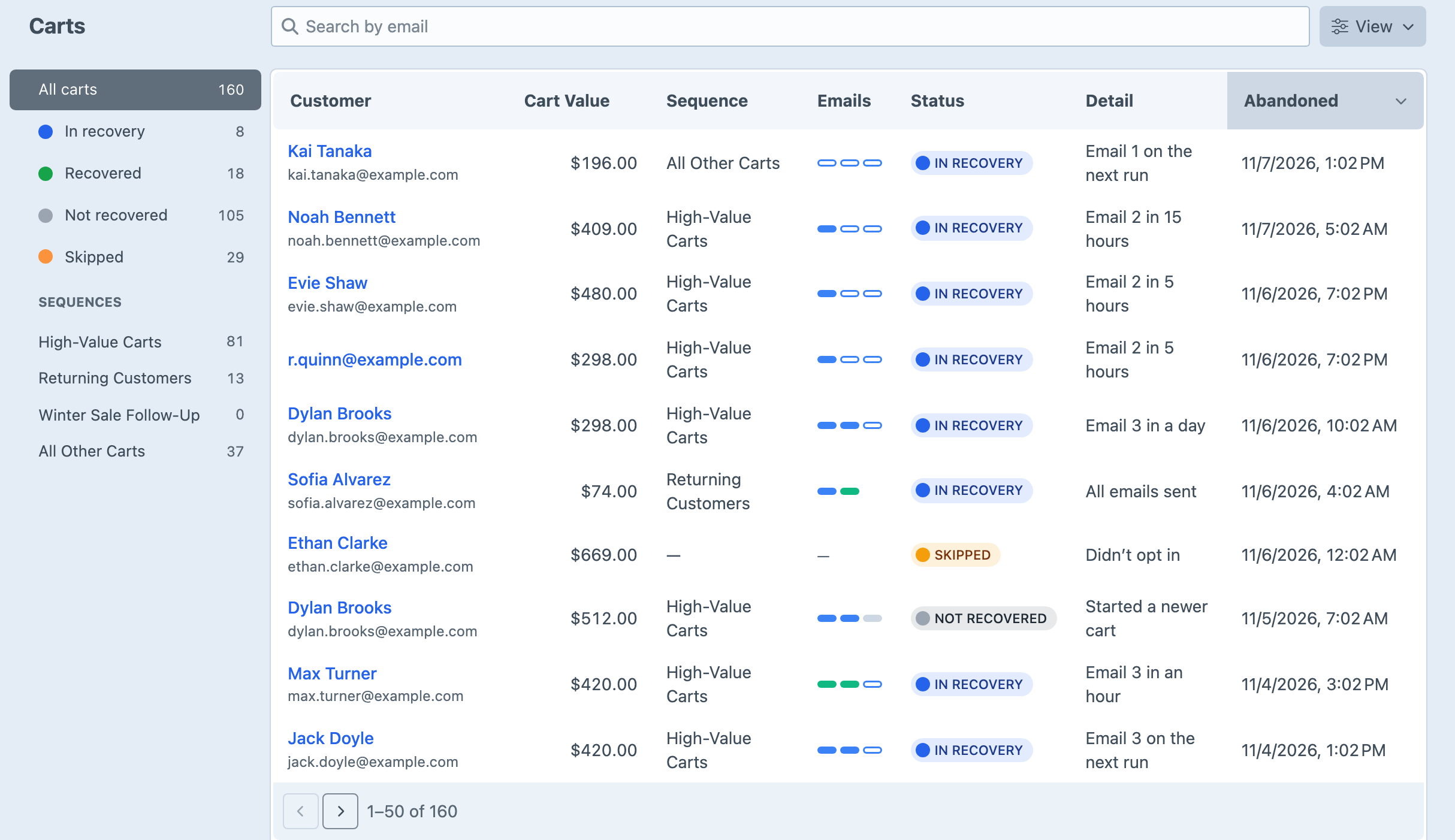
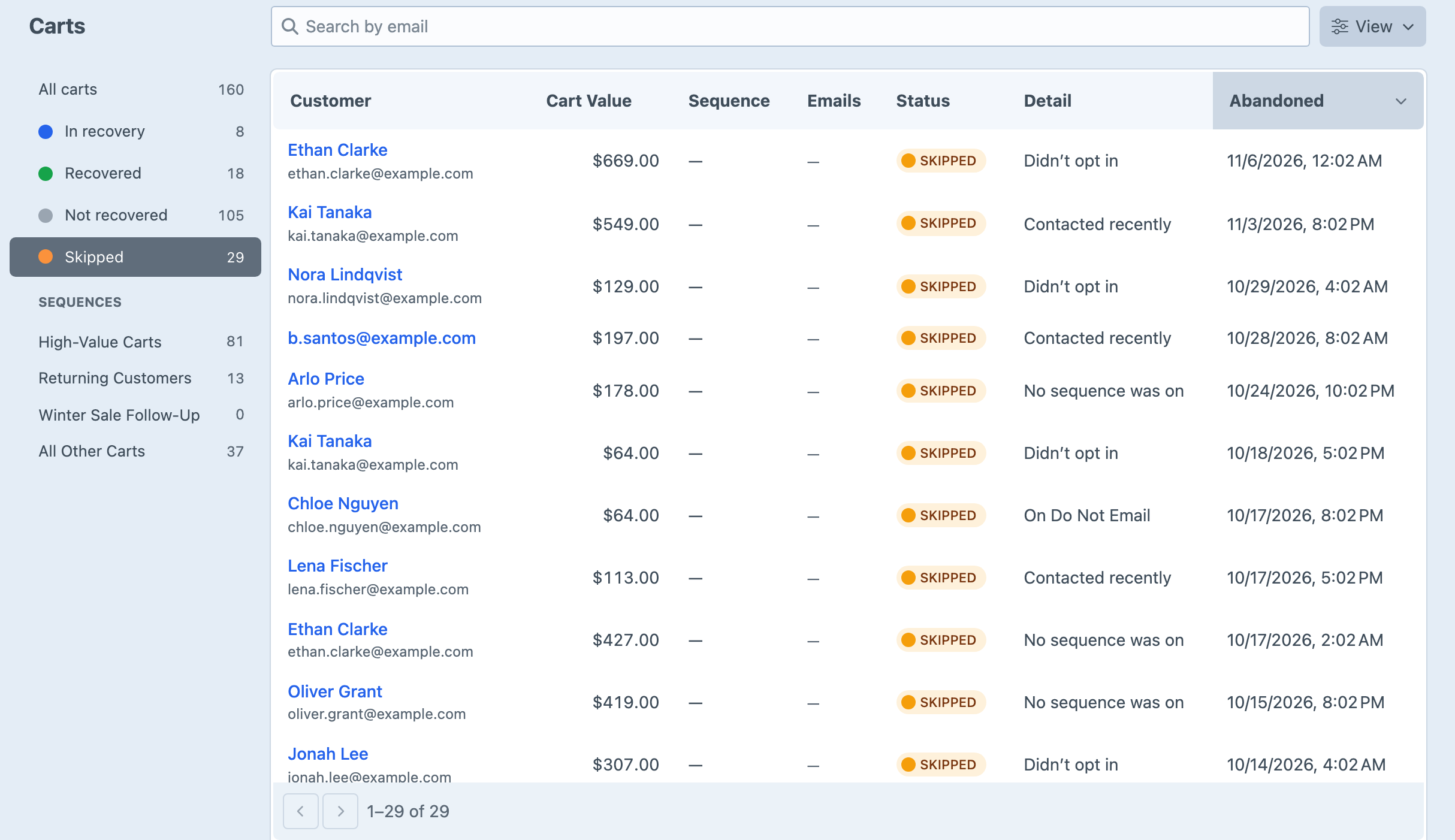
Carts lists every abandoned cart, with sources down the side for carts in recovery, recovered, not recovered and skipped, plus one for each sequence. Search by email when someone asks why they did (or didn't) get a reminder.
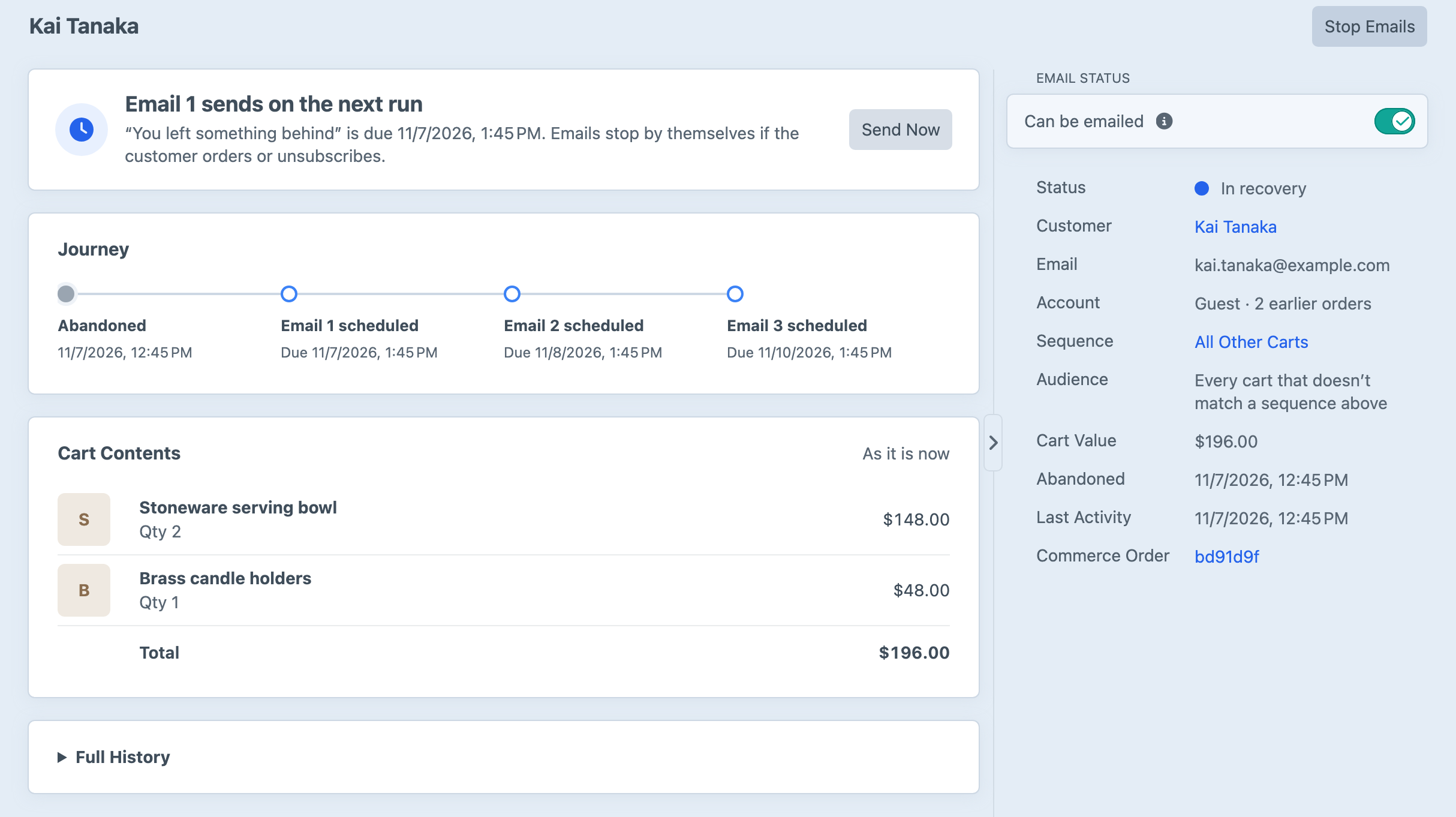
Each cart's page shows what's happened so far and what's coming next, with the cart's contents, sequence and customer beside it. If a customer phones in, Send Now skips the wait and Stop Emails leaves them in peace.
Carts that were never emailed are kept too, each with its reason, such as an unsubscribe, a missing opt-in, a recent email about another cart, or no sequence switched on. That makes it much easier to see which setting to adjust. The Carts guide lists every reason and what each action does.
Customers and Their Inboxes
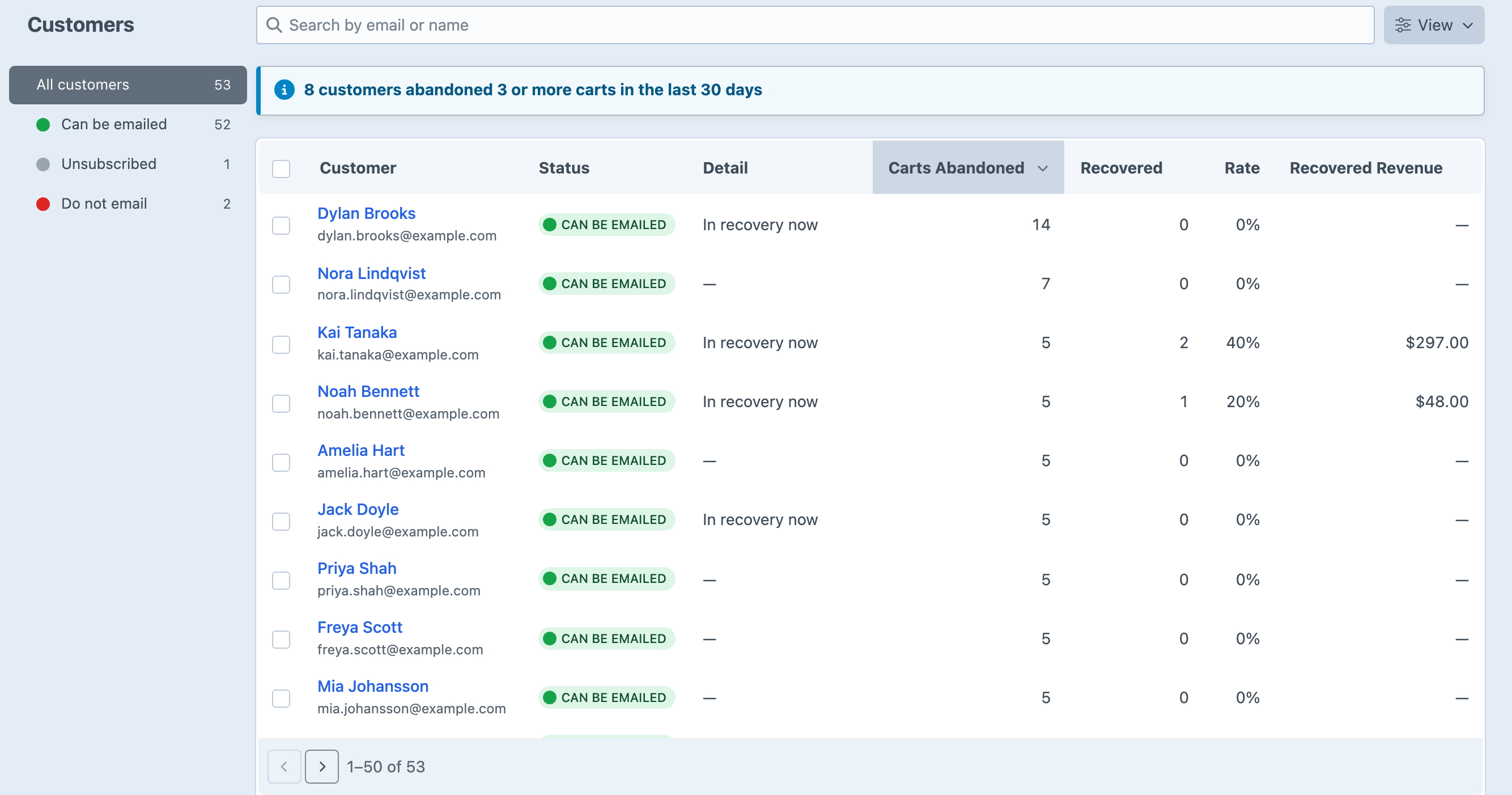
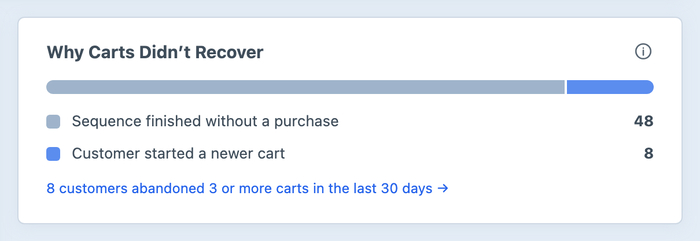
Abandoned Cart 5 also keeps track of consent and how often each customer is emailed. Customers lists everyone who's left a cart behind and whether you can email them. Anyone who abandons three or more carts in 30 days is called out, because some people use a cart as a wishlist and don't need a fresh run of emails every time.
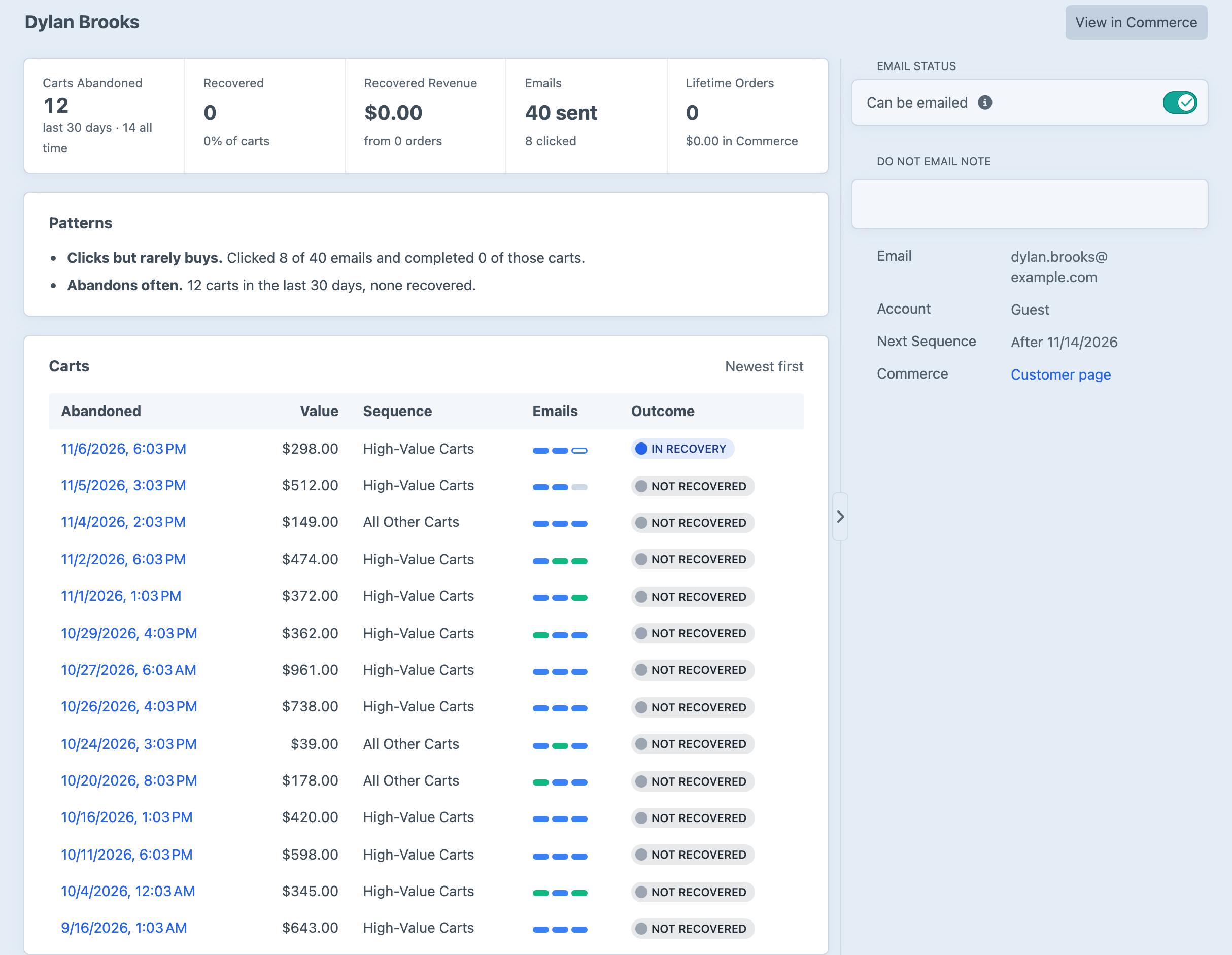
Each customer's page pulls their carts together, with what they've recovered and any patterns worth knowing, like someone who clicks but rarely buys. When a customer asks you to stop, switch off Can be emailed and leave a note so the rest of the team knows why.
Some addresses should never get a reminder at all, such as your own staff placing test orders, or shopping bots that fill carts as they crawl your store. Add their domains to Blocked Domains and those carts are skipped and left out of the Overview's numbers, so they don't skew your results.
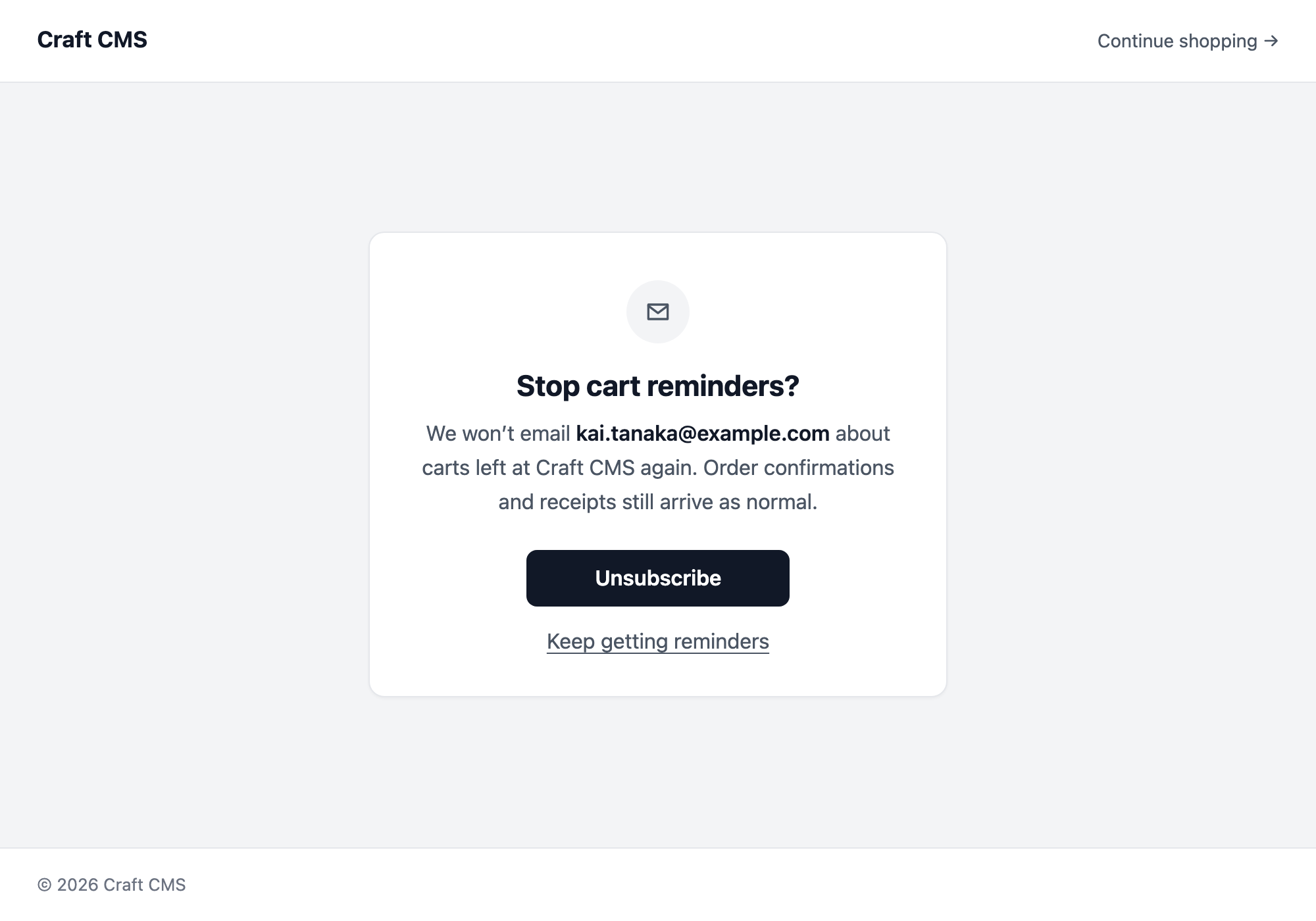
Every email also gets an unsubscribe link and one-click List-Unsubscribe headers, which mail apps such as Gmail show beside the sender. Following the link asks the customer to confirm, so link scanners that open every URL in an email can't unsubscribe anyone by accident.
If the law where you trade needs customers to opt in first, choose a Consent Field and only customers who switched it on are emailed. A Contact Limit stops a frequent abandoner from getting a fresh run of emails for every cart, and you can add a reminders setting to your customers' account pages so they can switch cart emails off and on without waiting for one to arrive.
Recovery links have a few safeguards too. A cart that belongs to an account only restores for that customer once they've signed in, so a forwarded email can't hand someone's cart to a stranger, and expired or already-completed carts get a friendly page instead of an error. Customers and Recovery Links have the details.
Reporting on Recovered Carts
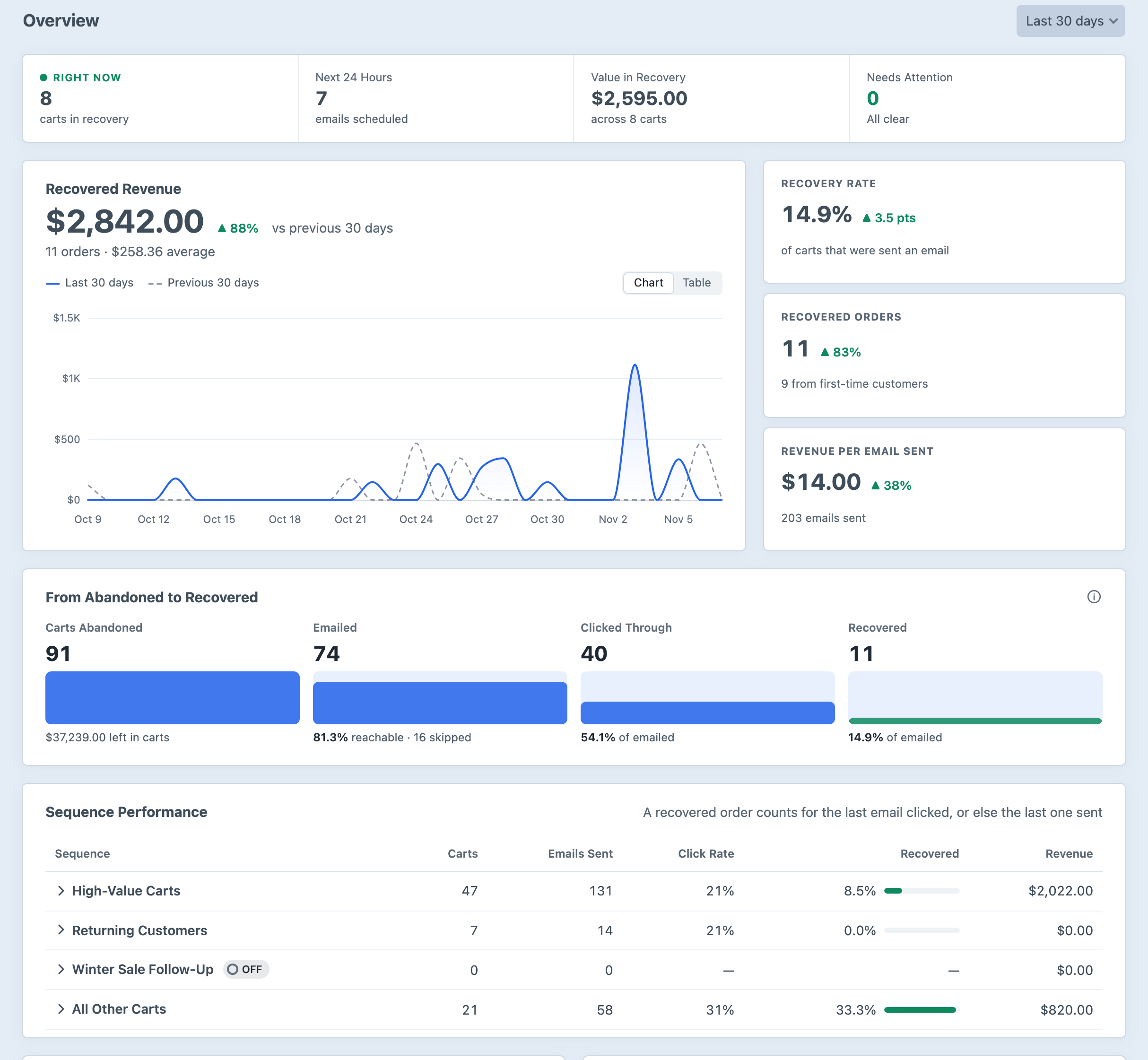
The Overview compares the last 7, 30 or 90 days with the period before, so you can tell whether rewriting that second email made any difference. Alongside recovered revenue and recovery rate, it shows recovered orders and revenue per email sent, which is a handy way to judge whether a fourth email is worth sending. The funnel follows carts from abandoned to emailed, clicked and recovered, with the value and share at each step.

A cart counts as recovered when the order is completed within five days of the last email, clicked or not. Plenty of people read a reminder on their phone and buy later on their laptop, and they still count. Five days matches Klaviyo's standard attribution window, so the figures line up with what many stores already measure, and you can change the window for your store or for a single sequence. Each cart says whether the customer clicked first.
Why Carts Didn't Recover groups the rest by what happened, such as the sequence finishing, the customer unsubscribing, the cart being emptied, or the customer starting a newer cart, which now takes over the older cart's remaining emails so nobody gets two sets of reminders.
The Overview guide explains each figure and how recoveries are credited.
Checking It's Running
Recovery emails rely on something running in the background, which is exactly the kind of thing that quietly stops after a server move. System Status opens with a plain verdict (everything's working, recovery is off, or what needs attention), then shows the last run and a strip of every run over the past day, along with the cron job to copy, paths already filled in.
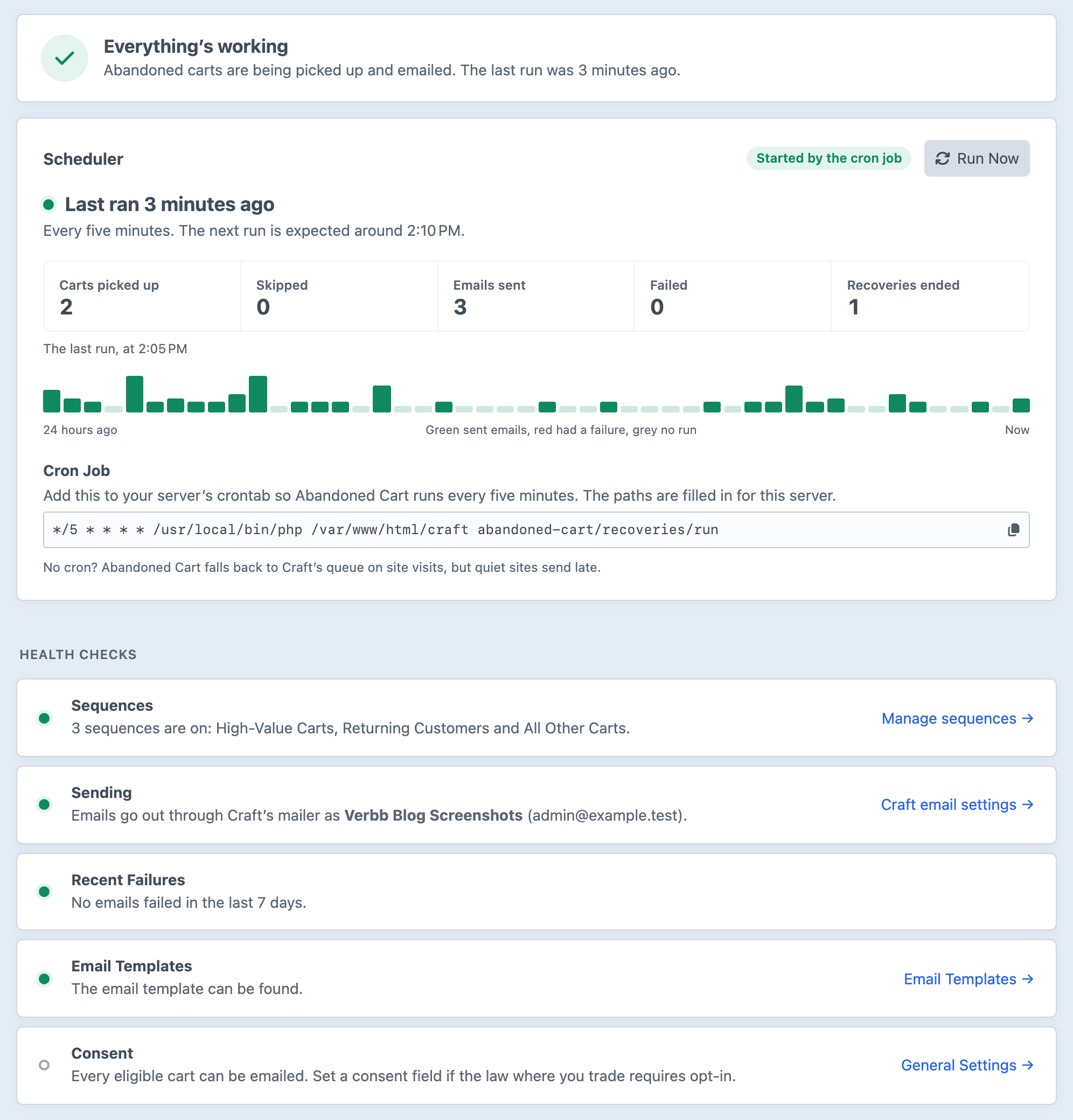
If you can't add a cron job, Abandoned Cart falls back to Craft's queue and tells you so. Health checks cover sending, recent failures, email templates and consent, each with a link to the screen where you'd fix it. System Status works on production with admin changes off, too, which is exactly where you'll want to check it, and Pause All Sending is there for those "stop everything" moments. Sending and Scheduling covers the lot.
Upgrading from Abandoned Cart 4
This is a major release with breaking changes, and it needs Craft 5.6 or later. A one-time migration turns your two reminders into the default sequence, keeping their wording, timing and discount code, and brings your blocklist and history across. If 4.x was sending, sending carries on without a gap.
Compatibility mode keeps your 4.x template variables, events, console command and scheduler URL working while you update your code, and logs deprecation warnings so you can find what to change. Your cron job will want the new abandoned-cart/recoveries/run command eventually. Config files, custom listeners and non-admin permissions need a hand from you, so read the upgrade guide first. Stores still on Abandoned Cart 3 can come straight to 5 as part of their move to Craft 5.
Available Now
Thanks again to Myles for building Abandoned Cart and trusting us with it.
Abandoned Cart 5 (opens new window) is available today for Craft 5.6+ and Commerce 5. The changelog has everything else, and developers will find new events for audiences, consent, sending and more in the events reference.