Create Your First Sequence
This walkthrough takes your store from a fresh install to sending its first recovery emails. Installing Abandoned Cart creates the default sequence, All Other Carts, which sends three friendly reminders, the first an hour after the cart is left, the second a day later and the third two days after the second. It starts switched off. You'll check how its emails are sent, review them, send yourself a test, switch the sequence on and then watch it email a cart of your own. How Abandoned Cart Works explains the terms used here.
You'll need Abandoned Cart installed on a site running Craft Commerce, Craft's email settings configured so the site can send mail, and an admin account. Several steps use Abandoned Carts → Settings → General Settings and Craft's Settings → Email, which only admins can open. Two steps, adding a consent field and scheduling the background run, usually need your developer, and they're marked where they appear.
Check Your Sending Details
Open Abandoned Carts → Overview. Until a sequence is switched on, the Overview shows a short setup checklist, and its first step summarises how emails will be sent.
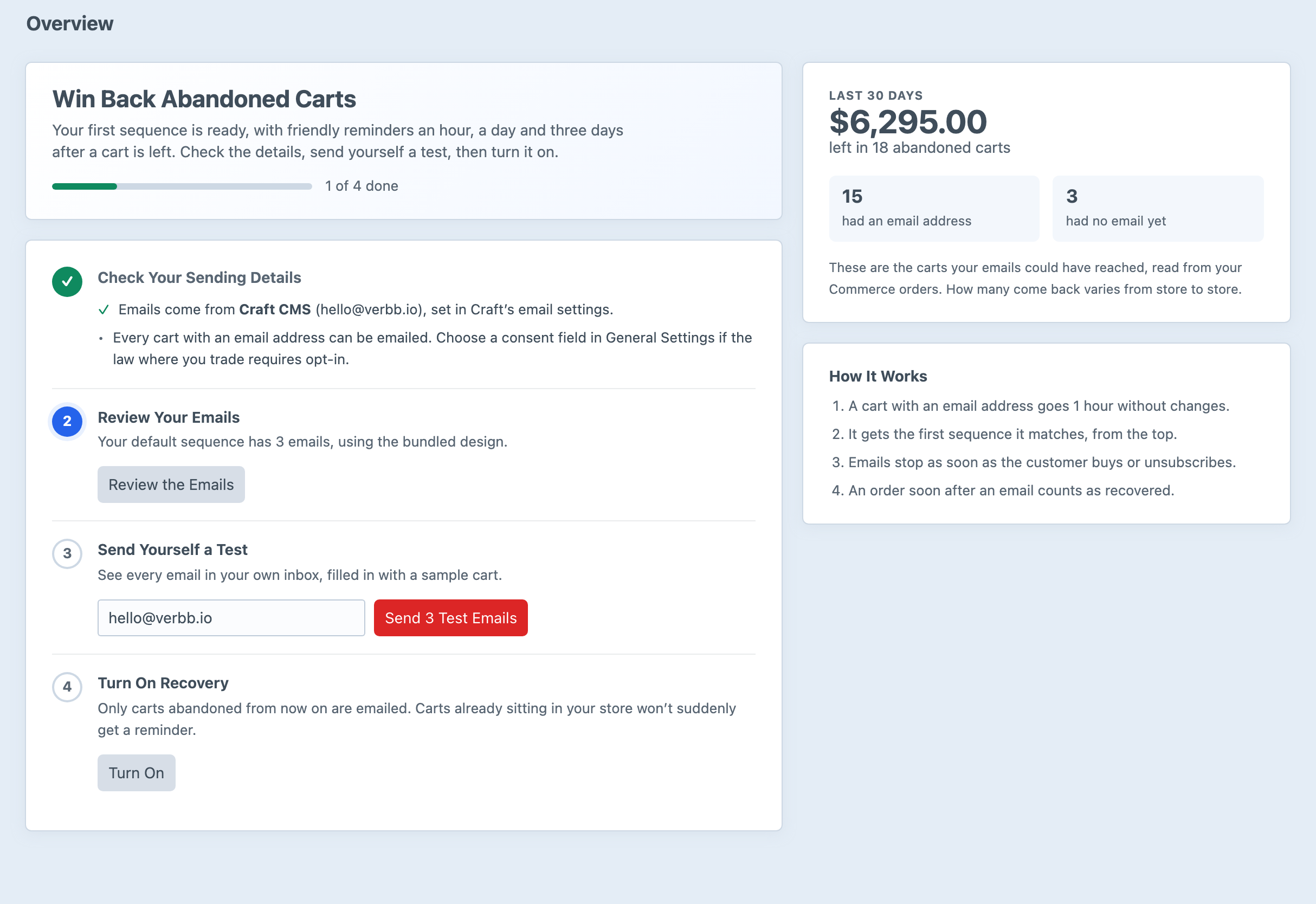
Recovery emails go out through Craft's mailer, using the sender name and address from Craft's Settings → Email. If the address shown isn't the one customers should see, change it there.
The checklist also tells you whether a consent field is in use. Without one, every abandoned cart with an email address can be emailed. If the law where you trade requires customers to opt in to marketing emails, you'll need a consent field, which is an on and off switch the customer ticks on your site. This usually needs your developer, who adds the field to your orders or customer accounts and shows it in your checkout. Once it exists, choose it as the Consent Field under Abandoned Carts → Settings → General Settings, and only customers who switched it on are emailed. Customers explains how the field is read.
While you're in General Settings, check two more fields. Return Page is where a recovery link takes the customer once their cart is restored, and it starts as shop/cart. If your store's cart page lives at another path, such as cart or checkout, enter that path instead and save. Pause All Sending must be off for the check at the end of this walkthrough. If it's switched on, or the field shows a warning that the configuration file controls it, emails wait instead of sending, and your developer can tell you why it's set.
Schedule the Background Run
This step usually needs your developer. Abandoned Cart works through carts in a short background run, which finds carts that have gone quiet, starts their sequences and sends any emails that are due. It should run every five minutes from cron, a scheduled task on your web server, using the PHP executable and Craft project path for your server:
*/5 * * * * /path/to/php /path/to/project/craft abandoned-cart/recoveries/runYou don't need to work out those paths yourself. Abandoned Carts → Settings → System Status shows this cron line with the paths filled in for the server it's running on, along with a Copy cron job button.
If you can't add a cron job, Abandoned Cart starts a run from ordinary site and control panel traffic instead, using Craft's queue, which handles background tasks and is running on most sites. Cron keeps the timing regular on quiet sites, so prefer it where you can. A development site often has neither, and that's fine for this walkthrough, because the final check starts the run by hand. Sending & Scheduling covers both options.
Review the Emails
Choose Review the Emails in the checklist, or go to Abandoned Carts → Sequences and select All Other Carts. The sequence page shows who gets the sequence and a timeline of its emails. For All Other Carts, the cart is abandoned after an hour without changes, email 1 goes out straight away, email 2 a day later and email 3 two days after that.
Every sequence page has the same layout. This example is a sequence for high-value carts, with a discount code in its last email:
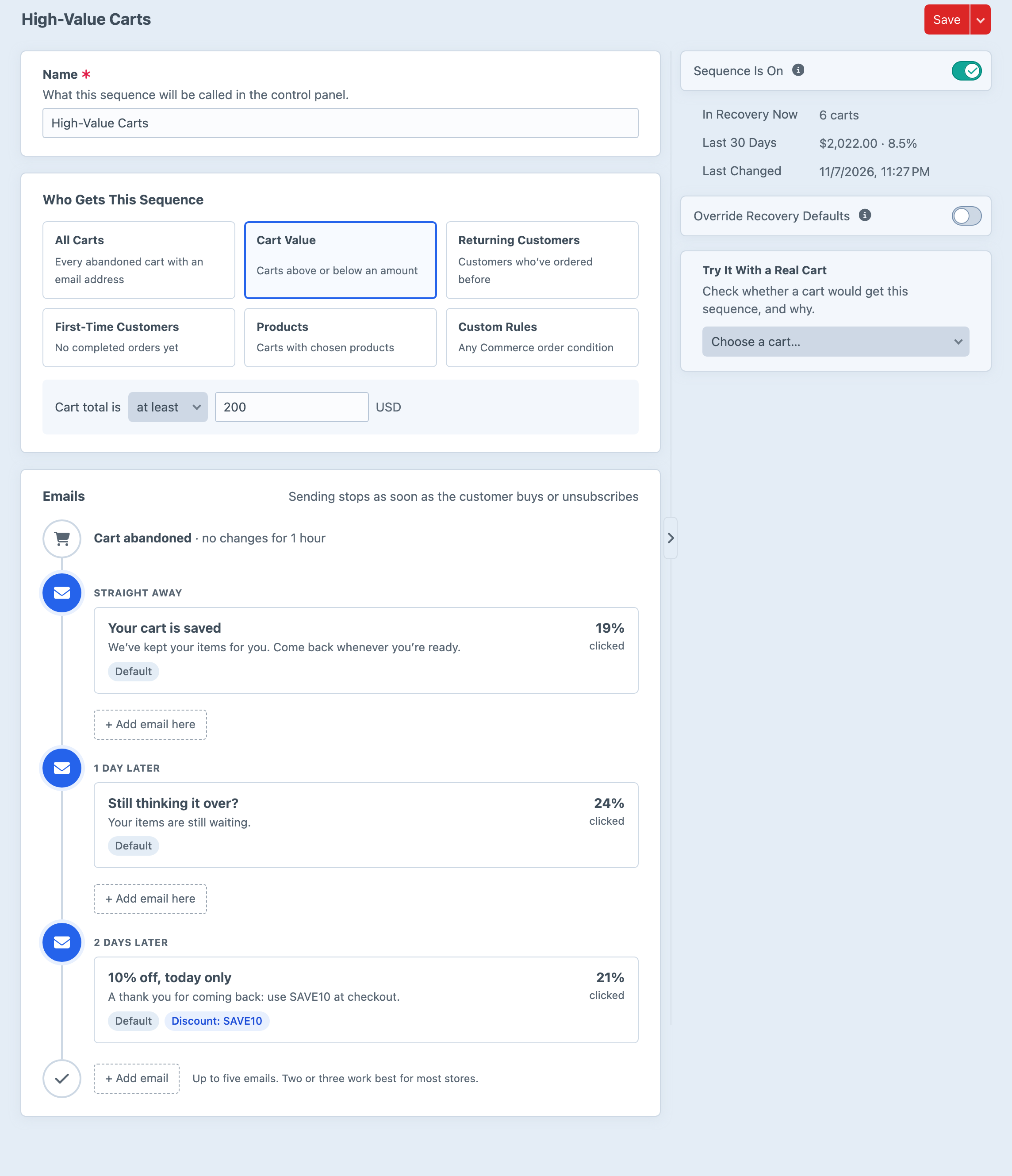
Select an email to open it. You can change its subject, preview text, heading, message and button label, and insert tokens such as {firstName} to personalise them. The preview beside the fields updates as you type, using a sample cart. Save each email you change. Once you've changed one, the checklist marks this step done. If you're happy with the wording as it is, you can carry on without changing anything, because Turn On works whether or not this step is ticked. Emails & Email Templates explains every field.
If you'd like the last email to include a discount, create a discount with a coupon code in Commerce first. Then open the email and choose that code in its Discount Code field, or type it if it isn't listed. Customers who return through that email have the code applied to their cart. Recover High-Value Carts with a Discount walks through a full example.
Send Yourself a Test
Back on the Overview, the Send Yourself a Test step has an email field that starts with your account's address. Change it if you'd like the tests to go elsewhere, then select Send 3 Test Emails. You'll receive every email in the sequence, each with [Test] at the start of its subject and filled in with a sample cart. Links in test emails are placeholders, so they don't restore anything.
Check that the emails arrive, that the sender looks right, and that the wording reads well on your phone as well as your desktop. If nothing arrives, use the Test button in Craft's Settings → Email and check your mail provider's logs before going further.
Turn On Recovery
Choose Turn On in the checklist. You can also switch on Sequence Is On on the sequence's page and select Save. The checklist only shows Send 3 Test Emails and Turn On to people with the Manage sequences and send emails permission, which admins always have. From that moment, carts that become abandoned on your store are emailed. Carts that had already been abandoned before you turned it on are left alone, so long-forgotten carts don't suddenly receive a reminder.
The Overview changes to show that recovery is on. Once customers start coming back, it fills with results.
Check It Works
On the same development or staging site, add a product to a cart, enter an email address you can read at checkout, then leave the order incomplete. Don't touch the cart again, because a cart counts as abandoned once it has gone an hour without changes. To try this without waiting, temporarily set Abandoned After to a minute or two in Abandoned Carts → Settings → General Settings. General Settings are saved to your project's configuration files, so on a development site make sure the temporary value isn't deployed. Where admin changes are turned off, as on most live sites, the setting can't be changed, so wait the full hour instead.
When the time has passed, start the background run yourself. Either select Run Now under Abandoned Carts → Settings → System Status, or run this command from your Craft project directory:
php craft abandoned-cart/recoveries/runThe command prints a summary such as Enrolled 1, skipped 0, sent 1, failed 0, not sent 0, ended 0. Run Now shows a shorter message, such as "Run finished: 1 enrolled, 1 sent, 0 skipped." Because email 1 is set to go out straight away, it's sent in the same run. Open Abandoned Carts → Carts and you'll see the cart In recovery, with its next email scheduled.
Open the email and follow its button. Your browser lands on your Return Page with the same items in the cart, and the cart's history in the control panel records the click. Complete the order, and the cart moves to Recovered, credited to the email you followed.
If the run reports a cart as skipped, open it from the Skipped view on the Carts screen. It shows the reason, such as a missing consent or a recent email to the same customer. If nothing is enrolled at all, check that the cart has an email address and items, that it's still incomplete, and that enough time has passed since it last changed. Why a Cart Might Not Be Listed covers the other causes. If the cart is in recovery but no email was sent, check that Pause All Sending is off.
Remember to restore Abandoned After if you changed it. From here, you can add sequences for particular customers or carts, such as a separate series for high-value carts, which Recover High-Value Carts with a Discount walks through. After your first month, Is It Working? explains how to read the results.