

Control Panel Nav 6 (opens new window) is here for Craft 5, with an all-new navigation builder and a simpler way to keep your custom sidebar in step with Craft.
Control Panel Nav has always had a pretty straightforward job — tidy up Craft’s sidebar. Rename a menu item, move it somewhere more useful, hide the things a client doesn’t need, and add a few shortcuts of your own.
Keeping those changes intact as Craft and plugins update their menus is the trickier bit. For version 6, we’ve rebuilt how that works, alongside a new editing interface that puts your navigation into a proper tree.
Let’s take a look!
An All-New Nav Builder
We’ve rebuilt the navigation builder for version 6, refining the interface around the way you already organise your menus. Reorder items, adjust sub-navigation and edit links with the whole menu in view.
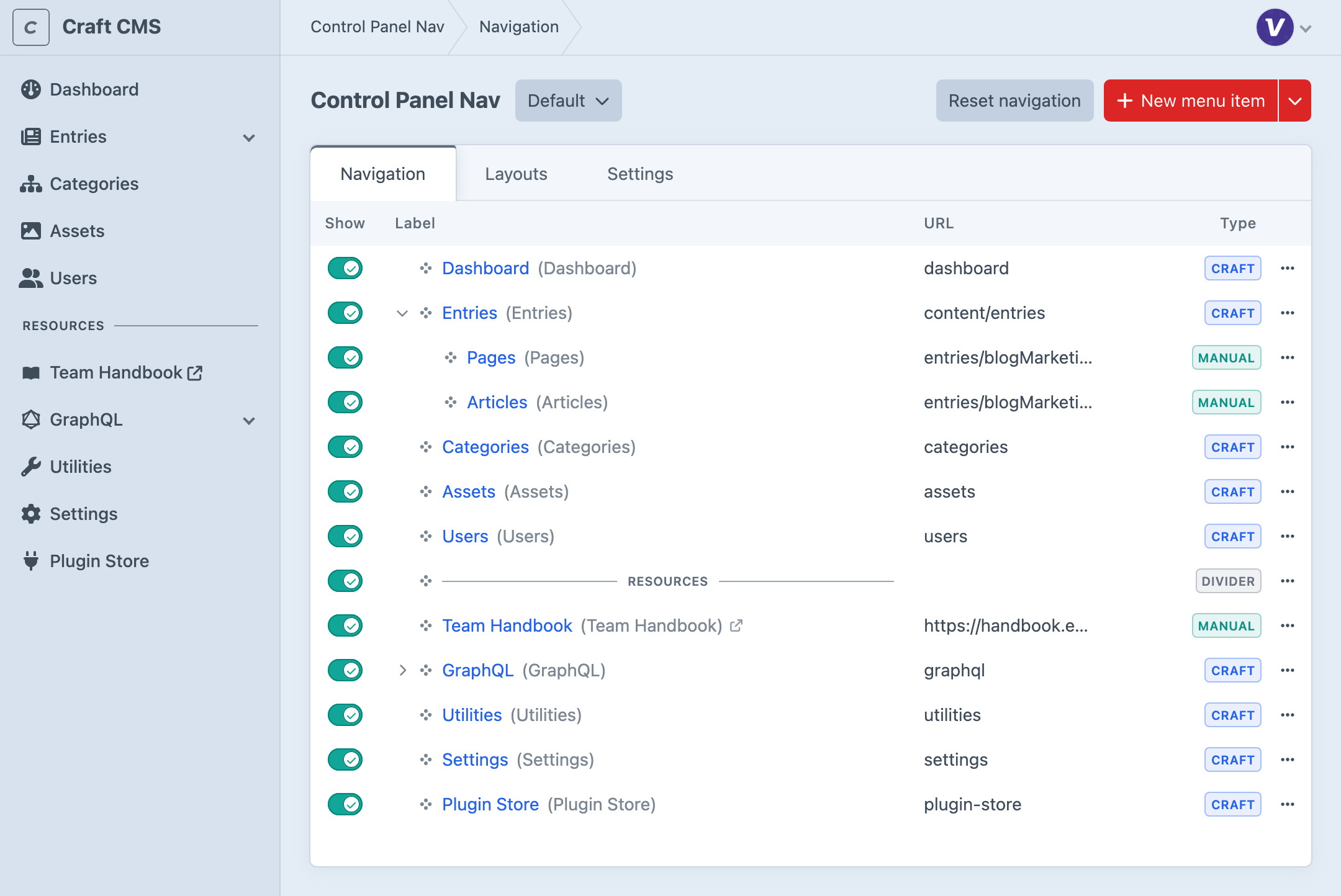
All the controls you know are here — rename Craft and plugin items, hide links your team doesn’t need, add shortcuts, and organise the menu with dividers. Reordering and visibility changes save as you go, while item details have their own Save button.
Take a tour of the new builder.
Better Customisations
The biggest change in Control Panel Nav 6 is behind the scenes. Previous versions stored a complete copy of the navigation and kept it synchronised with Craft. Version 6 starts with Craft’s live menu and applies your customisations on top. It only stores what you’ve changed.
That means links and default icons follow updates from Craft and your plugins, while your labels, ordering and visibility choices stay in place. Items that are no longer available drop out of the menu.
New items find their place alongside their usual Craft neighbours, with a notice in the builder so you can review them. Keep them, move them or hide them without rebuilding the rest of your menu.
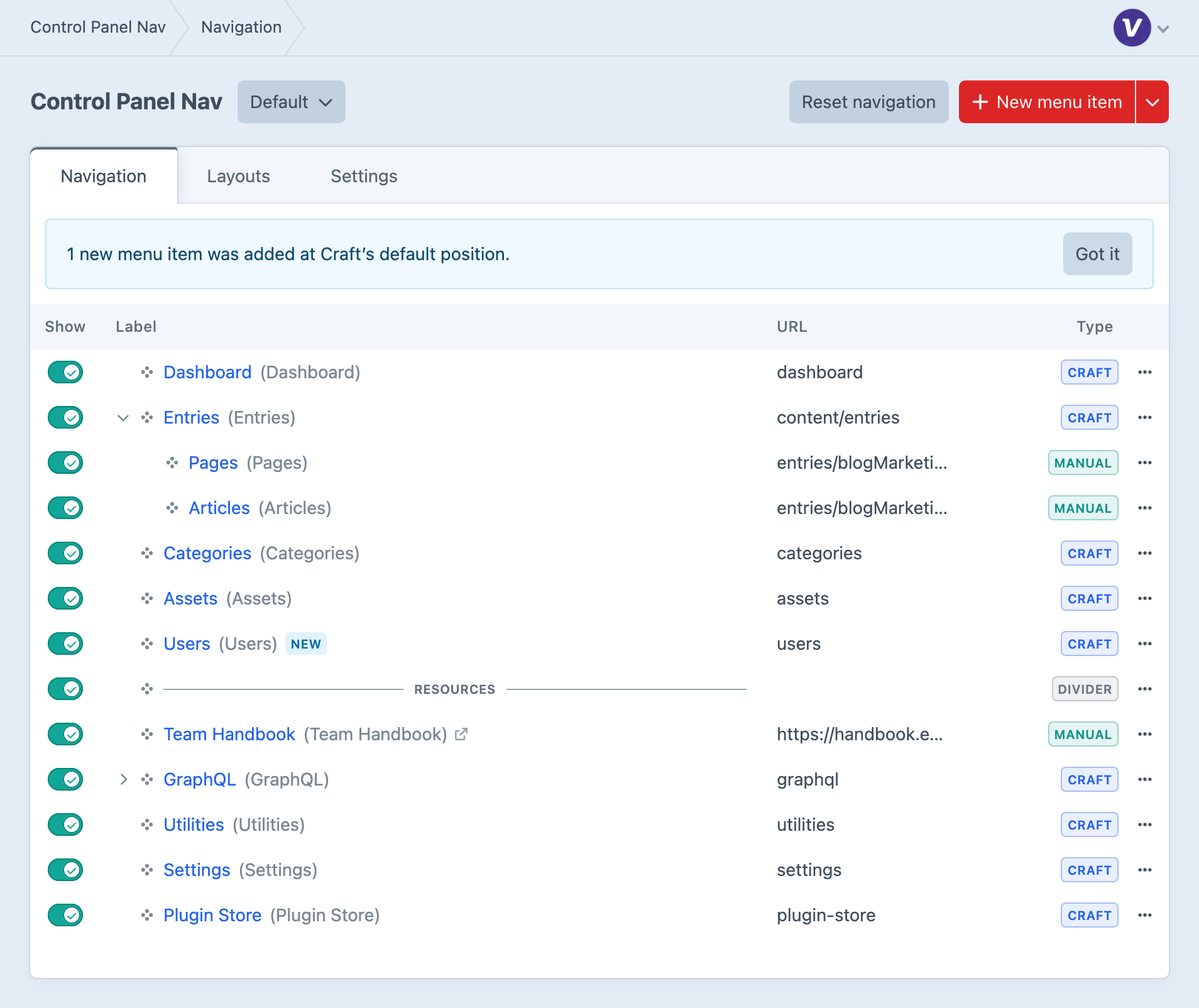
There’s less housekeeping in Project Config, too. Your customisations still travel between development, staging and production, but simply opening the control panel no longer writes navigation changes back to it.
It’s a behind-the-scenes improvement, but one that matters every time your site changes. Less syncing, fewer surprises.
A Few Extras for Your Layouts
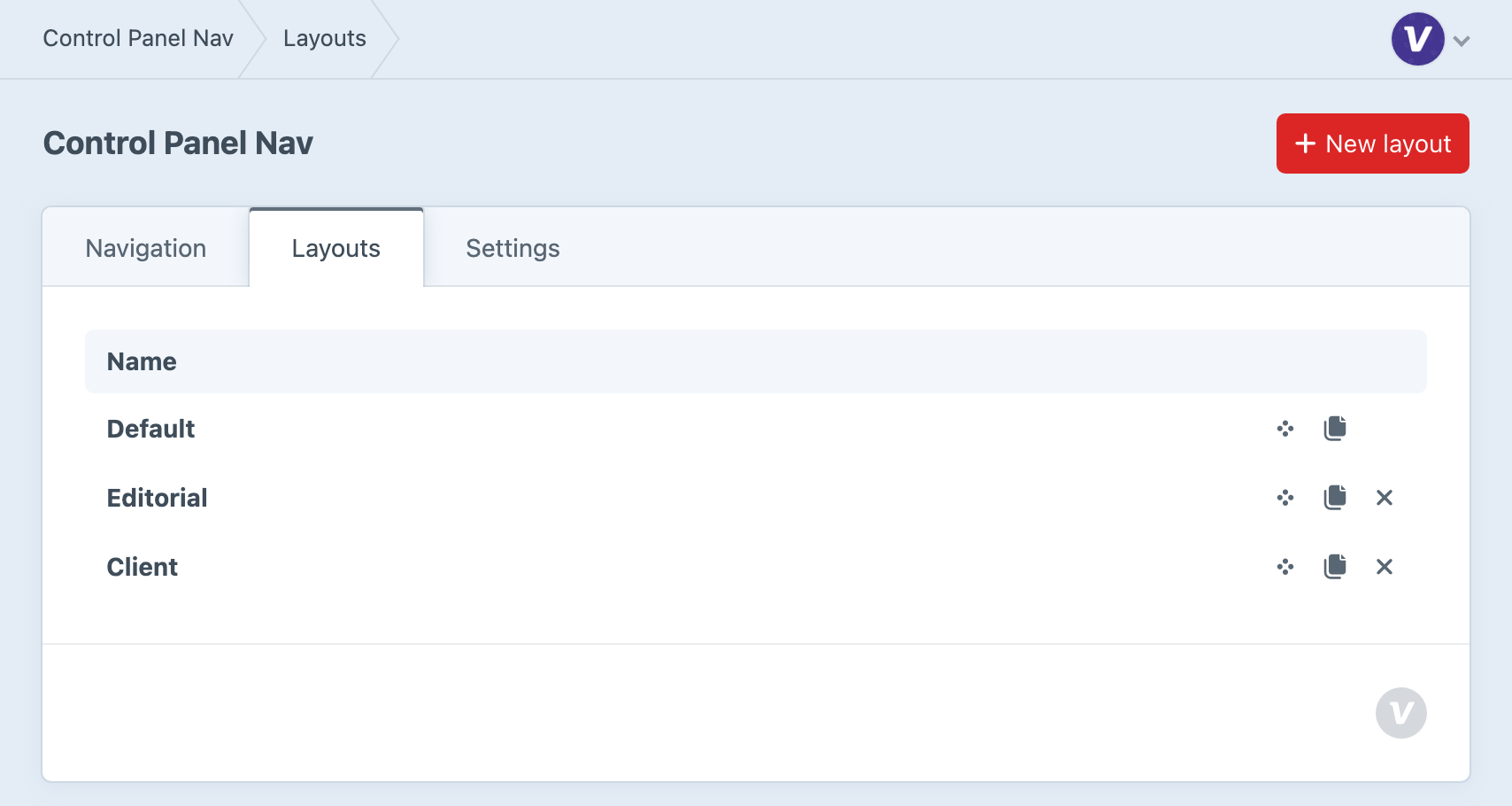
Layouts still let you give different teams their own sidebar. In version 6, you can duplicate an existing layout, including its customisations and group assignments, as a starting point for another team. Give the copy a name and adjust its assignments before putting it to work.
You can also reorder the Layouts list to set priority. When someone belongs to several matching groups, the first matching layout wins.
Aliases and Custom SVG Icons
Manual links and dividers are familiar territory for Control Panel Nav. Version 6 adds support for aliases in link URLs and a new way to choose custom SVG icons.
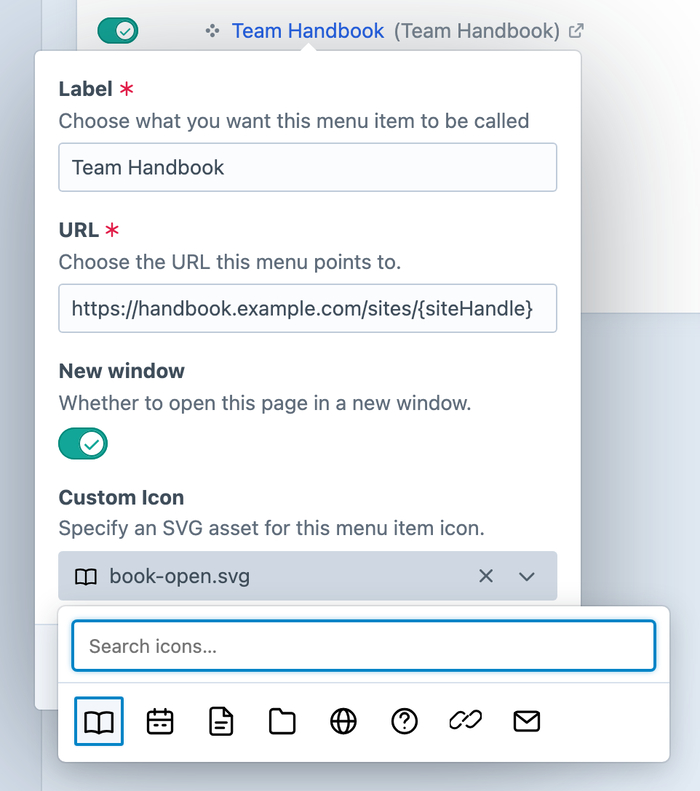
Take a Team Handbook shortcut. You could already add that link to the sidebar; now its destination can use a configured Craft alias. Set up the alias for your project, then use it in the item's URL rather than hard-coding the address. Links also support environment variables and {site} and {siteHandle} tokens for destinations that follow the current site.
For the icon, point Icons Path at a folder of SVGs in your project and choose one in the item editor. A book icon makes a handy fit for the handbook. Control Panel Nav stores the relative icon path in Project Config, so deploy that folder with your project to keep the files available in each environment.
Explore the guides for manual links and custom icon configuration.
Wrapping up
Be sure to check the upgrade guide for changes that affect your project, including selecting your custom icons again and reviewing layout priority.
A massive thanks to everyone who tried the beta and helped us get the new builder into shape.
Control Panel Nav 6 (opens new window) is available today on the Plugin Store, and it’s free. Give your sidebar a tidy-up.