

Formie 4 (opens new window) is here for Craft 5, and it’s easily our biggest and most ambitious update so far. We’ve rebuilt its foundations for the years ahead, from the submission process, the builder, integrations and frontend, while keeping the everyday Formie experience familiar.
If you’ve been following along, our previous posts like Beta 1 and Formie 4 is taking shape go into the journey.
The short version is that Formie 4 brings:
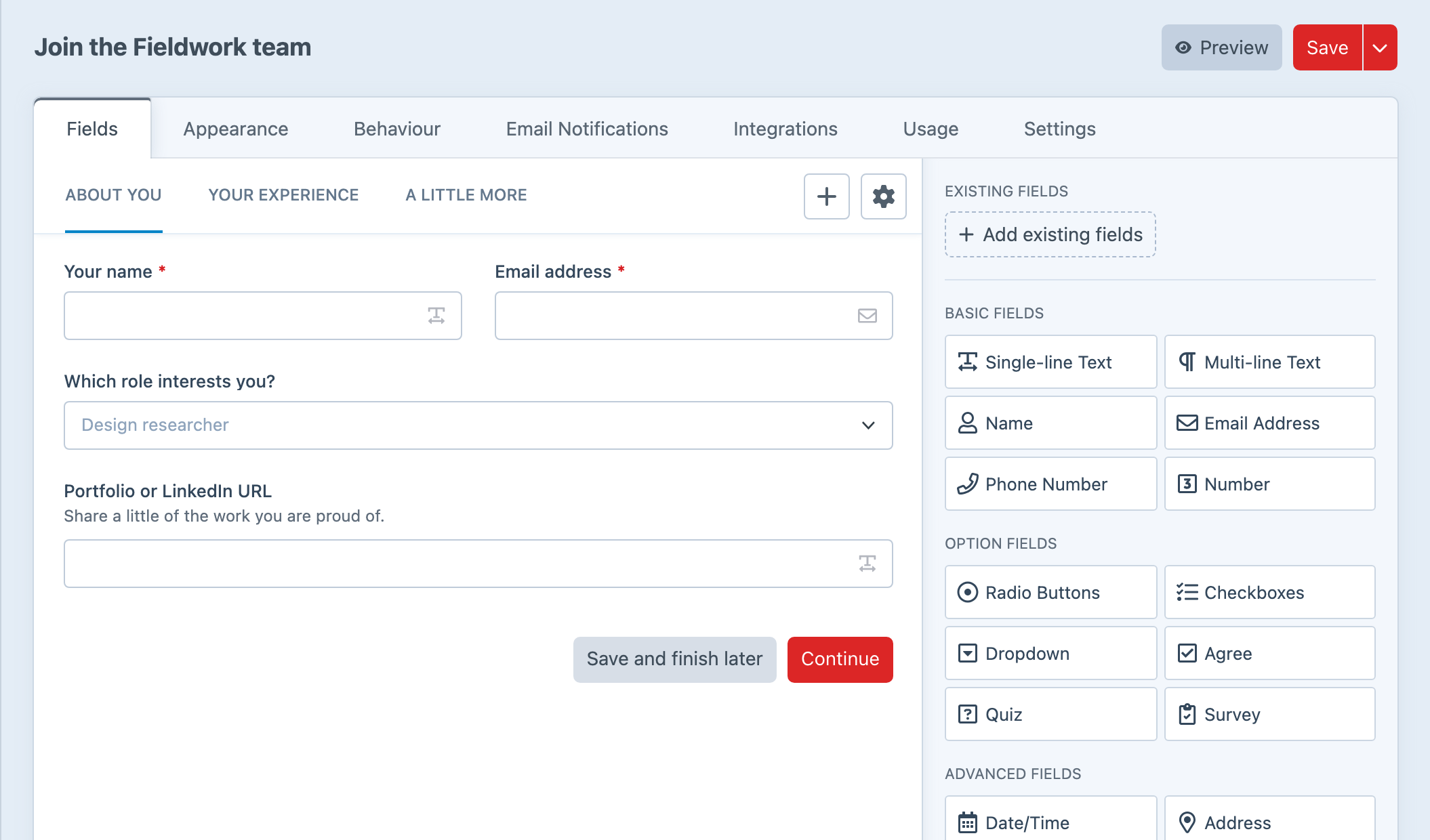
- A refined form builder — groups, defaults, stencils, field palette, and live preview, accessibility and usability improvements
- Smarter submission workflows — conditional statuses, redirects, and validation
- Dynamic field options, surveys and quizzes, and modern file uploads
- Client-friendly integrations, spam controls, and tighter permissions
- Saved reports with charts, export, and scheduled delivery
- Multi-site forms with control-panel translations
- Save and continue later — proper drafts, resume links, and token-based sharing
- Client events for GTM, GA4, Meta, and custom tracking
- Payment improvements and a new frontend package stack
Ready to dive in? The Formie 4 upgrade guide has you covered.
Solid foundations
Formie 4’s headline additions are only part of the story. We’ve also spent a lot of time improving the jobs you already do every day like building forms, handing them over to editors, processing submissions, and understanding the results.
Form Groups give busy form indexes some structure, while reusable defaults give every new form a useful starting point. Curate the fields editors can use, build from project or editable stencils, and preview the finished form without leaving the builder.
Assign statuses or choose a thank-you page based on someone’s answers. Write validation messages that suit the form, populate choice fields from integrations or developer templates, and give visitors an upload manager with progress and file controls.
Integrations can be managed on production without a project config deployment, with clearer control over when they run and alerts when something fails. More granular permissions help teams manage the forms and settings relevant to them, while shared spam controls bring submission guards, screening, throttling, and captcha providers together.
Spam controls have a shared home too, with submission guards, screening, and throttling helping you manage unwanted submissions alongside your captcha providers.
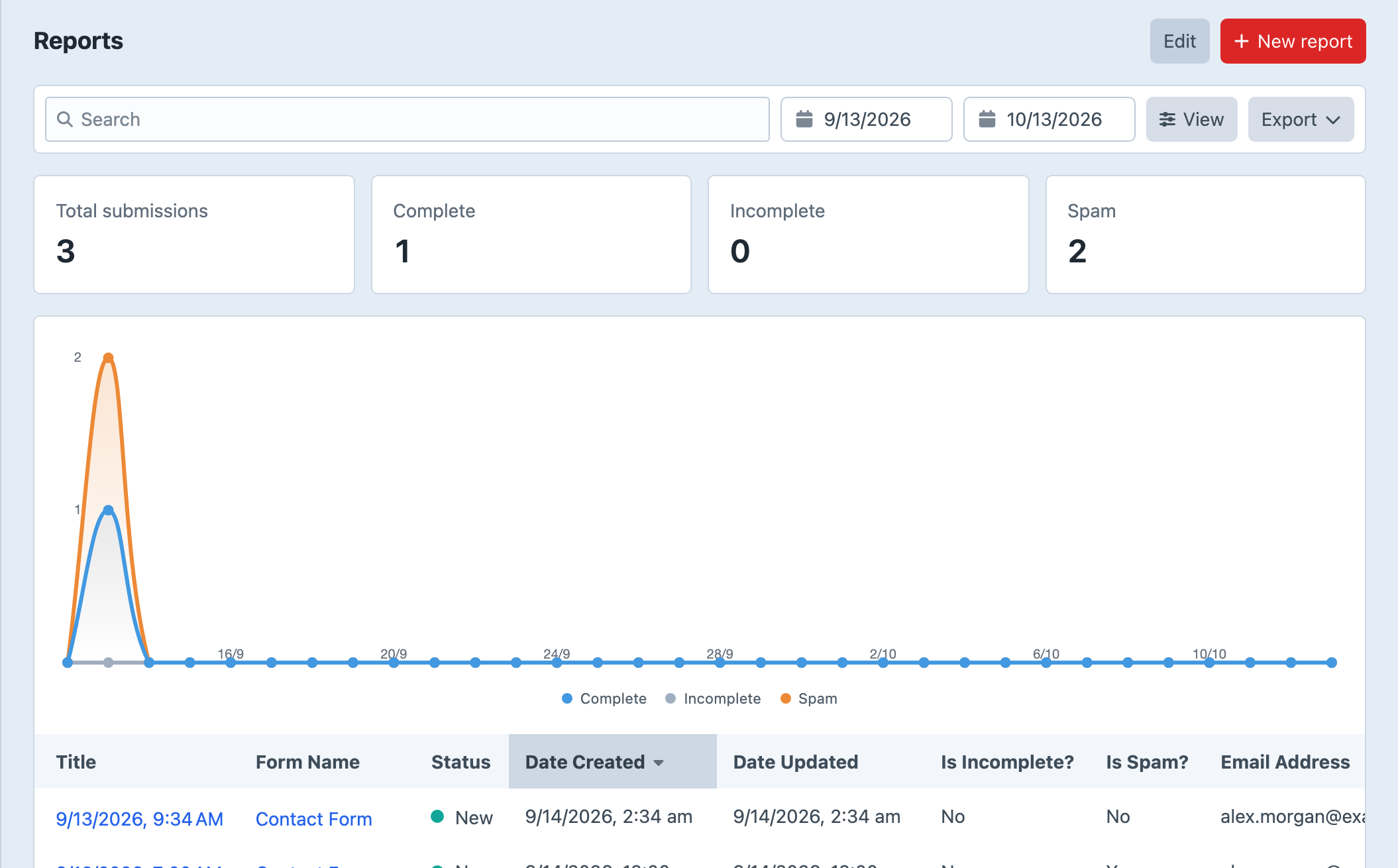
Saved Reports combine filters, summary figures, charts, and exports in one reusable view. Schedule a report when the same information needs to land in someone’s inbox each day or week.
One form, multiple languages
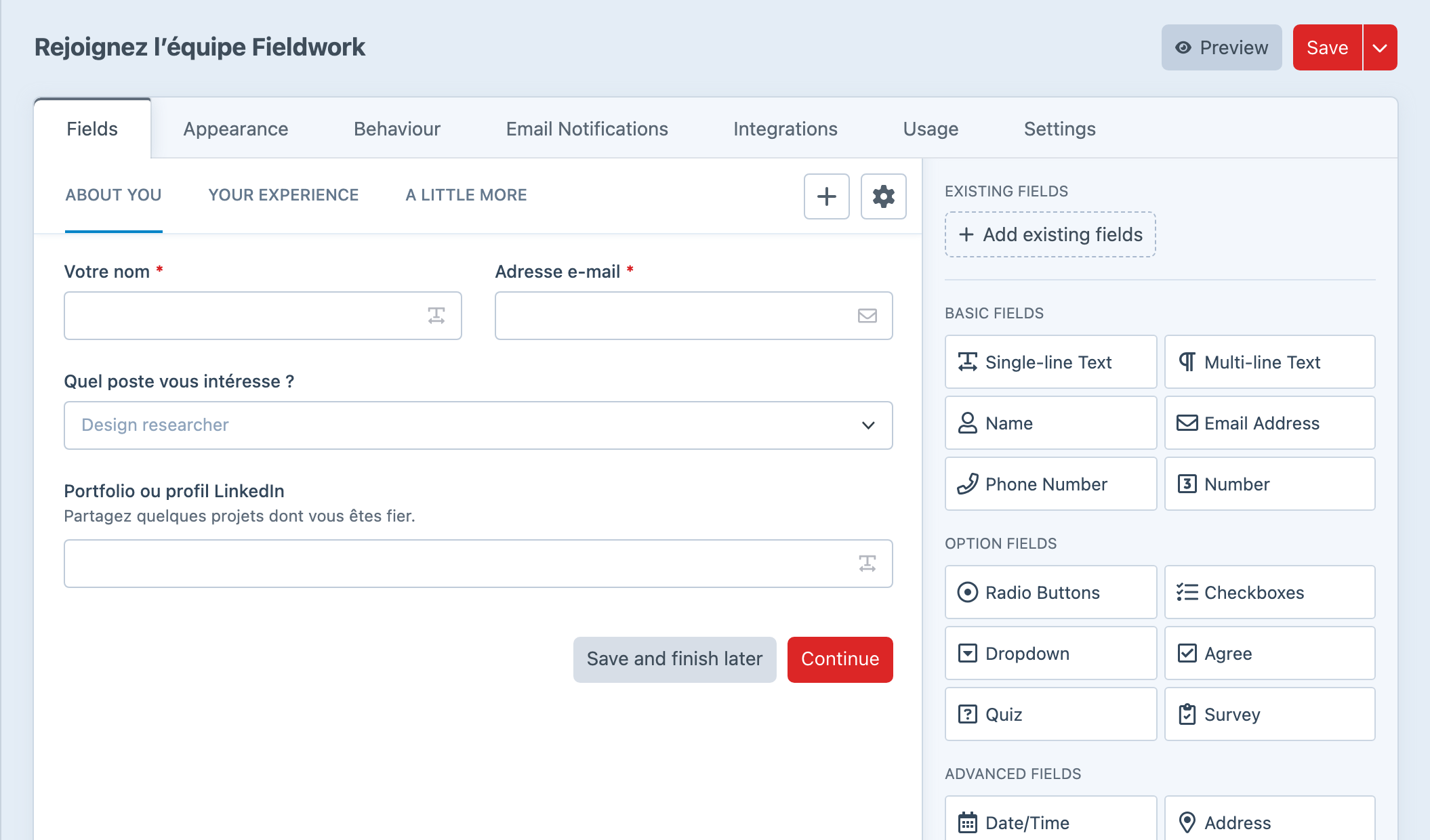
An enquiry form shouldn't need a separate copy for every language your site supports. Formie 4 lets editors translate form content directly in the builder, using a site switcher to move between Craft sites.
Build your form once, then change the labels, instructions, option labels, and messages for each site. The form keeps its shared fields, pages, handles, and logic, so changing its structure doesn't mean repeating the same edit across several copies.
For example, your English and French sites can use the same application form with different wording throughout. Two English-language sites can have different copy too, without asking a developer to manage those differences in translation files.
Form groups control which sites a form is available on. When a visitor opens it, Formie applies the wording for that site automatically.
Site overrides are for translating a shared form. If a site needs a different set of fields or a different journey, use a separate form or conditions to handle that variation. The multi-site and translation docs explain how availability and translated content fit together.
Surveys and Quizzes
Collect event feedback, ask customers to rank their priorities, or put together a scored knowledge check. Formie 4 adds Survey and Quiz fields, with results you can review inside the builder.
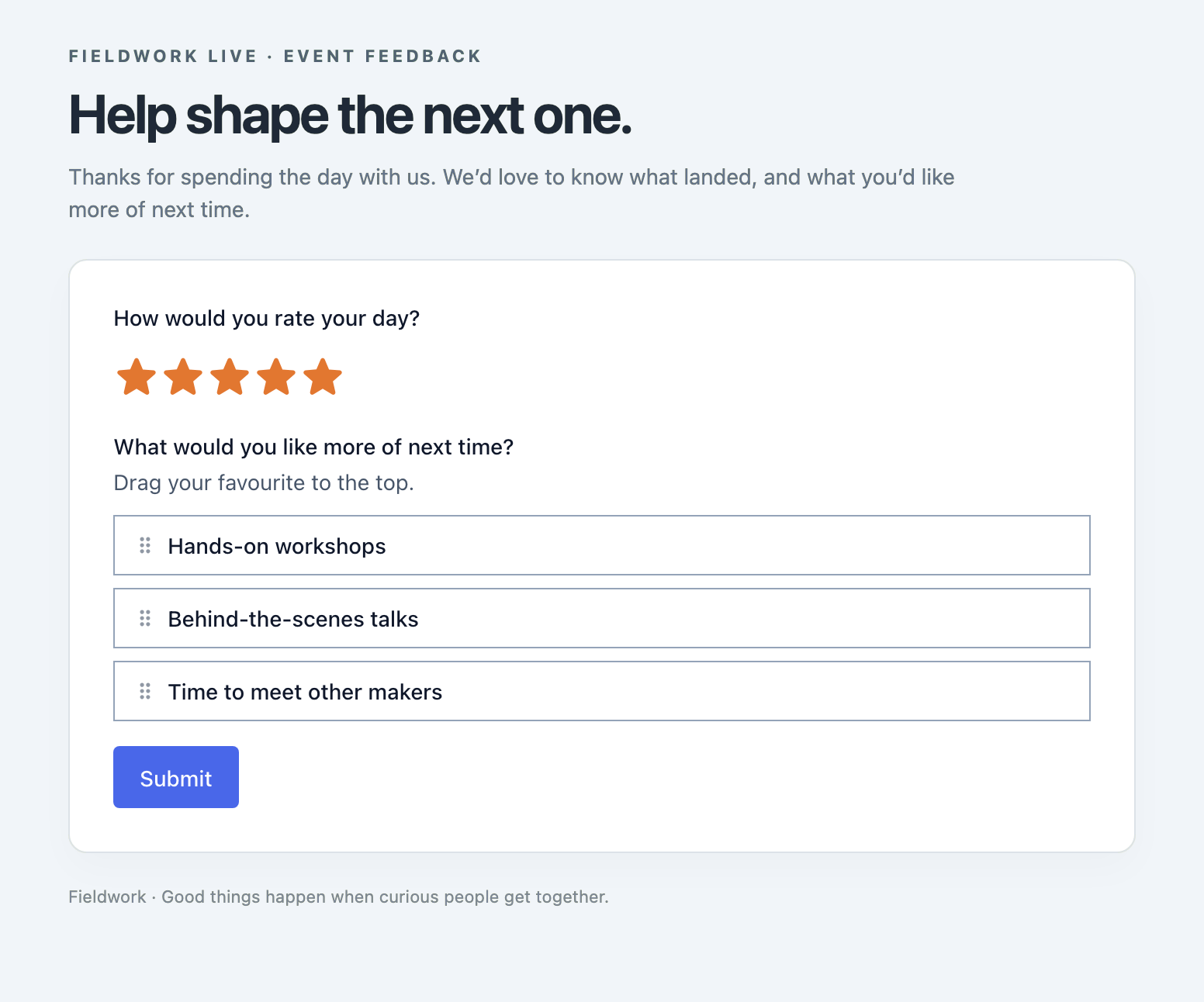
Survey questions can use familiar choices such as radio buttons and dropdowns, or presentations designed for feedback: agreement scales, star ratings, and drag-and-drop rankings. You can ask visitors how satisfied they were, then let them rank what they'd like you to improve next.
Quiz fields let you mark correct answers, assign points, and provide explanations for incorrect responses. At the form level, set a pass threshold and decide whether to allow retakes.
The Results tab brings the responses together. See how people answered each survey question, compare ranked preferences, or review quiz attempts, average scores, and pass rates. You can get a useful picture without cracking open Excel first.
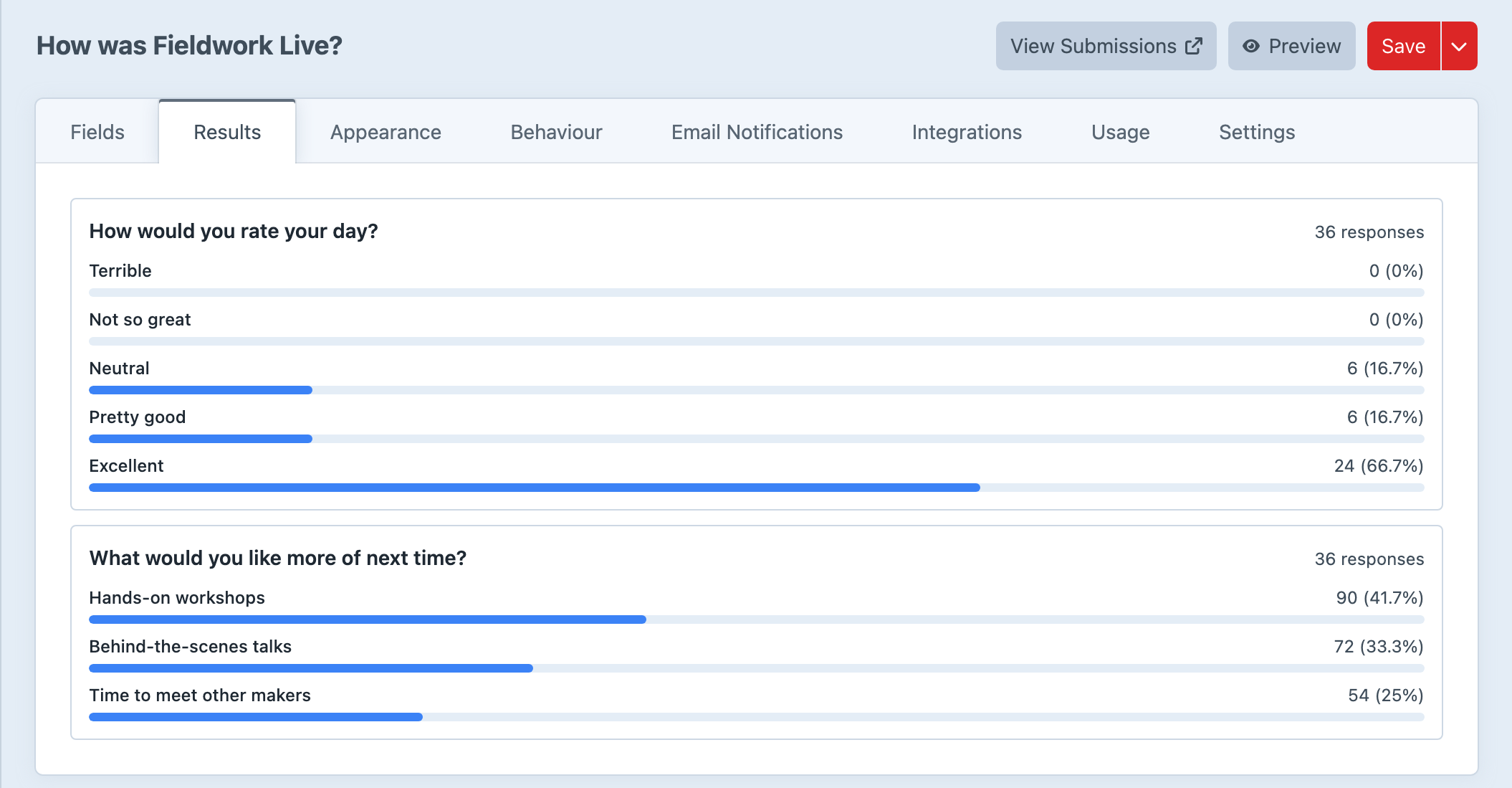
See the Survey and Quiz docs for question types, scoring, and results.
Proper Save and Resume
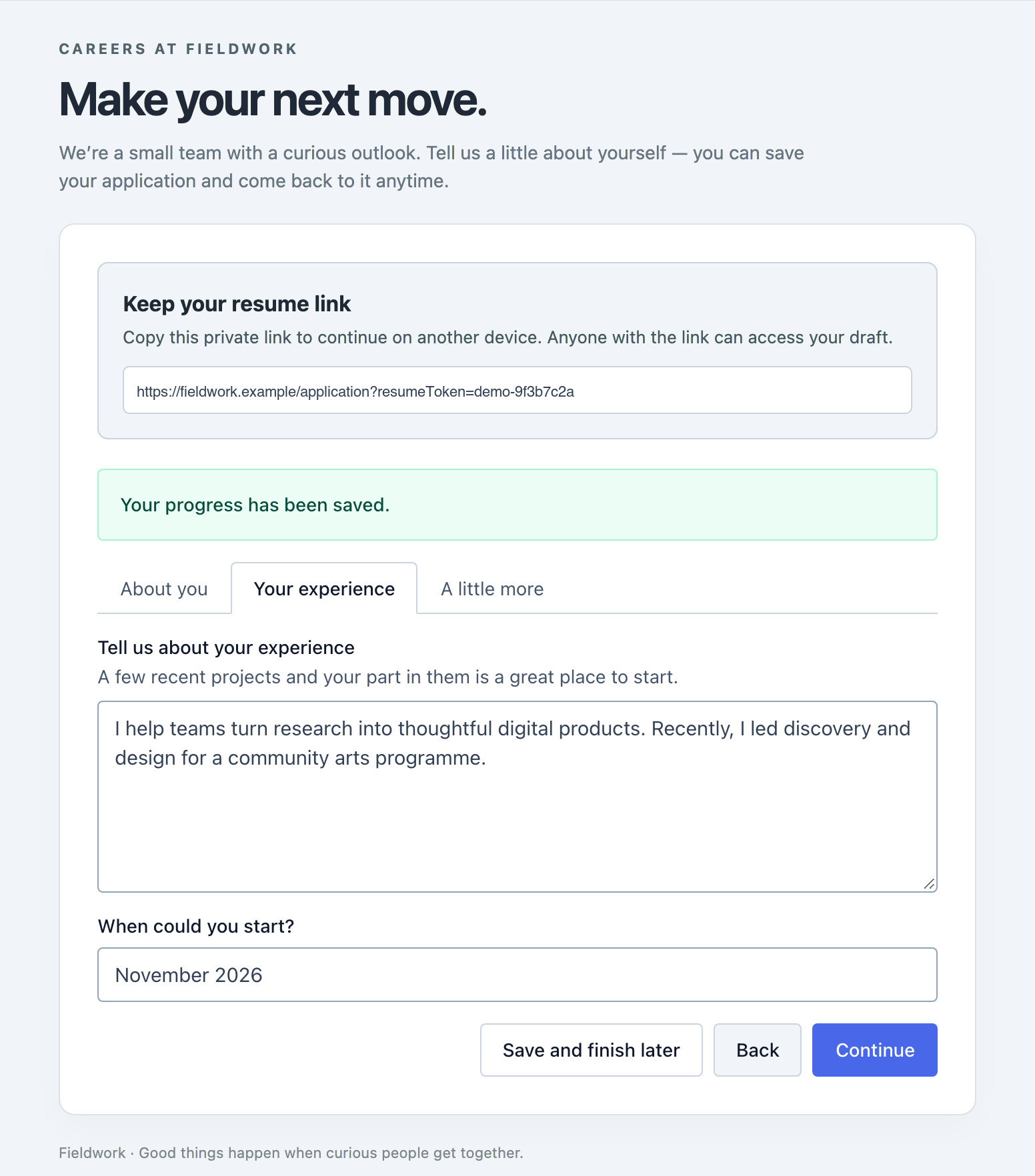
Formie 4 stores in-progress submissions in the database. On multi-page forms, progress is saved as visitors move between pages, whether or not you provide a separate Save button.
Add a Save button when you want people to deliberately save their place and get a resume link. They can open the link later, including in another browser or on another device, and continue the saved submission. They can also pass it to someone else when one person needs to start an application and another needs to finish it.
Automatic restoration is available separately, enable it when returning visitors should be offered their in-progress submission without opening a resume link. Draft retention and link expiry are configurable, so you can choose how long that progress remains available.
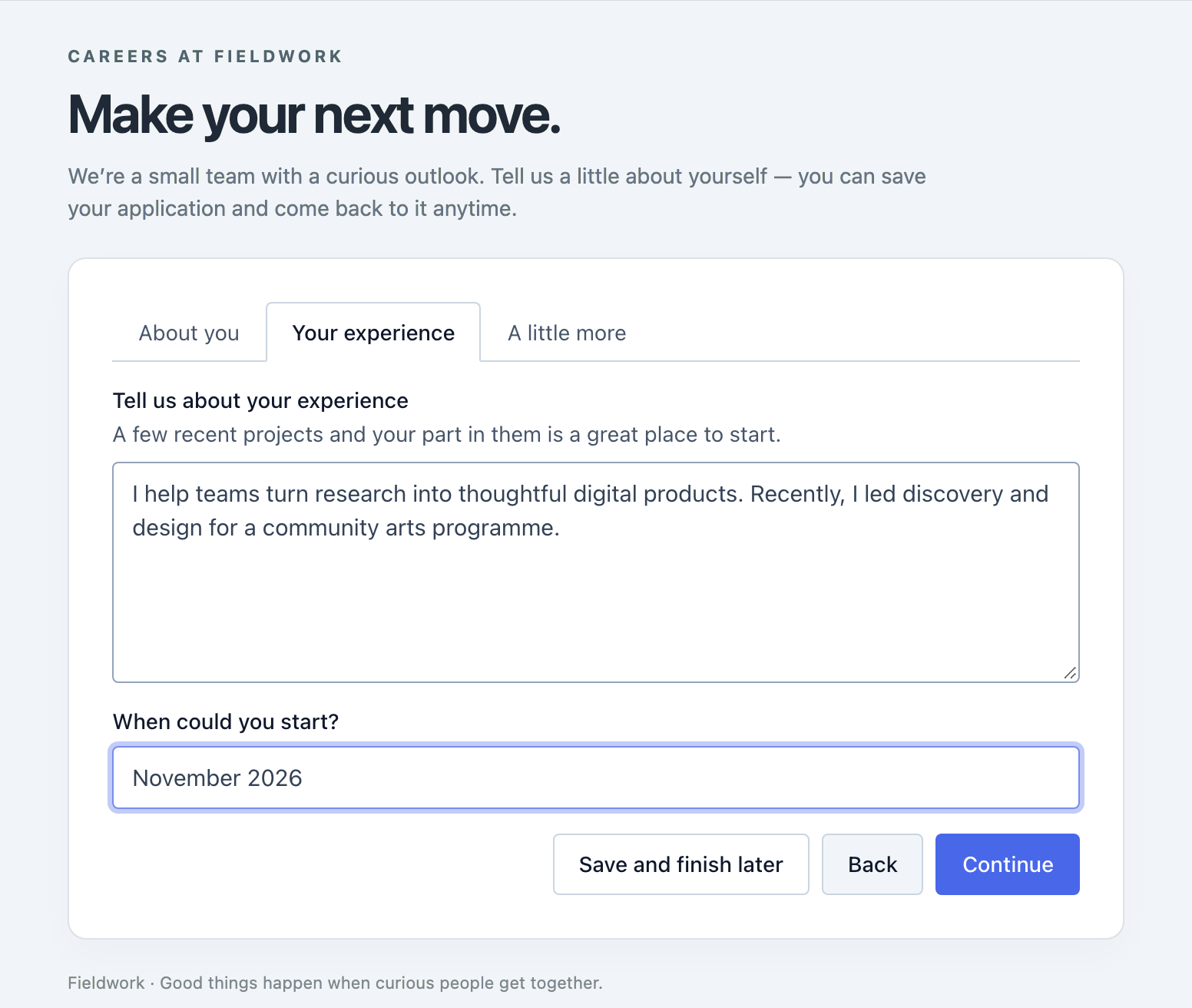
Anyone with a resume link can continue that submission, so treat it as private access to the draft. The Save & Continue Later guide covers restoration, sharing, and expiry.
Track the steps that matter
On a multi-page form, completing a step and completing the whole form are different things. Formie 4 gives you control over those analytics events from the builder.
Each page has a Tracking tab where you can configure client events and include values from the form. Record progress through an application, or reserve your conversion event for the final successful submission. Conditions let you narrow down when an event should fire.
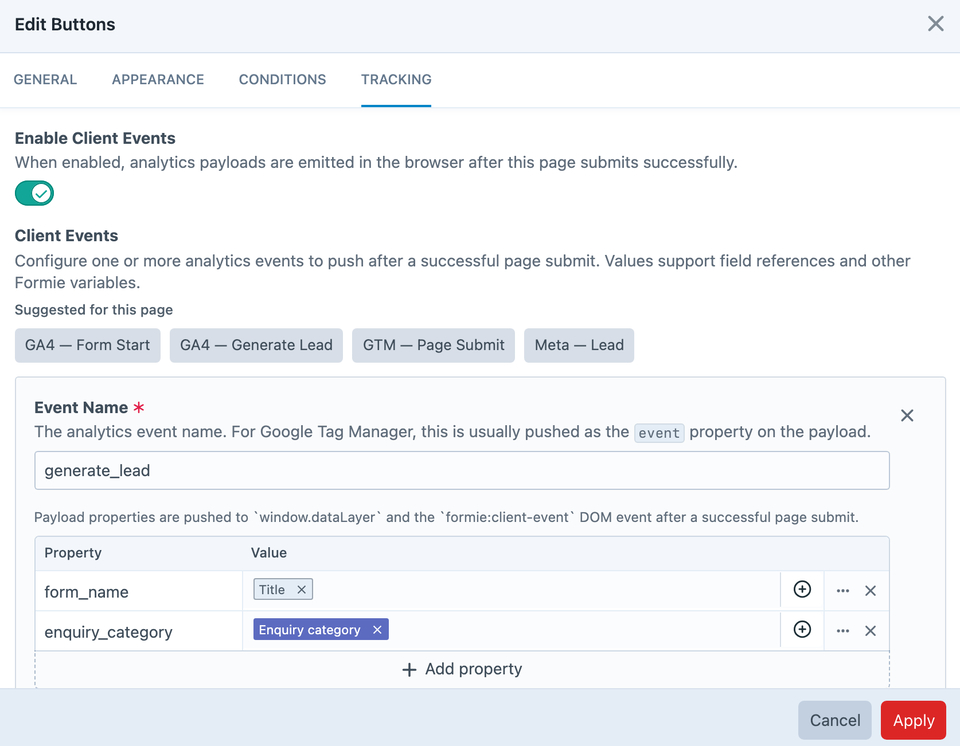
Templates for Google Tag Manager, GA4, and Meta provide a starting point. Choose a template, map the values it needs, and customise the event. For example, you could include the selected enquiry category with a lead event to understand which services attract interest.
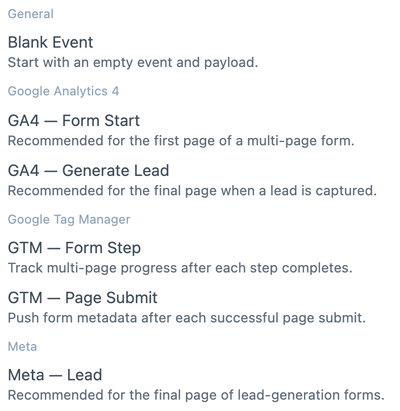
Formie resolves the configured values after a successful page submission and makes the events available to your frontend tracking setup. You'll still connect those events to your analytics tags or listeners, but the builder takes care of defining them alongside the form.
The Tracking and Analytics docs walk through the setup.
Build your frontend your way
If your site uses Twig for your frontend needs, Formie still renders the form and supplies the assets for validation, conditions, uploads, captchas, payments, and multi-page navigation.
If you're building a React app, a Vue frontend, or a headless project, Formie 4 gives you dedicated packages for that work too. Editors can keep managing the form in Craft while your application controls how it's presented.
There are two ways to approach it. You can let Craft render the HTML and enhance it in the browser, or fetch the form definition and render it in your application. The packages give each approach a clear starting point:
@verbb/formie-browser— Formie-rendered HTML, including Twig forms, with browser behaviour bundled into your project.@verbb/formie-react— React applications, with components and hooks for client-rendered forms.@verbb/formie-vue— Vue 3 applications, with components and composables for client-rendered forms.@verbb/formie-web-components— Client-rendered forms using custom elements.
You don't need to adopt a framework to use Formie 4. These packages give projects that already use one a more direct way to work with Formie, while the usual Twig workflow remains available.
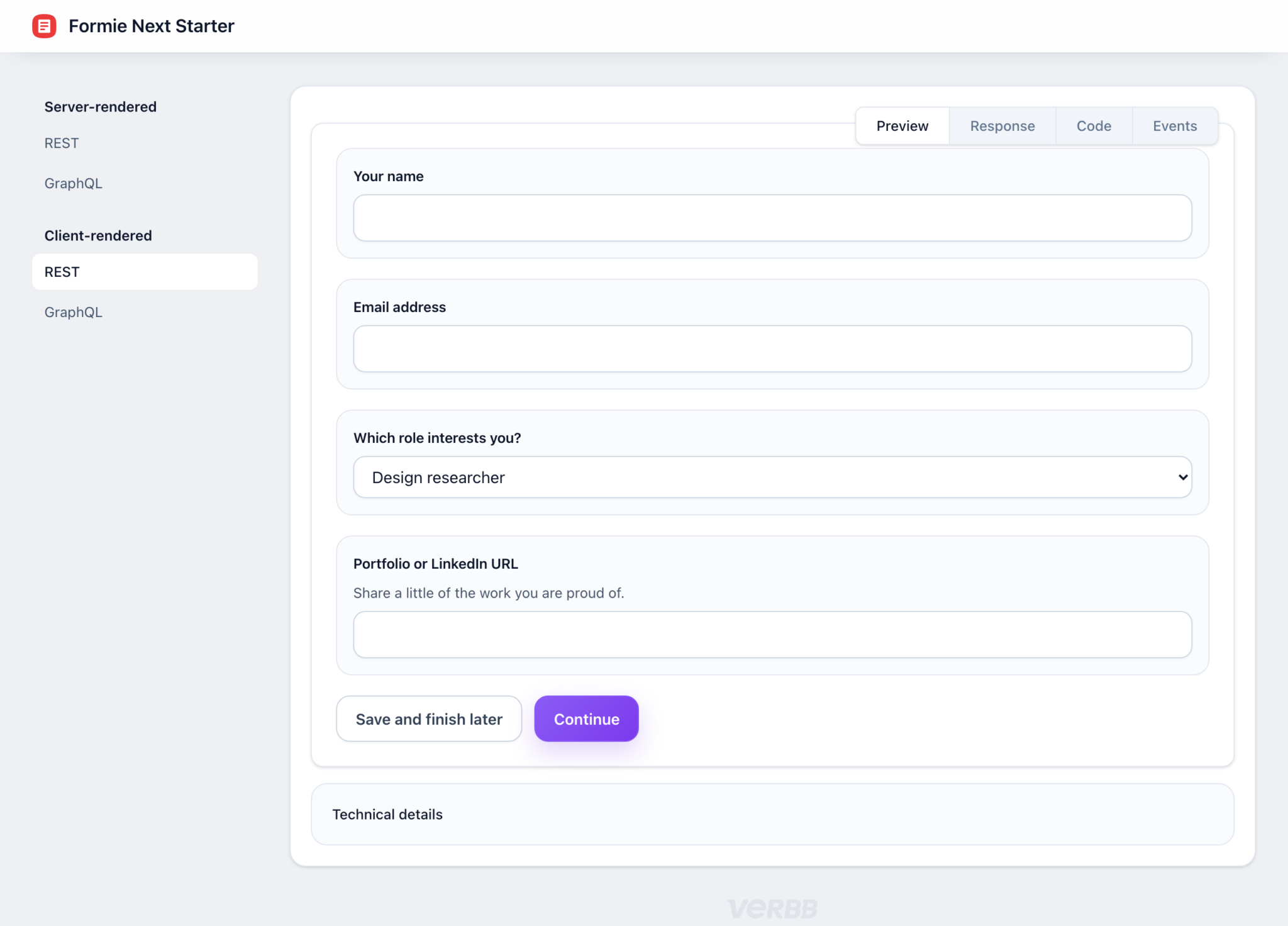
We've also published starter projects and working examples (opens new window) for React, Vue, Web Components, Next.js, and Nuxt, along with examples for Barba.js, Sprig, and Datastar. They give you somewhere to explore the rendering approaches before wiring them into your own project.
More options for payments
Payment forms get some attention too. Stripe subscriptions can include a one-time setup fee and a limit on the number of recurring payments, giving you more ways to structure what you're collecting.
GoCardless now uses Billing Request Flows for hosted authorisation, with support for recurring subscriptions. We've also improved frontend handling for payments that need an extra customer action, such as 3D Secure authentication.
If your forms take payments, include those flows in your upgrade testing. The Payment docs cover the available providers and link to their setup instructions.
Ready to upgrade
You can upgrade from Formie 3 on Craft 5, or from Formie 2 on Craft 4 (no need to go to Formie 3).
Compatibility Mode is enabled by default to help existing projects through the transition. It bridges selected older APIs and extension points while deprecation warnings guide developers towards the updates they need to make. Keep it enabled while you test and update your custom code.
The upgrade guide covers compatibility and breaking changes, and the release history (opens new window) has the full changelog.
Thanks to everyone who tried the beta, reported issues, and helped us get here. If you need a hand with your upgrade, get in touch through Verbb support or GitHub issues (opens new window).
Welcome to Formie 4.