Overview
A menu is a named collection of nodes — the links and structural items that make up your navigation tree. In the control panel, menus live under Navigation → Menus.
Create a menu
- Go to Navigation → Menus and click New menu.
- Set a name and handle (for example
mainMenu). - Configure site settings, permissions, and limits on the settings screen.
- Save, then open the menu to use the menu builder.
Menu builder
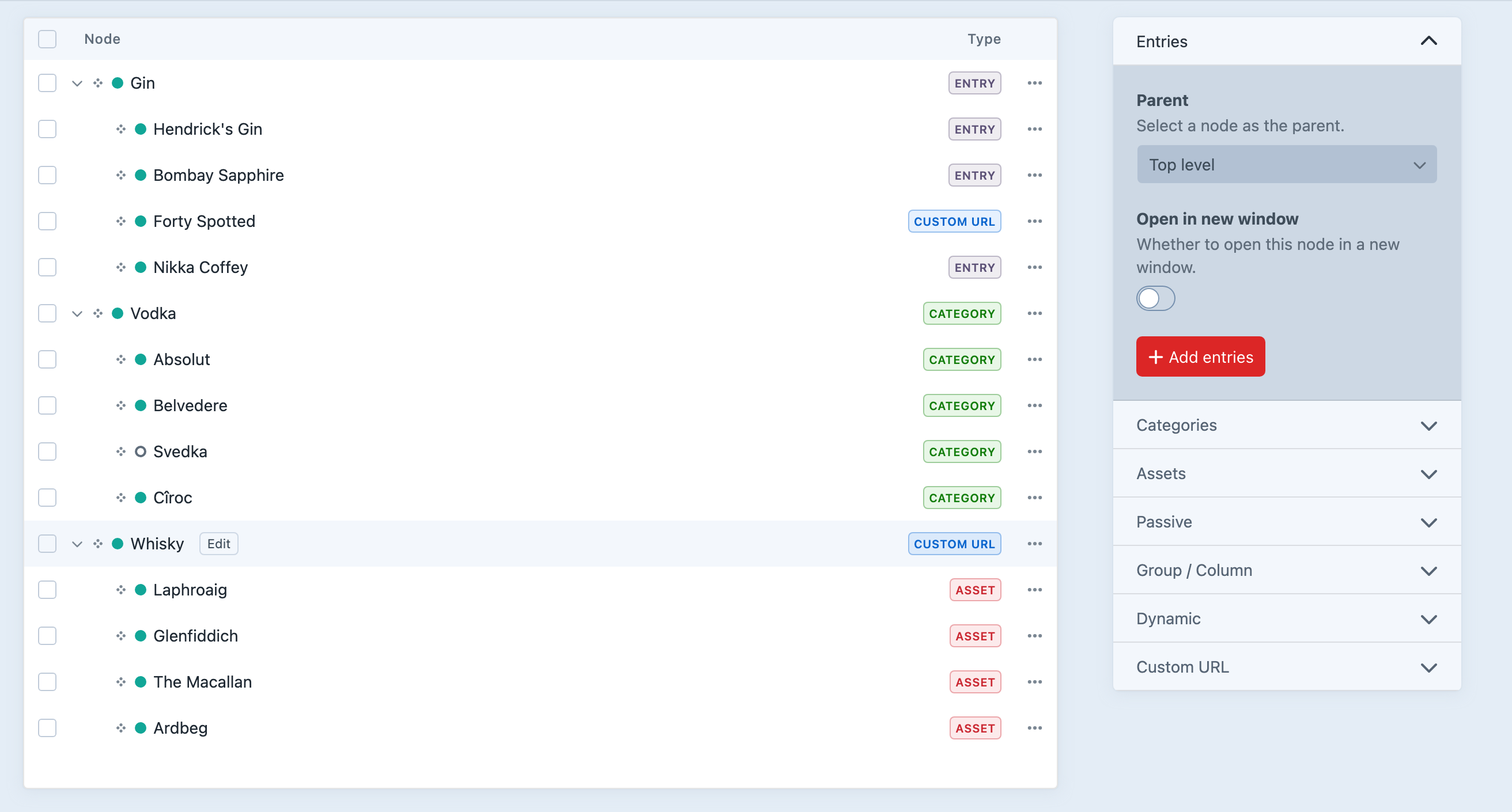
In the menu builder you can:
- Add nodes from the sidebar (entries, categories, custom URLs, passive groups, Dynamics, and more).
- Drag nodes to reorder or nest them.
- Edit a node in a slide-out for per-node settings and custom fields.
- Change structure, add nodes, or mark nodes for deletion — then Save menu or Discard when you are done.
Until you save, those changes are not visible on the front-end.
Linked elements
When a node links to a Craft element (entry, category, etc.), the node title and enabled state sync from that element by default. Override the title or enabled state in the node editor when you need menu-specific values.
If the linked element is soft-deleted, the node is disabled automatically and restored when the element is restored. See Events — Linked-element lifecycle.
Multisite
Each menu can be enabled per site. Node link settings (url, urlSuffix, linked element site) are stored per site in navigation_nodes_sites. Use Settings → Navigation to auto-enable new sites, or switch sites in the menu builder to edit per-site links.
Next steps
- Menu Fields — menu-level custom fields for mega menus and global nav content.
- Node Types — built-in node types and when to use each.
- Rendering Nodes — output the menu in Twig.