Carts
The Carts screen lists every abandoned cart Abandoned Cart has dealt with, so you can see what happened to a particular customer's cart and step in when you need to. Open it from Abandoned Carts → Carts.
The Carts List
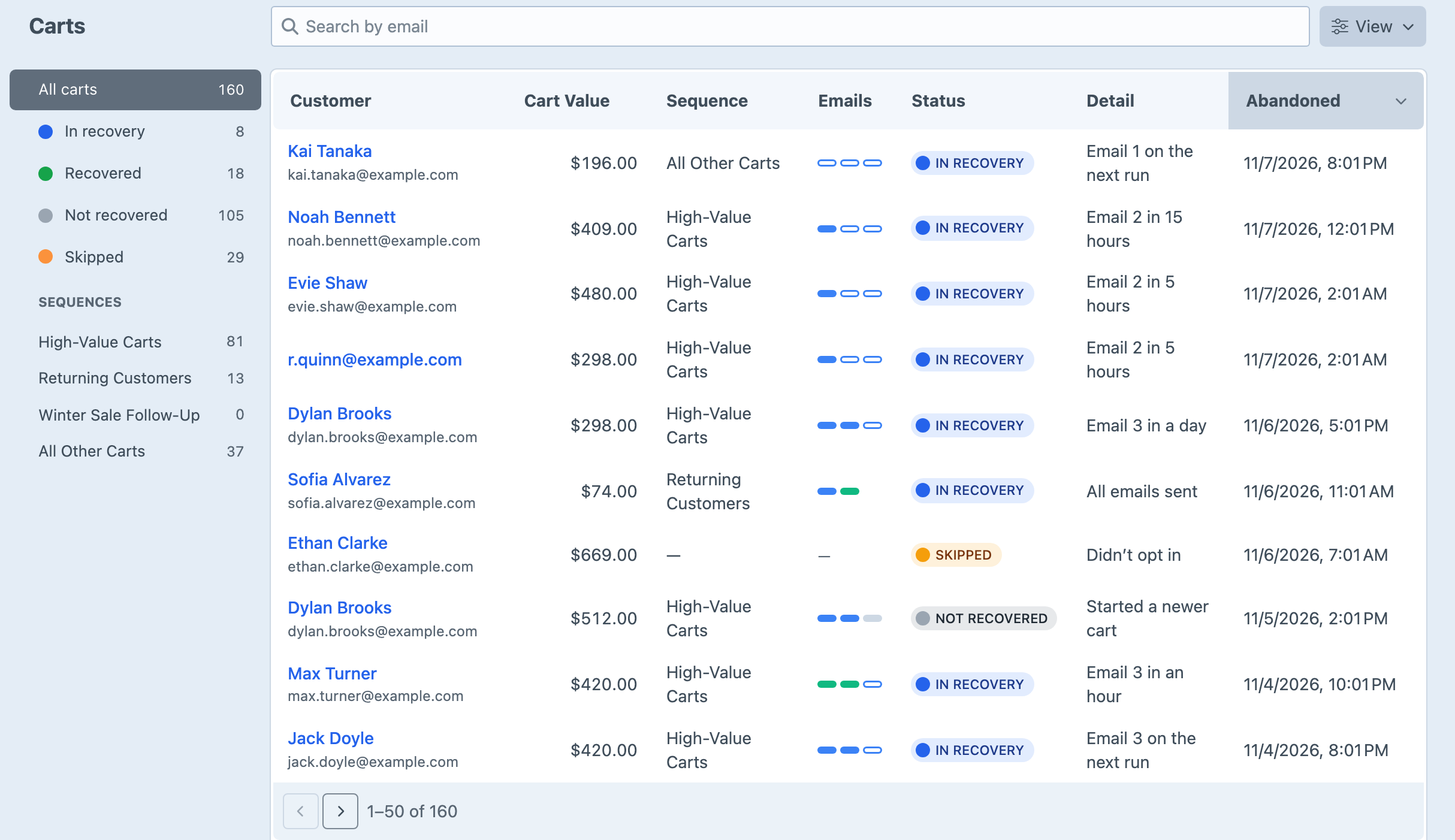
Each row is one abandoned cart, showing the customer, the cart's value, the sequence it entered, its progress through that sequence's emails, its status and when it was abandoned. The abandoned date is when the customer last changed the cart, which is where the Abandoned After wait began.
Search by email address to find a particular customer's carts. The search only matches email addresses, so when a customer gives you their name, search for them on the Customers screen instead, where each customer's page lists all their carts.
The sidebar lists each status with its number of carts:
- In recovery carts are in a sequence whose recovery period hasn't ended. The Detail column says when the next email is due, or All emails sent once the last one has gone out, because a cart stays in recovery until its recovery period ends.
- Recovered carts were followed by a completed order from the same customer, within the attribution window after an email.
- Not recovered carts left recovery without a recovered order, and the Detail column gives the reason.
- Skipped carts were never emailed, and the Detail column gives the reason.
Below the statuses, the sidebar lists your sequences, so you can show only the carts that entered one of them.
Why a Cart Might Not Be Listed
When a customer asks why they didn't get a reminder and you can't find their cart, one of these is usually the reason:
- The cart has no email address, or no items. Abandoned Cart only picks up carts it could email.
- It hasn't gone the Abandoned After time without changes yet, an hour by default, or the next background run hasn't happened since.
- Every sequence was switched off when it was left. Nothing is picked up, or recorded as skipped, while all sequences are off.
- It was left before recovery was switched on. Sequences only take carts that become abandoned after they're switched on.
- The background run isn't happening. An admin can check under Abandoned Carts → Settings → System Status.
- The customer completed the order, so it was never an abandoned cart.
- It's older than Keep History For, 365 days by default, and its record has been removed.
- The customer was deleted from the Customers screen, which removes their carts' history.
If the cart is listed under Skipped, its page gives the reason it wasn't emailed.
The Cart Page
Select a cart to open its page. The heading shows where the cart is up to: when the next email goes out, how much was recovered and from which order, or why recovery ended.
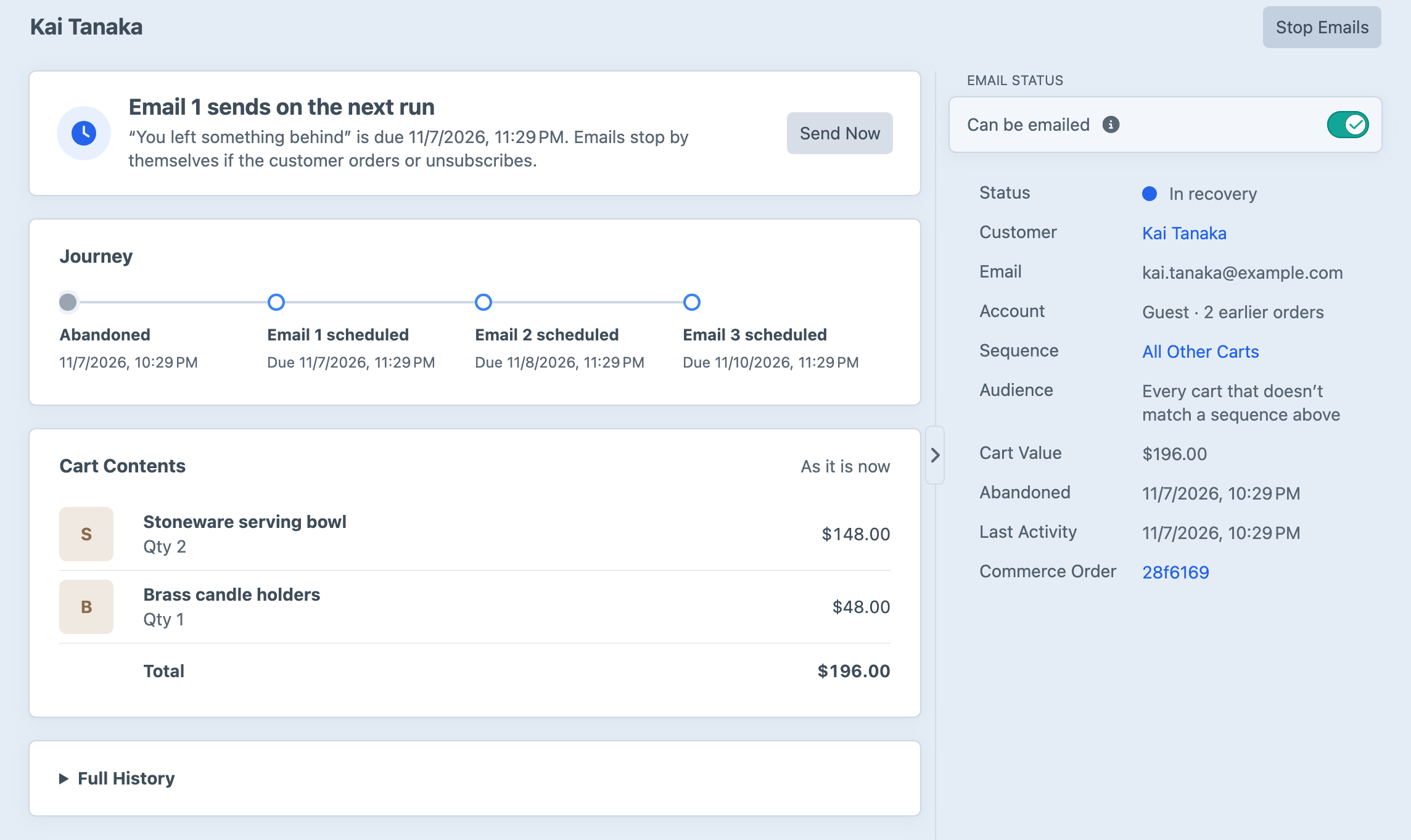
For a recovered cart, the page shows which email the order was credited to, whether the customer clicked before ordering or bought without clicking, whether it was their first order, and the discount code they used, if any. Overview explains how credit is decided.
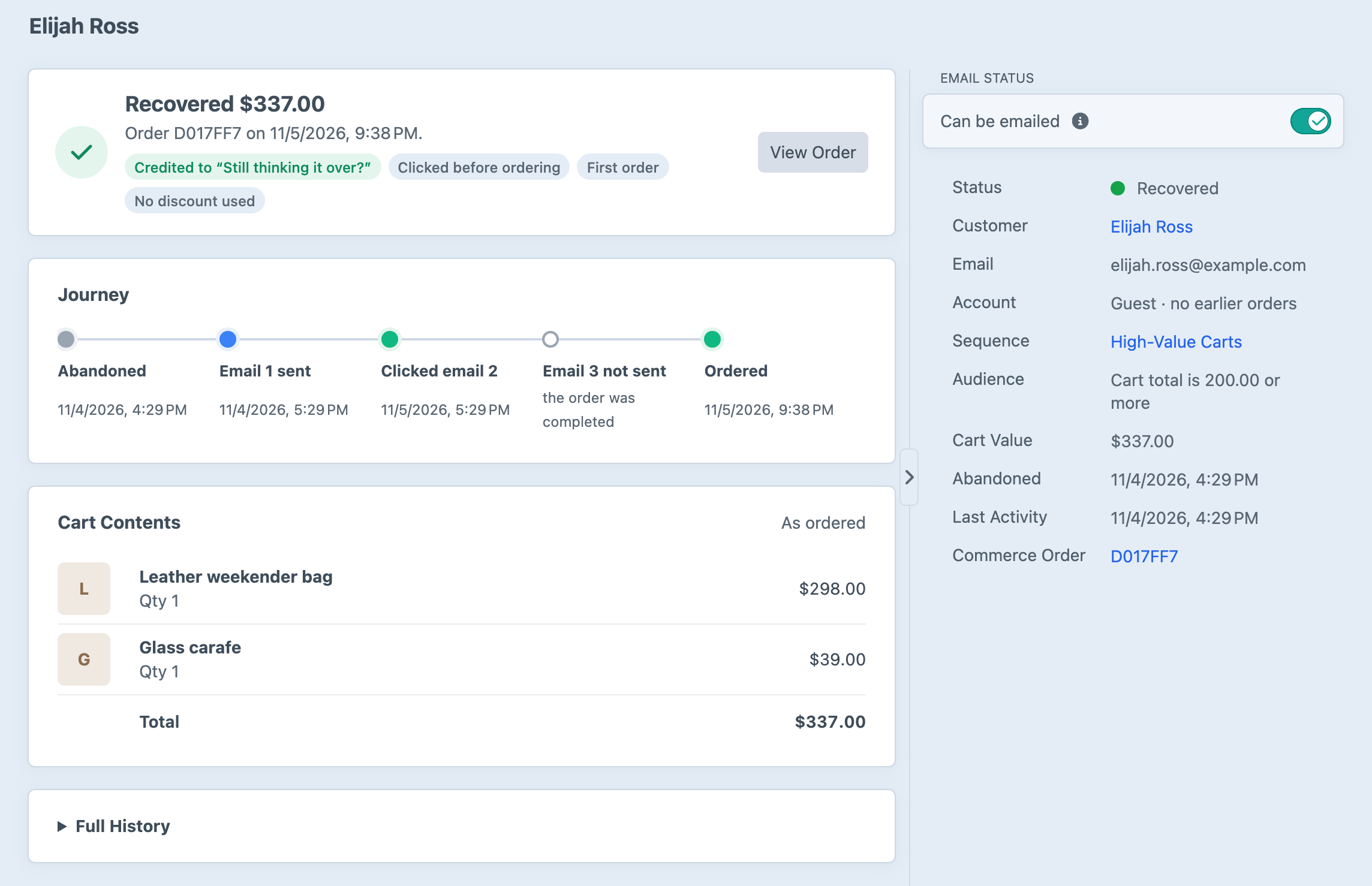
When the customer completed a different cart, such as one on another device, the recovered panel says so, and View Order opens the order that was completed. The cart on this page stays incomplete in Commerce.
Journey
Journey shows each step: when the cart was abandoned, each email with its status, any clicks, and the order. Each email shows one of these:
| Status | What It Means |
|---|---|
| Scheduled | The email is waiting, and the date it's due is shown. It goes out on the first background run after that time. |
| Sending | The email is being sent right now. |
| Sent | The email went out, at the time shown. |
| Clicked email N | The email went out, and the customer followed its link and had their cart restored. |
| Failed | The email couldn't be sent after three tries, or sending was interrupted, and the reason is shown. Staff can choose Retry. |
| Not sent | The email was cancelled before it went out, and the reason is shown. |
An email is Not sent for one of these reasons:
| Reason | What Happened |
|---|---|
| the cart had already left recovery | The recovery had already ended when this email came to be sent. |
| the recovery period ended | The email fell after the end of the recovery period. |
| the cart was deleted | The Commerce order was deleted. |
| the cart is empty | The customer removed every item. |
| the customer can't be emailed | The customer unsubscribed or was added to Do Not Email. |
| the email was deleted from its sequence | Someone deleted this email from the sequence after the cart entered it. |
| a plugin or module cancelled it | Custom code on your site stopped this email. |
| the order was completed | The cart was recovered, so the emails still to come were cancelled. |
When a recovery ends for one of the reasons in Why Recovery Ends, its remaining emails show that reason in lower case, such as "stopped by staff" or "started a newer cart".
Full History
Full History lists everything Abandoned Cart did with the cart, newest first. Most lines explain themselves, such as "Entered All Other Carts", "Email 1 sent" with its subject, or "Cart restored from email 2's link". A few need a word of explanation:
- "Cart changed, so the next email moved later" means the customer changed the cart while it was in recovery, so the remaining emails waited.
- "Next email sent manually" and "Email 2 retried by staff" record someone choosing Send Now or Retry.
- "Moved to the customer's newer cart, order …" means the customer left a newer cart, which took over this recovery. You'll see it on the newer cart's page, which also shows the emails sent while the recovery was on the older cart.
When a Newer Cart Takes Over
When a customer leaves a newer cart while this one is in recovery, the newer cart takes over the recovery, as Sequences explains. The emails, including any already sent, move with it. This cart's page then shows Not recovered: started a newer cart, explains that its emails carry on with the newer cart, and has a View Newer Cart button. Its Journey shows "Emails moved to a newer cart".
Cart Contents
Cart Contents shows the cart as it is now, labelled As it is now, or as it was ordered once it's complete. It isn't a copy from when the cart was abandoned, so if the customer has since changed it, the items can differ from what the emails showed. If Commerce has since deleted the cart, the card says so and shows what the cart was worth when it was abandoned.
Each item shows its product image, the same one Commerce shows in its product index, or its first letter when there's no image.
The Sidebar
The sidebar starts with Can be emailed. Staff with the Manage Do Not Email permission can switch it off to add the customer to Do Not Email, which stops their emails, or back on to remove them. It can't be switched on for a customer who unsubscribed, and removing Do Not Email from a customer who had unsubscribed first leaves them unsubscribed. Below it are the cart's status, the customer with a link to their customer page, whether they have an account and how many orders they've completed before, the sequence and its audience, the cart's value, when it was abandoned and last changed, and a link to the order in Commerce.
Sending, Stopping and Retrying Emails
Staff with the Manage sequences and send emails permission can act on a cart that's in recovery:
- Send Now sends the next scheduled email straight away. The emails after it move earlier by the same amount, so they keep their gaps instead of arriving in a burst. It works while the cart's sequence is off, but not while all sending is paused.
- Stop Emails ends the cart's recovery and cancels its remaining emails, with the reason Stopped by staff. If the customer later changes the same cart and leaves it again, that counts as a new abandonment, and the cart can enter a sequence again.
- Retry appears beside an email that failed to send, in the cart's Journey. It sends that email again straight away, with a fresh set of automatic retries if it fails again. It isn't available once the cart has left recovery, or while all sending is paused.
To stop every email to a customer, rather than for one cart, add them to Do Not Email from their customer page.
Why Recovery Ends
When a cart leaves recovery without being recovered, its page and the Not recovered view show one of these reasons:
| Reason | What Happened |
|---|---|
| Emails finished | Every email in the sequence was sent, and the recovery period ended without an order. |
| Recovery period ended | The recovery period ended before every email could be sent. |
| Started a newer cart | The customer abandoned another cart, which took over this cart's recovery and its remaining emails. |
| Unsubscribed | The customer unsubscribed from cart reminders. |
| Added to Do Not Email | Staff added the customer to Do Not Email. |
| Ordered before any email | The customer completed an order, from this cart or another, before the first email was sent. |
| Ordered after the attribution window | The customer completed an order, from this cart or another, but too long after the last email to count. |
| Cart emptied | All the items were removed from the cart, which is noticed when its next email falls due. |
| Cart deleted | The Commerce order was deleted. |
| Stopped by staff | Someone chose Stop Emails. |
Skipped Carts
A skipped cart was abandoned but never entered a sequence. Its page explains the reason in full:
| Reason | What It Means |
|---|---|
| Didn't opt in | A consent field is in use, and it wasn't switched on for this customer. |
| On Do Not Email | The customer is on Do Not Email. |
| Unsubscribed | The customer has unsubscribed from cart reminders. |
| Blocked domain | The email address is at one of the Blocked Domains. |
| Not a returning customer | Only Returning Customers is switched on, and the customer hasn't ordered before. |
| Contacted recently | The customer's last recovery had ended, and they were sent an email about another cart within the Contact Limit. |
| No sequence was on | No switched-on sequence matched the cart, usually because the default sequence is off. |
| Excluded by a plugin | A plugin or module excluded the cart, sometimes with its own explanation. |
Skipped carts appear in the Overview too, so you can see how many carts your rules hold back. If a large share are skipped for one reason, review the matching setting under Abandoned Carts → Settings → General Settings.