Sending & Scheduling
This page is for whoever sets up and looks after the site, usually a developer. Abandoned Cart does its work in a short background run. Each run ends recoveries whose time is up, finds carts that have gone quiet and starts their sequences, then sends the emails that are due. The background run needs to happen every few minutes, and System Status shows whether it does.
Scheduling the Run
Run the command every five minutes from cron. Replace both paths with the PHP executable and Craft project for your server:
*/5 * * * * /path/to/php /path/to/project/craft abandoned-cart/recoveries/runThe command sends emails itself, so it doesn't depend on Craft's queue. Each run prints a one-line summary, such as Enrolled 3, skipped 1, sent 5, failed 0, not sent 0, ended 2., which is useful in cron logs. "Enrolled" counts carts that started a sequence or were taken over by a newer cart, "not sent" counts emails cancelled during the run, such as for a cart that was emptied, and "ended" counts recoveries that ended because their recovery period ran out or their cart was deleted.
Each run sends at most 100 due emails, oldest first, and the rest go out on the following runs. That only matters when a backlog builds up, such as after sending has been paused for a while.
Recovery and unsubscribe links are built from each site's base URL. A run from the command line has no web address to work from, so a site whose base URL is @web gets links without a domain, such as /abandoned-cart/recover/…, in emails sent by cron. Give each site an absolute base URL, such as $PRIMARY_SITE_URL, or set Craft's CRAFT_WEB_URL environment variable.
If you can't add a cron job, Abandoned Cart falls back to Craft's queue. While at least one sequence is on, any site or control panel request queues a run (shown as Sending abandoned cart emails in the queue) when there hasn't been one for five minutes. Craft's queue must be running for those jobs to be processed, which it is by default. On a quiet site, though, requests can be hours apart, and emails go out late. Cron keeps the timing regular.
Only one run happens at a time. If a run starts while another is still working, it waits a few seconds, then stops and reports that another run is already in progress.
Which Carts Are Picked Up
A cart is picked up when it's an incomplete Commerce order with at least one item and an email address, and it has gone without changes for the Abandoned After time. Carts without an email address can't be emailed, so Abandoned Cart ignores them. Each run picks up at most 100 carts, and the next run continues where it left off. A cart that has been quiet for longer than the Abandoned After and Recovery Ends After times together (seven days and an hour by default, or the longest of your sequences' overrides) is never picked up, so carts left during a long gap in the background run aren't emailed late. The maxEnrollmentsPerRun setting changes that limit.
Before a cart starts a sequence, Abandoned Cart checks, in order, whether its customer is on Do Not Email or has unsubscribed, whether the address is at a blocked domain, whether the customer has given consent, and whether the store only emails returning customers. Then it finds the first sequence the cart matches and checks the Contact Limit. Finally, plugins and modules can exclude a cart with the beforeEnroll event. A cart that fails a check is recorded as skipped, with the reason, so you can see on the Carts screen why it wasn't emailed. Carts lists the reasons.
A customer has at most one cart in recovery at a time. When they abandon a newer cart while an older one is still in recovery, the newer cart takes over the older cart's recovery, as Sequences explains. Links in emails already sent restore the newer cart too. The Contact Limit doesn't apply to a takeover, because no extra email is sent.
Recovery Period, Attribution and Contact Limit
Three settings control how long a cart stays in recovery, which orders count as recovered, and how often a customer can start a sequence. Each has a default under Abandoned Carts → Settings → General Settings, and each sequence can override them.
Recovery Ends After (seven days by default) sets the recovery period, which is how long a cart stays in recovery after it's abandoned. Once it's up, any emails that haven't been sent are cancelled, and the cart's recovery links show an expired page instead of restoring the cart.
Attribution Window (five days by default) is how long after the last email a completed order still counts as recovered, even if the customer didn't click. A customer who reads your email, then types your store's address into their browser and buys, counts, whether they complete the same cart or start a new one. An order more than five days after the last email doesn't.
Contact Limit (seven days by default) stops customers who abandon often from receiving a stream of reminders. A new cart doesn't start a sequence if the same customer was sent a recovery email for another cart within this time. Only emails that were actually sent count.
System Status
Abandoned Carts → Settings → System Status shows whether recovery is working. It opens with a verdict: everything's working, recovery is off, or what needs attention.
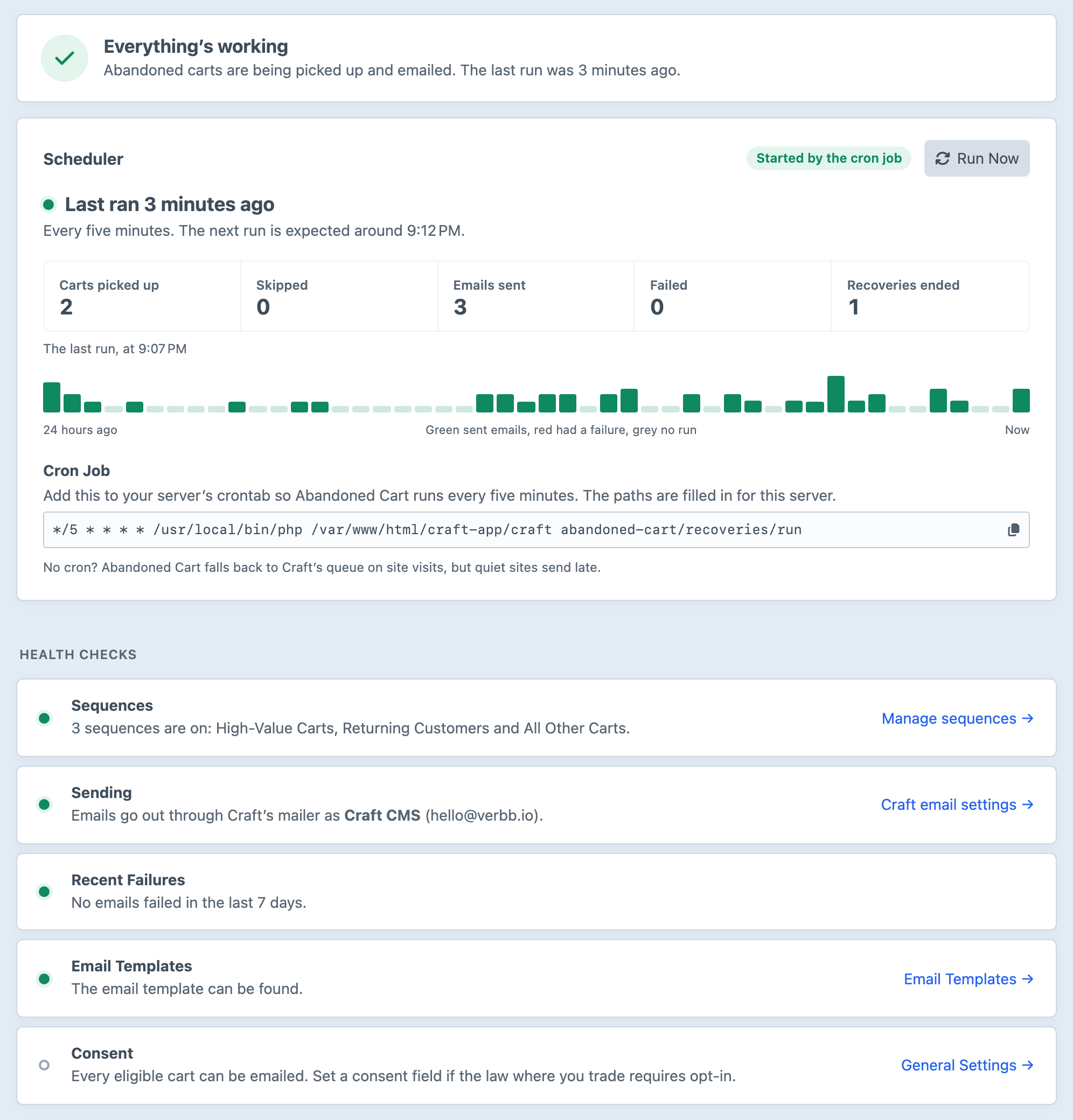
The Scheduler card shows when the background run last happened and, while it's running on time, a label saying how it's being started:
| Label | When It Appears |
|---|---|
| Started by the cron job | Recent runs came from the console command at a regular interval. It takes three runs, no more than 15 minutes apart, before this label appears, so a new cron job shows Started from the command line for its first 10 minutes or so. |
| Started by Craft's queue | The latest run came from the queue fallback. Add the cron job so emails go out on time on quiet sites. |
| Started from the command line | The command ran, but not at a regular interval, such as when someone ran it by hand. |
When the only recent runs came from Run Now, the card says "Last started by Run Now." without a label.
The background run needs attention when it hasn't happened yet, or hasn't run for more than 30 minutes, while a sequence is on. The card then shows Overdue instead of the label. It also shows what the last run did, a strip of the last 24 hours in half-hour slots (how many emails went out, any failures, and gaps where nothing ran), and the Cron Job line to copy into your crontab. Once the command has run from the command line, that line uses the path to PHP it ran with, and until then it says php. Run history is kept for seven days.
Run Now does what the cron job does, straight away. It picks up carts that have gone quiet, sends emails that are due and ends finished recoveries. It's handy after changing a setting or while testing, and it isn't counted as a scheduled run. It needs the Manage sequences and send emails permission.
Health Checks cover the other things that most often stop emails from going out. Anything that needs attention is listed first, with a link to where you'd fix it.
| Check | What It Tells You |
|---|---|
| Sequences | Which sequences are switched on. |
| Sending | Whether sending is paused, and the name and address emails come from. |
| Recent Failures | How many emails couldn't be sent in the last seven days, and the latest reason. |
| Email Templates | Whether every email template's files can be found. |
| Consent | Whether a consent field is in use, and whether it still exists. |
Apart from Run Now, System Status only displays information, so it works on production environments where allowAdminChanges is off. It's available to admins and to users with the View System Status permission. Where admin changes are off, General Settings, Email Templates and Sequence Presets are read-only, as in Craft's own settings.
Pausing All Sending
Pause All Sending in Abandoned Carts → Settings → General Settings holds every recovery email from every sequence. It's meant for emergencies, such as discovering a mistake in an email that's already going out. Carts keep entering sequences while sending is paused, and their emails wait. When you switch it off, emails that are due go out from the next run, at most 100 per run, except those whose cart has reached the end of its recovery period in the meantime.
If the switch is greyed out on your live site, ask your developer to pause sending in the site's configuration file.
General Settings are stored in project config, so on a production environment where allowAdminChanges is off, the switch is read-only. To pause sending there, set deliveryPaused in your configuration file, or point it at an environment variable you can change without a deployment. deliveryPaused shows how. The same setting suits development and staging environments that hold a copy of your customers' addresses.
Turning off a single sequence is different. It also stops new carts from entering that sequence, while other sequences carry on as normal.
Failures and Retries
Emails go out through Craft's mailer, using the sender in Craft's Settings → Email. If the mailer reports a failure, Abandoned Cart tries again 15 minutes later, then 30 minutes after that. After three tries, the email is marked Failed, and the cart's history shows the mailer's reason. Staff with the Manage sequences and send emails permission can choose Retry beside a failed email on the cart's page to send it again straight away.
If a run is interrupted while sending, such as by a server restart, nobody can tell whether the email left the mail server. Abandoned Cart marks it failed rather than risk sending it twice, and the history says so.
The Overview's Needs Attention figure and System Status both count recent failures, so they're the first place to look when emails seem to be missing. Send failures are also written to Craft's logs, usually in storage/logs.
History Retention
Keep History For (365 days by default) controls how long finished and skipped carts stay in the history. Older records are removed during Craft's garbage collection, and they leave the Overview's totals at the same time. Carts still in recovery are never removed. Customers, with their unsubscribe or Do Not Email status, are kept until someone deletes the customer. The minimum is 30 days.
When Emails Aren't Going Out
Start with System Status, which checks most of these for you.
| What You See | What to Check |
|---|---|
| The Scheduler card shows Overdue, or nothing has run | The cron job isn't running, or on a site without cron, nobody has visited recently. Scheduling the Run has the command. |
| Carts are In recovery, but their emails stay scheduled | Pause All Sending is on, or deliveryPaused is set for this environment, or the cart's sequence is switched off. |
| No carts appear on the Carts screen at all | Every sequence is switched off, or no cart has gone the Abandoned After time without changes since one was switched on. Carts lists the other causes. |
| Carts are listed under Skipped | Each one's page gives the reason. If most share one, such as Didn't opt in, review that setting. |
| Emails show Failed | The mailer refused them. The cart's history and Craft's logs have the reason, and Settings → Email has a Test button. |
| Emails arrive, but their links have no domain | The site's base URL is @web. See Scheduling the Run. |