Overview
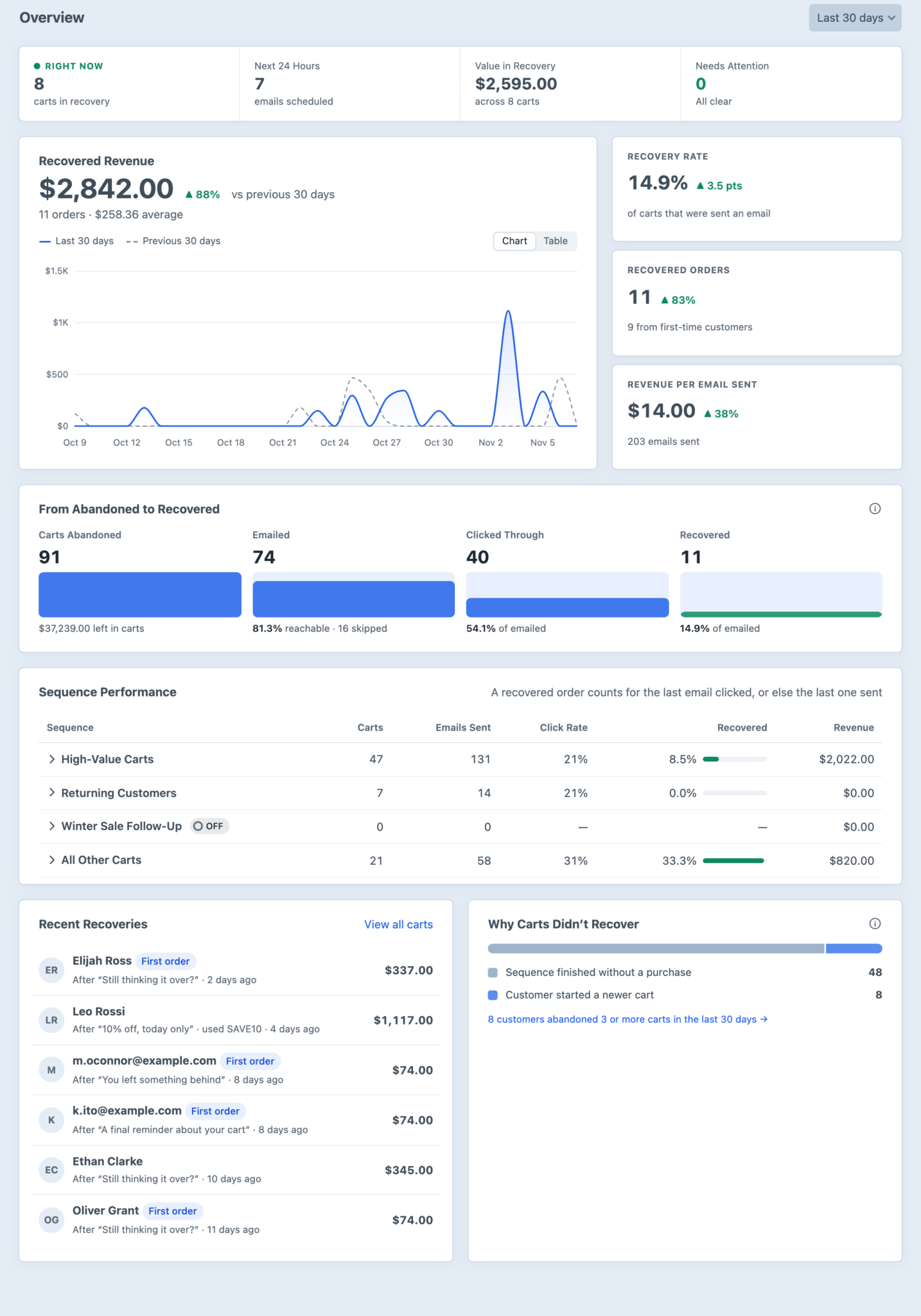
The Overview is the first screen under Abandoned Carts. It shows what cart recovery is earning your store, how carts move from abandoned to recovered, and which sequences and emails are doing the work. Is It Working? walks through reading it after your first month.
Before Recovery Starts
On a new install, before any cart has entered a sequence and while no sequence is on, the Overview shows a setup checklist: check your sending details, review the default sequence's emails, send yourself a test and turn on recovery. Beside it, Last 30 Days shows the value left in incomplete carts over the past month, read from your Commerce orders, and how many of those carts had an email address. Those are the carts your emails could have reached. Create Your First Sequence follows the checklist step by step. The Send Yourself a Test and Turn On Recovery steps only show their buttons to people with the Manage sequences and send emails permission. Everyone else sees the steps without the buttons.
Once a sequence is on, the Overview explains what happens next until the first cart enters a sequence. Results usually start appearing within a day or two.
The Right Now Strip
A strip across the top shows the current state of recovery: how many carts are in recovery, how many emails are scheduled for the next 24 hours, the value of the carts in recovery, and how many emails failed to send in the last seven days under Needs Attention. Selecting a failure count opens System Status, which needs the View System Status permission.
Results for a Period
Choose the last 7, 30 or 90 days. Each figure is compared with the period before it, so you can see whether a change to your emails made a difference. In your first period there's nothing to compare with, so most figures show no change, and Recovery Rate shows its whole value as a rise. Carts are counted in the period in which they were abandoned, with two exceptions noted below.
- Recovered Revenue is the total of the orders that were recovered, with the number of orders and their average value. Its chart shows recovered revenue by the day each order was placed, against the previous period, so the chart doesn't always add up to the total above it.
- Recovery Rate is the share of carts that were sent at least one email and went on to be recovered.
- Recovered Orders counts recovered orders, and how many came from first-time customers.
- Revenue per Email Sent divides recovered revenue by the number of emails sent during the period, which helps you judge whether an extra email in a sequence is worth it.
From Abandoned to Recovered shows the funnel: carts abandoned, carts emailed, carts whose customer clicked through, and carts recovered. Under each stage is the value left in abandoned carts, the share of carts that could be emailed and how many were skipped, and the share of emailed carts that clicked through and that were recovered. The info icon beside the heading links to the skipped carts, so you can see why they weren't emailed.
On a store that sells in more than one currency, the Overview adds totals from every currency together without converting them, and shows the sum in your primary store's currency. The same applies to the figures on the Sequences screen and customer pages. Read the money figures as a rough guide on these stores, and use each cart's page, which shows its own currency, for exact values.
Carts from a Blocked Domain are usually bots or test orders, so the Overview leaves them out of its totals, its funnel, Why Carts Didn't Recover and the frequent-abandoner count. The funnel's info icon says how many it left out. They're still listed under Carts → Skipped.
Sequence Performance
The Sequence Performance table compares your sequences for the chosen period: carts entered, emails sent, click rate, recovery rate and revenue. Here the recovery rate is the share of carts that entered the sequence and were recovered, so it can differ from the headline Recovery Rate, which only counts carts that were sent an email. A bar beside each rate helps you compare sequences at a glance. Expand a sequence to compare its emails, which shows where customers come back and whether a later email earns its place.
Recent Recoveries lists the latest recovered carts, with the email the customer clicked before ordering, or a note that they bought without clicking an email, and any discount code they used.
Why Carts Didn't Recover groups the carts that left recovery without a credited order: the sequence finished without a purchase, the customer started a newer cart, they unsubscribed or were added to Do Not Email, the cart was emptied or deleted, they ordered without an email's help, staff stopped the emails, or an email failed to send. A large share for one reason is a prompt to review the matching setting. Carts that were skipped before any email are in the funnel instead. When customers have abandoned three or more carts in the last 30 days, a link underneath says how many and opens the Customers list.
How Recoveries Are Credited
A cart counts as recovered when its customer completes an order within the Attribution Window after the last email the cart was sent, five days by default. The customer doesn't have to click, and the order doesn't have to come from the same cart. Someone who reads the reminder, comes back by typing your address and buys from a fresh cart still counts. Orders are matched to the customer by email address, or by their user account.
The recovery is credited to the last email whose link restored the customer's cart. A click that didn't restore it, such as on an expired link or one that asked the customer to sign in first, doesn't count. If no link restored the cart, the recovery is credited to the last email sent. The cart's page shows which applied, as Clicked before ordering or Bought without clicking, and when the order came from a different cart, it says so and links to that order.
A cart whose customer completed an order before any email was sent isn't counted as recovered, and nor is one whose order was completed after the attribution window closed. Both appear under Not recovered, with the reason, so they don't inflate the results.