Emails & Email Templates
Each email in a sequence has two parts. The email itself holds its timing and wording: the subject, a heading, a short message, the button label and an optional discount code. Its email template decides how that content is laid out. Editors write and adjust emails on the sequence page, while email templates are set up once by an administrator or developer.
You don't need a template of your own to start. Abandoned Cart includes a responsive email design that shows the customer's cart, and every email uses it until you choose otherwise.
Adding and Editing Emails
Open a sequence from Abandoned Carts → Sequences. Its emails appear in a timeline after Cart abandoned. Select an email to edit it in a panel that slides out over the page, or choose + Add email to add one at the end. + Add email here between two emails inserts one at that point, and the emails after it keep their gaps. A new email after the first starts with a delay of one day.
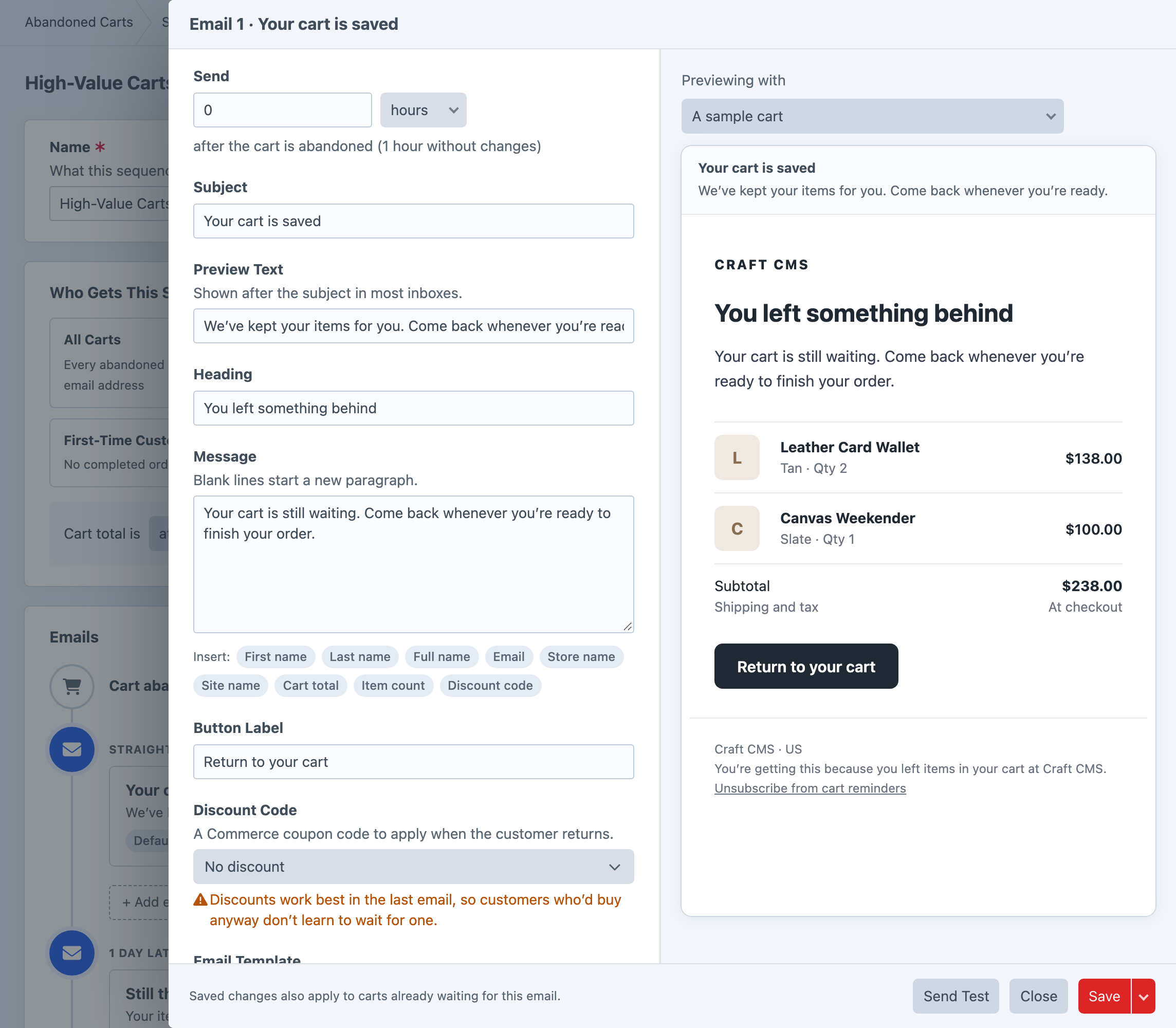
A new email starts blank. Start From offers the emails from your sequence presets, grouped by preset, if you'd like some starting wording. Choosing one fills in the fields, which you can then change.
A sequence can have up to five emails. Two or three suit most stores, and more than that tends to annoy customers rather than bring them back.
Each email has these fields:
- Send sets when the email goes out, in minutes, hours or days. For the first email, it's counted from when the cart is abandoned. For later emails, it's counted from the email before.
- Subject is the email's subject line, and the only required field.
- Preview Text is the short line that most inboxes show after the subject.
- Heading is the large title at the top of the email.
- Message is the main text. Leave a blank line to start a new paragraph.
- Button Label is the text on the button that takes the customer back to their cart. It reads "Return to your cart" when left empty.
- Discount Code is a Commerce coupon code to apply when the customer returns through this email.
- Email Template chooses the design. Default template uses whichever template is currently the default.
The preview beside the fields updates as you type. It starts with a sample cart, priced in your store's currency, and you can choose one of your store's real carts in Previewing with to see how the email looks for that customer.
Every email is sent from the name and address in Craft's Settings → Email. Developers can change the sender for recovery emails with the beforeSend event.
Changing an email's wording or discount code affects every copy of it that hasn't been sent yet, including emails already scheduled for carts in the sequence. Changing its delay only affects carts that enter the sequence afterwards. Sequences explains why.
Personalising with Tokens
Tokens are placeholders that Abandoned Cart replaces with details from each customer's cart. Write them in curly braces in the subject, preview text, heading, message or button label, or use the Insert buttons below the message to add one where your cursor is. For example, a subject of {firstName}, your cart is saved becomes "Amelia, your cart is saved".
| Token | Replaced With |
|---|---|
{firstName} | The customer's first name, or "there" when it isn't known, so "Hi {firstName}" still reads naturally |
{lastName} | The customer's last name |
{fullName} | The customer's first and last names |
{email} | The customer's email address |
{storeName} | The name of the Commerce store the cart belongs to |
{siteName} | The name of the site the cart belongs to |
{cartTotal} | The cart's total, formatted in its currency |
{itemCount} | The number of items in the cart, counting quantities |
{discountCode} | This email's discount code |
Names come from the cart's billing address, or its shipping address when there's no billing address, and then from the customer's user account.
Including a Discount
To offer a discount, first create one in Commerce with a coupon code, then choose the code in the email's Discount Code field, which lists your Commerce coupon codes with the name of their discount. A store with many generated codes sees the first 500, with codes from enabled discounts first. You can also type a code that isn't listed, such as one from another plugin. When a customer returns through that email's link, the code is applied to their cart. The bundled design shows the code in a highlighted box, and {discountCode} lets you mention it in the wording.
Abandoned Cart applies the code but doesn't check whether it's valid for the cart. Commerce checks its own conditions, such as a minimum order value or an expiry date, whenever it recalculates the cart, so a code that doesn't apply gives no discount. Test a discount with a real cart before relying on it. Discounts usually work best in the last email, so customers who were going to come back anyway don't receive one.
Testing an Email
Choose Send Test in the email panel and enter an address in Send To. The test is sent as the email stands in the panel, including changes you haven't saved, using the cart chosen in Previewing with. Its subject starts with [Test], and its recovery and unsubscribe links are placeholders that don't do anything.
Before any sequence is on, the Overview's setup checklist includes a Send Yourself a Test step that sends every email in the default sequence to you at once, filled in with a sample cart.
Email Templates
Email templates are managed under Abandoned Carts → Settings → Email Templates, which only administrators can see. The list shows each template's name and handle, whether it uses the bundled design or your own files, and how many emails use it.
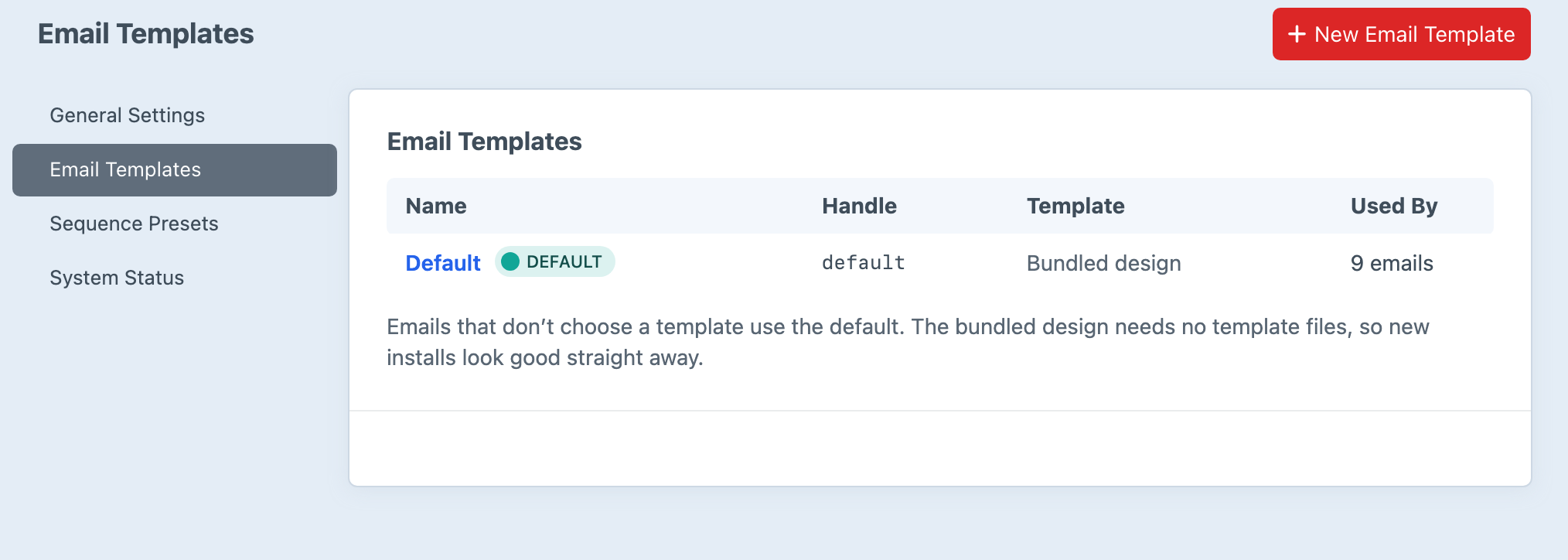
A fresh install has one template, Default, that uses the bundled design. The bundled design shows the store name, the email's heading and message, the items in the cart with their quantities and prices, the discount code when there is one, the button back to the cart, and a footer with the store's address and an unsubscribe link. It also sends a plain text version.
Creating a Template
Choose New Email Template and fill in these fields:
- Name is what the template is called in the control panel, and Handle is how code refers to it.
- HTML Template is the path to a template in your site's templates folder, such as
_emails/abandoned-cart/html. Leave it empty to use the bundled design. - Plain Text Template is an optional path to a plain text version. When it's empty, the plain text version is made from the HTML.
- Copy Templates copies the bundled design to the paths you entered, so you start from a working template. It's on by default, it never overwrites existing files, and it's only offered when you create a template.
- Default Template makes this template the one used by emails that don't choose a template.
Custom Email Templates explains what your template files receive and walks through building one.
The Default Template
There's always exactly one default template. Making another template the default switches it off for the previous one, and you'll need to make another template the default before you can delete the current one.
Deleting any other template is safe. The emails that used it fall back to the default.
System Status warns you if a template's file can't be found.
Twig in Subjects and Preview Text
This section is for developers. A subject or preview text that contains {{ or {% is also rendered as Twig, in a restricted sandbox, with the Commerce order available as order. Tokens are replaced first. This is mainly useful for translating a subject on a store that sells in several languages:
{{ 'Your cart is waiting' | t('site') }}Emails render in the language of the customer's order, or the language of the cart's site when the order doesn't have one, so the subject above uses your site translations for that language. Developers can choose a different language with the resolveLanguage event.
The heading, message and button label only support tokens, not Twig. The sandbox limits which filters, functions and object properties are available, and in previews and tests that use the sample cart, order is null. Tokens cover most needs and work everywhere, so prefer them for personal details and keep Twig for translation.