Rich Authoring
Visitors write comments in a comment editor that starts as a single line beside their avatar and opens when they click into it. With rich authoring, which is the default, they can format what they write in the Editor, mention people and add images or files. It suits a community that writes longer comments or needs to refer to code and quotes. Plain authoring keeps the same comment editor without the Editor and saves plain text, which suits a site that wants short replies and as little as possible to moderate.
Choose between them with Authoring Mode under Comments → Settings → Authoring, or with the authoringMode setting. The Editor is installed with Comments, so there's nothing else to set up. With Rich (Editor), commenters can use bold, italic, strikethrough, lists, quotes, code and links.
The setting decides how new comments are written. Each comment keeps the format it was written in, so changing the mode doesn't affect how existing comments display. A rich comment keeps its formatting when its author edits it, even after you switch to plain authoring.
Replies open in place under the comment, with “Replying to” and the person's name at the top and a Cancel button beside Reply. Guests give their name and email at the top of the editor, and get the Editor with its formatting, while mentions and attachments need a visitor to be signed in. In either mode, Cmd/Ctrl+Enter posts, and an unsent comment is kept in the browser as a draft.
The Editor only loads when it's needed. Every visitor starts with Comments' own lightweight editor, which looks the same, and with rich authoring the Editor loads and takes over when someone clicks into it, opens a reply or edits a comment, bringing across anything they've typed. Pages where nobody can post, and pages where nobody starts writing, never load it. With plain authoring it only loads to edit a comment that was written with rich authoring, so that its formatting is kept.
If the Editor can't load, visitors write in the plain box and can still post. A rich comment can't be edited in the plain box, and trying shows an error rather than flattening it to plain text.
Mentions
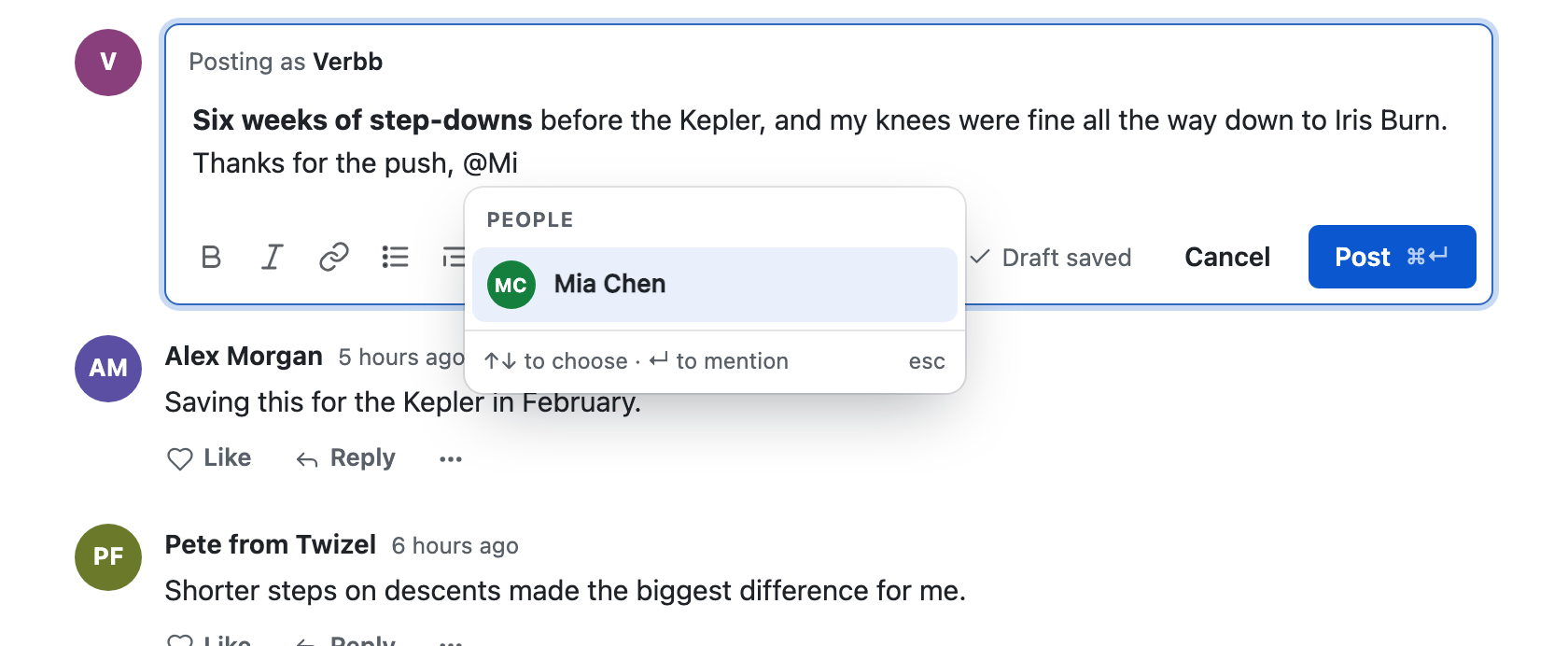
Allow Mentions is on by default. A signed-in commenter types @ and at least two characters of a name, and picks from the suggestions. Suggestions are limited to people connected to the discussion, meaning the element's author and anyone with an approved comment on it that the thread shows. Members of the Moderator User Group are only suggested once they've commented publicly there, and someone whose only comments are waiting for review, marked as spam or removed isn't suggested, so the suggestions never reveal who that is. This keeps your whole user list private, and keeps a mention from reaching someone with no connection to the page.
A mention links to the person's name when the comment displays. While the mention notification is turned on, which it is by default, the person is emailed once the comment is approved. See Notifications for People Taking Part.
Attachments
Turn on Allow Attachments and choose an Attachment Volume to let signed-in commenters add images and files. New files are only allowed with the types in Allowed File Types and sizes under Maximum File Size, which default to images and PDFs up to 10MB. Comments doesn't need commenters to have any access to the volume or the control panel, but they can only upload where they could comment.
An upload stays temporary until the comment it belongs to is posted, and uploads that are never posted are cleaned up by the Editor. A visitor who presses submit while a file is uploading is asked to wait, so it isn't lost. A comment can be nothing but an image or file.
Files go in the volume's root unless you set an Attachment Subfolder. Like an Assets field's upload location, it can use the comment's properties in Twig, such as comments/{owner.section.handle} for a folder per section, or {commentDate|date('Y/m')} for one per month. Each part is cleaned like a filename, and Comments makes the folder the first time a file needs it. When the folder can't be worked out for a comment, such as {user.id} for a guest's comment, its files go in the root, so posting never fails over where a file is kept.
A folder's name is part of every file's address in it. Leave out anything personal, such as {user.email} or {user.username}, and use an ID or date instead.
Removing an attachment from a comment only removes it from that comment. The asset stays in your volume, so anything else using it keeps working.
Keeping Uploads Safe
Comments checks every file someone uploads, both attachments and files for an Assets custom field. Pages, SVG drawings, XML and scripts are refused whatever Allowed File Types lists, a file has to be what its extension says, and images lose their metadata, including where a photo was taken, before they're stored. TIFF images are refused, and HEIC and AVIF photos, which phones often take, are only accepted when the server has PHP's Imagick extension to remove their metadata, so on a server without it people are asked for a JPEG or PNG instead.
The files are still other people's, so serve the upload volume from a separate host, such as uploads.example.com, rather than your site's own address, and have that host send X-Content-Type-Options: nosniff with every file, so a browser never treats one as something else. The Attachment Volume setting warns when the volume serves files from one of your site's own addresses.
With nginx, add the header in the location that serves the uploads:
location /uploads/ {
    add_header X-Content-Type-Options nosniff always;
}
With Apache, add it to the uploads host's configuration or an .htaccess file in the uploads folder:
Header always set X-Content-Type-Options "nosniff"Check it by opening an uploaded file's URL in your browser's developer tools and looking for X-Content-Type-Options: nosniff among the response headers.
GIFs from GIPHY
Turn on Reply with GIFs under Comments → Settings → Authoring and add a GIPHY API Key to let commenters add a GIF from GIPHY (opens new window) to a comment or reply, with plain or rich authoring. In the plain form, a GIF button sits beside Cancel and Post. With rich authoring, it's a GIF button in Editor's toolbar, beside the other things a commenter can add, and the search opens above it. Either way, it shows what's trending until the commenter types, and the GIF they choose shows below what they've written, with a button to take it off. A comment can be just a GIF. Its author can change or remove the GIF when they edit the comment, which marks it as edited.
Get a key for the web from your GIPHY developer dashboard (opens new window). GIPHY's terms require each visitor's browser to search GIPHY itself, with nothing in between, so the key is included in the page for anyone who can comment, and only for them. It's the kind of key GIPHY expects to be public, so treat it as you would a map or font service's key rather than a secret. A new key is limited to 100 searches an hour across your whole site until you apply to GIPHY for a production key, and GIPHY, not Comments, enforces that limit.
GIF Content Rating sets the highest rating commenters can search for, and defaults to G. Results show as GIPHY returns them, with “Powered by GIPHY” in the picker, as GIPHY requires. Nothing contacts GIPHY until someone opens the picker, and the picker's code is only downloaded then too. The chosen GIF is saved as GIPHY's address for it, which Comments checks is one of GIPHY's own before saving, and displays from GIPHY like any image.
Moderators see a comment's GIF in its page in the control panel, and can tick Remove GIF to take it off and keep the text. Spam checks and keyword filters read the comment's text, not its GIF, so GIPHY's rating is what limits the GIFs themselves.
GraphQL can read a comment's gifUrl, and the data API can read and set it.
Reading and Posting Rich Comments in Your Own Code
The thread from craft.comments.render() handles all of this for you. If you build your own interface on Comments' data API, each comment's content has its format, its plain text and, for a rich comment, its html, which Editor has already sanitised on the server. A rich comment is posted with format set to rich and Editor's document JSON as document. The @verbb/comments-core package gives your own interface a client for the data API, and the React and Vue packages draw the standard thread in an app, as Data API and Headless Overview explain.
Through GraphQL, the same content is available as contentFormat, contentHtml and contentDocument, which are covered in GraphQL. To show a rich comment from a comment query in Twig, output comment.getRenderedBodyHtml(), because comment.comment holds only its plain text.