Adding Comments to an Entry
Start with an entry that has a public page and a Twig template you can edit. You'll display the comments, post a comment and approve it, which is the path every comment takes with Comments' default settings. Then you'll add a Comments field, so editors can see and manage the discussion from the entry itself.
Two defaults affect this test. Guests can't comment until you turn on Allow Guest Comments under Comments → Settings → Commenting, so sign in as an ordinary user in a separate browser, or turn that setting on. New comments also wait for approval until you turn off Comments Require Moderation under Comments → Settings → Moderation.
Showing Comments on the Page
Place this in the entry's template where its comments should appear:
{{ craft.comments.render(entry) }}Open the page as your signed-in test user and you'll see a Comments heading, links to sort the comments, a message saying there are no comments yet, and the comment form. A signed-out visitor sees a Join the conversation card instead, with a way to sign in, and to comment as a guest when guests are allowed. Post a recognisable test message. The page tells you it's been submitted for moderation, because it isn't public yet.
Approving the Comment
Go to Comments in the control panel and choose Needs review, where your message is waiting with the reason Pre-moderation. Open it and press Approve in the sidebar. Reload the public page to confirm it's visible, then try replying, voting and reporting as your test user.
Test the page with the permissions your visitors will have, not only an administrator account. Administrators and moderators see held comments on the page too, marked as only visible to them. If the form doesn't appear, check which elements can have comments in Permissions. If a comment saved but doesn't appear, check its status in the Comments index before changing the template.
Adding a Comments Field
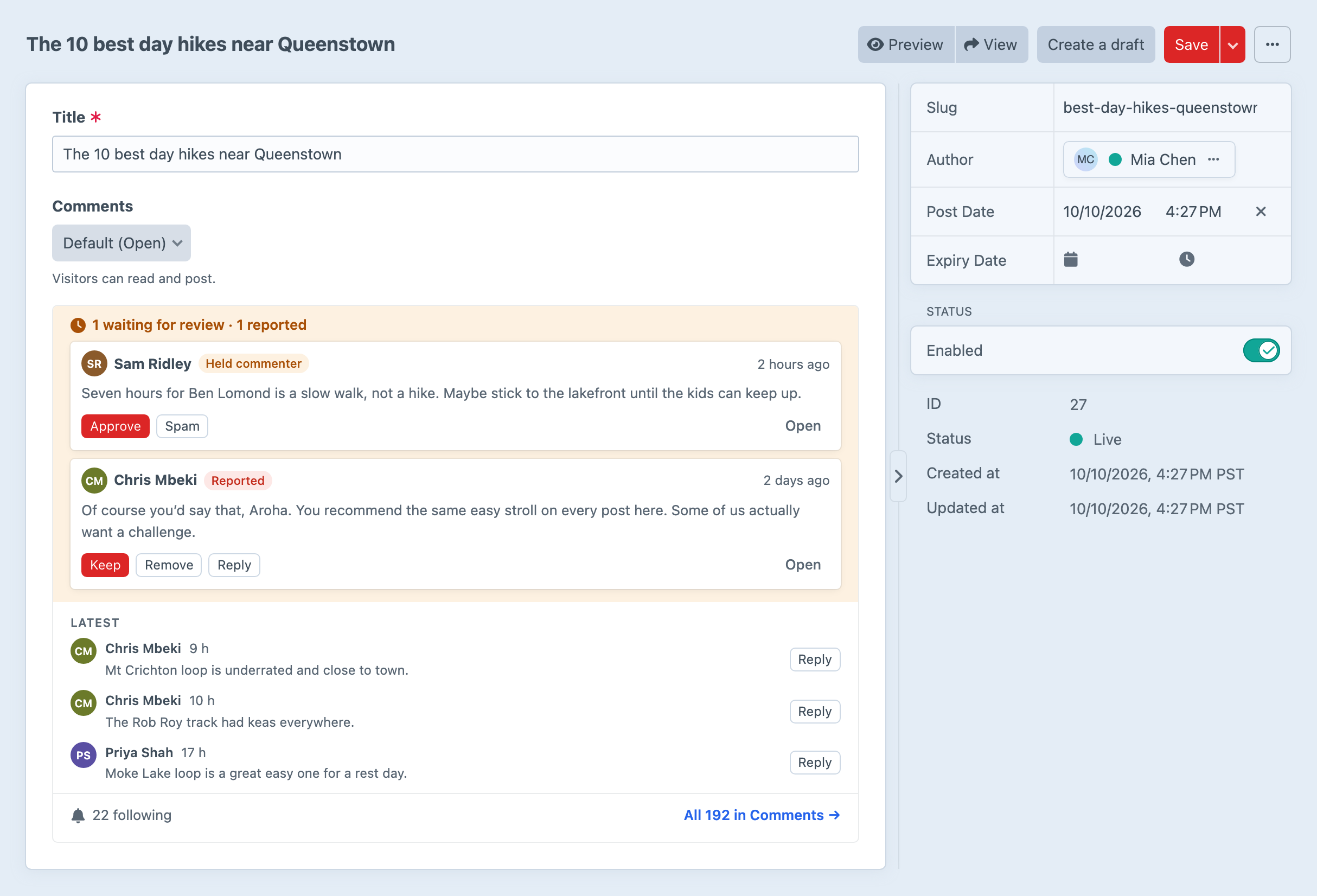
A Comments field lets editors open, close or turn off comments for one entry, and shows them what's waiting there. Create a field with the Comments type under Settings → Fields, then open your entry type's field layout, add a tab named Comments, and put the field on it. Keeping it on its own tab keeps it out of the way of people writing the entry.
Open your test entry and choose the Comments tab. The select shows Default (Open), because your source settings allow comments, and under it are the latest comments and how many people follow the discussion. When a comment is waiting for review or has been reported, it appears here too, with buttons to decide it in place.
Rendering Comments explains the options you can pass to render(), Per-Element Settings covers the Comments field's options, and Moderation covers what moderators can do from here.